Create Multiple Rules
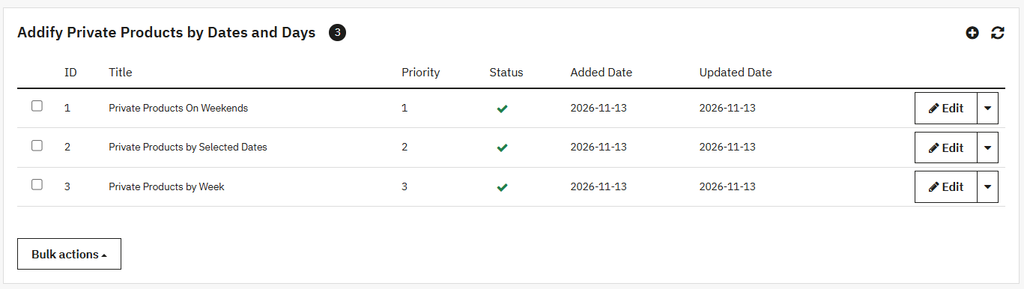
Click on the rules option to open the rule view, where you can view the list of all existing rules and also create a “New Rules”.
The details of extsing rule are displayed in a grid view. The grid detail is:
Grid Detail:
- ID: Show the ID of rules.
- Title: Display the title of the rule.
- Priority: Display rule priority.
- Status: Display rule status.
- Added Date: Display the edit date of rules.
Creating New Rule
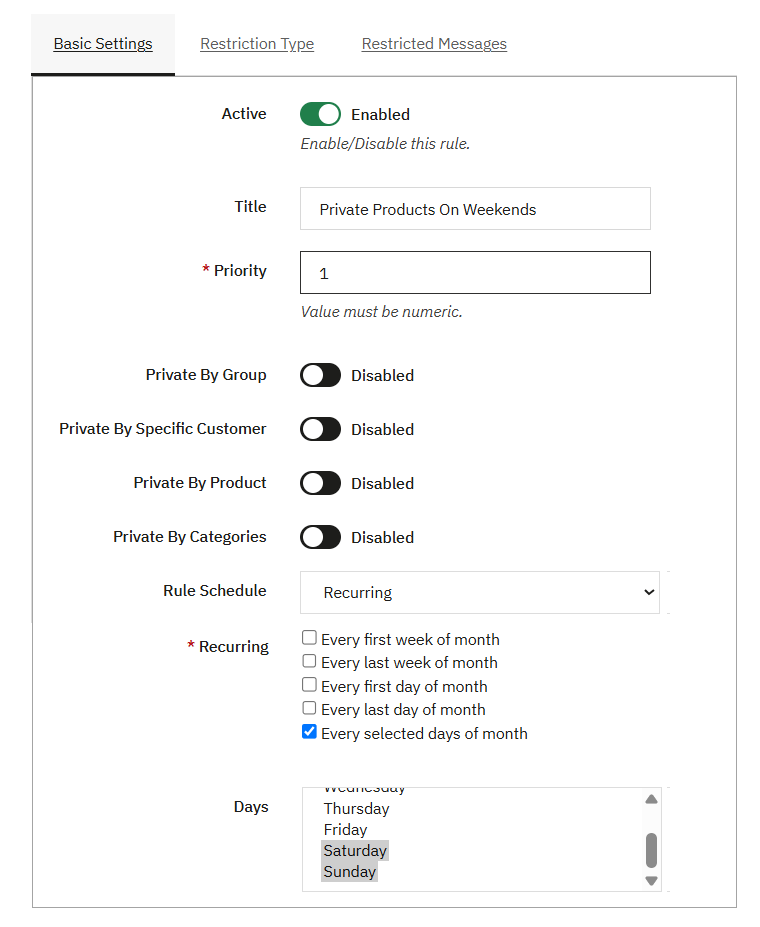
Basic Settings
To create a new rule, you can:
- Active: Enable/disable the rule as needed.
- Title: Add the custom title for the rule.
- Priority: Set the priority of the rule.
- Private By Group: Enable/Disable the private by group option. If enabled:
- Group: Select the specific user group from the list.
- Private By Specific Customer: Enable this option to select a specific customer for private access.
- Search Customer: Search and add the specific customer from the list.
- Private By Product: Enable this option to make the product private for a specific customer.
- Search Product: Search for and add the product that you want to make private.
- Private By Category: Enable this option if you want to restrict categories for a specific customer.
- Categories: Choose the specific categories from the list.
- Rule Schedule: Select the specific option from the list.
- If you select the option of “By start and End Date,” you can:
- Schedule this Rule: Enable or disable this option based on your preference. If enabled, you can:
- Start Date: Add the start date of the rule schedule.
- End Date: Add the end date of the rule schedule.
- Schedule this Rule: Enable or disable this option based on your preference. If enabled, you can:
- If you select the “Recurring” option from the dropdown and open the list will find where you can easily select the following options:
- Every first day of the month: Schedule the rule on every first day of the month.
- Every last week of the month: Schedule the rule in every last week of the month.
- Every first day of the month: Schedule the rule in every first day of every month.
- Every last day of the month: Schedule the rule on every last day of the month.
- Every selected day of the month: Select the specific days to schedule the rule
- Days: Select the specific days of the week from the list, including weekends.
Note: Once you schedule the rule, it will automatically reschedule every month based on the selected time period.
Restriction Types
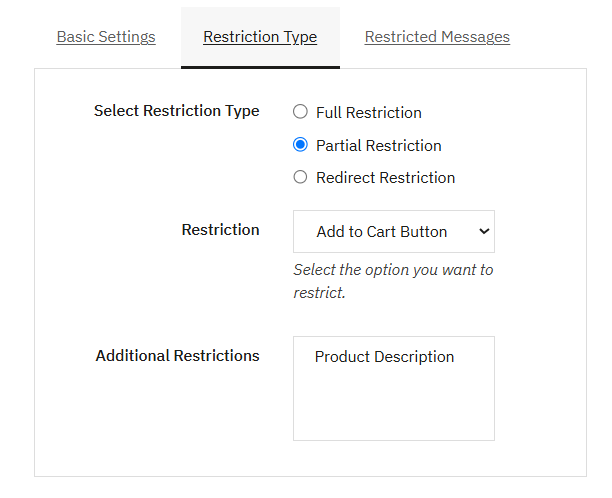
Open this tab to apply the following restriction based on your preference.
- Select Restriction type: Select the specific restriction type, such as:
- Full Restriction: Select this option if you want to restrict the complete store.
- Partial Restriction: Select this option if you want to hide the specific element of the product instead of hiding it completely. For partial restriction, you can:
- Restriction: Select an option such as “Add to Cart Button” or “Price and Add to Cart Button” from the dropdown to hide the selected elements accordingly.
- Additional Restriction: Add the option such n such as product image, description, etc., to hide the additional items
- Redirect Restriction: Apply this restriction by adding a redirect link so customers are automatically redirected to another product or page.
- Redirect URL: Add the redirect link where the customer will be redirected.
Restriction Message
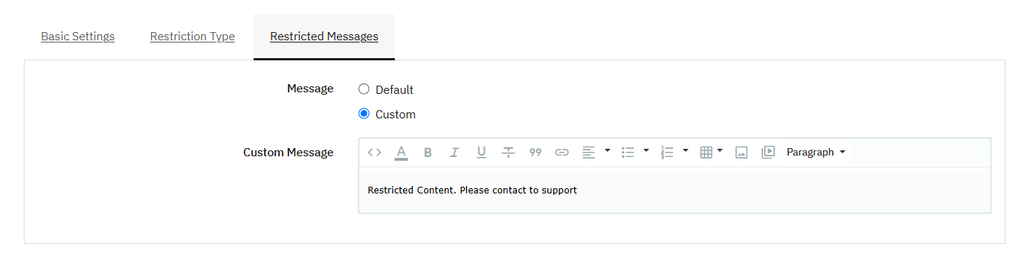
In case of full and partial restriction, you can add the customized messages to inform the customer about the restriction. To customize the messages, you can:
- Default: Choose this option to display the default message.
- Custom: Choose this option to display a custom message.
- Custom Message: Enter the text you want to show to customers to inform them about the restriction.
Rule Activity Log
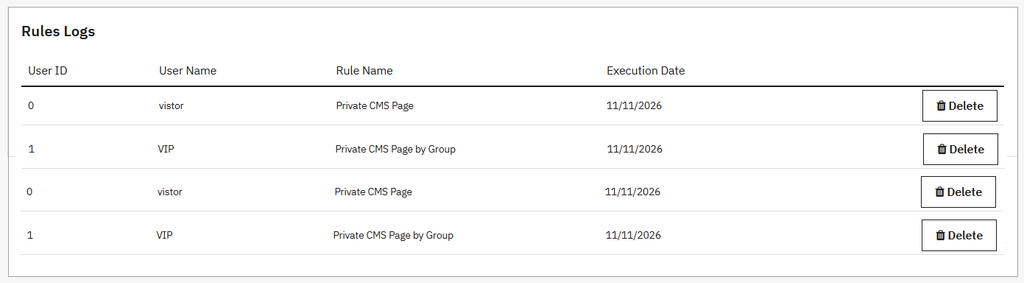
Click this option to view the logs of all rules that were created before. You can view the following details in a Grid view.
Grid Details:
- User ID: Display the user id.
- User Name: Display the name of the user.
- Rule Name: Display the name of the rules.
- Execution Date: Display the execution date of the rule.