
Accessing Detailed Stock Reports
To access detailed stock reports, including product price, cost, potential profit, and stock status using the WooCommerce Costs of Goods Sold plugin, follow these steps:
Go to WooCommerce > Cost of Goods Settings.
Click on the “Stock Report” tab.
The stock table provides valuable insights through the following columns:
- Product
- Stock Status
- Product Price
- Product Total Price
- Product Cost
- Product Total Cost
- Potential Profit
- Actions
You can see information such as the current stock status, product price, total price, product cost, total cost, potential profit, and actions for each product.

Exporting Stock Reports:
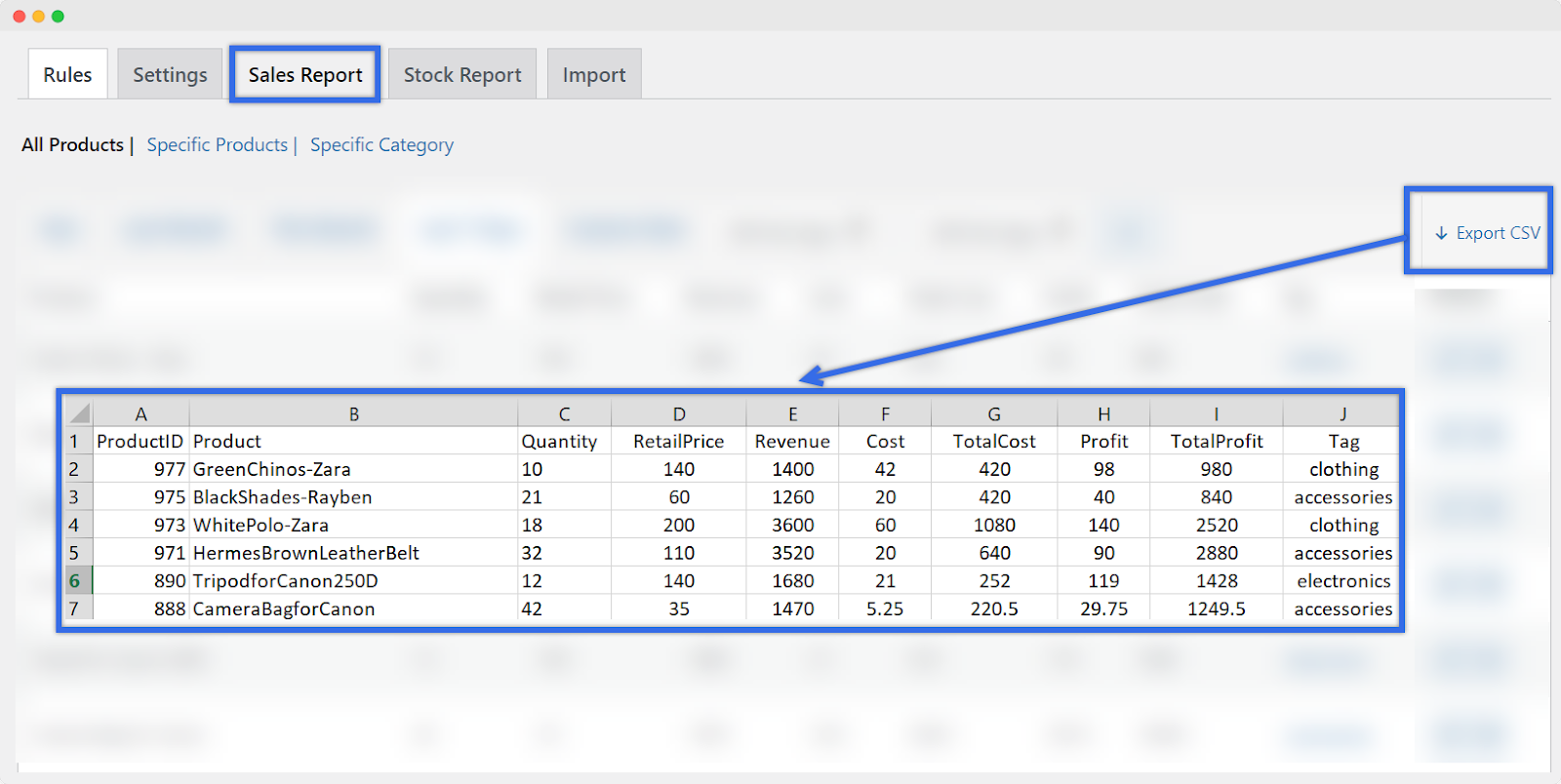
Click the “Export CSV” button to download the stock report in CSV format.
Specific Product and Category Stock Stats:
- To view stock statistics for specific products, navigate to the “Specific Products” tab.
- If you want to analyze stock data for specific categories, go to the “Specific Category” tab.
Understanding Columns in Stock Report:
Product: The name of the product.
Stock Status: The current status of the product in terms of stock levels.
Product Price: The price at which the product is listed.
Product Total Price: The total revenue generated from the product based on its current stock.
Product Cost: The cost associated with the product.
Product Total Cost: The total cost of goods sold for the product based on its current stock.
Potential Profit: The potential profit calculated as the difference between total revenue and total cost.
Actions: Additional actions you can take for each product.
By using the detailed stock report, you can efficiently manage your inventory, analyze product pricing, costs, and potential profits, and make informed decisions to optimize your stock levels and pricing strategy.