Creating Global Pricing Rules
GGo to WooCommerce > Price by Country. Here, you’ll find a detailed log of all pricing rules. You can create and manage multiple pricing rules on a global level. Here, you can:
- Add new price by country rules
- Edit or trash the existing rules
- Perform bulk actions on these rules
- Filter products by dates
- Search for existing rules in a log
To create a new rule, start by clicking on “Add New Rule”.

Adding a New Rule
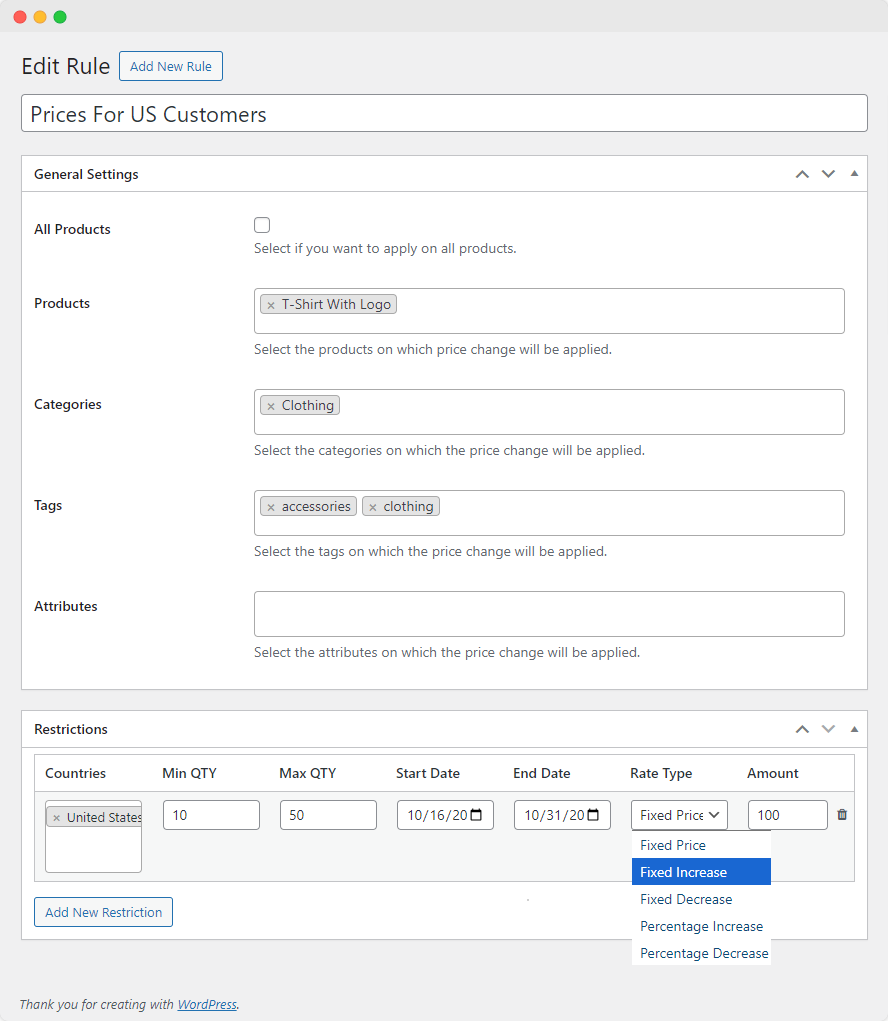
Start by providing the necessary details for the rule:
Add Title: Provide a descriptive name for this rule.
Specifying Products, Categories, Tags, & Attributes for the Rule
Products: Select the products on which price change will be applied.
Categories: Select the categories on which the price change will be applied.
Tags: Select the tags on which the price change will be applied.
Attributes: Select the attributes on which the price change will be applied.
Applying Restrictions to the Pricing Rule
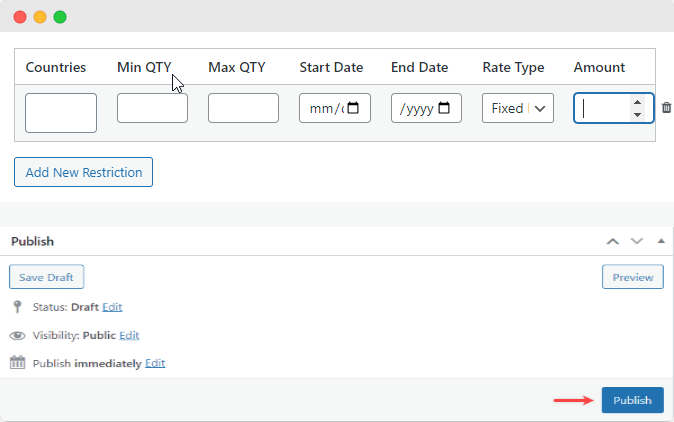
To create restrictions, click on “Add New Restriction”.
Countries: Select the countries where you want the pricing rule to be applied.
Rate Type: Choose the type of rate adjustment you want to apply:
- Increase by Fixed Amount: Add a specific amount to the product’s price.
- Decrease by Fixed Amount: Subtract a specific amount from the product’s price.
- Increase by Percentage: Increase the product’s price by a certain percentage.
- Decrease by Percentage: Decrease the product’s price by a certain percentage.
- Fixed Price: Set a fixed price for the product, regardless of its original price.
Amount: Enter the respective amount based on the selected rate type
Setting Pricing Rules at the Product Level
Navigate to the “Products” section in the WordPress Admin Panel. Choose the product on which you want to apply the pricing rule. You can either create a new product or edit an existing one.
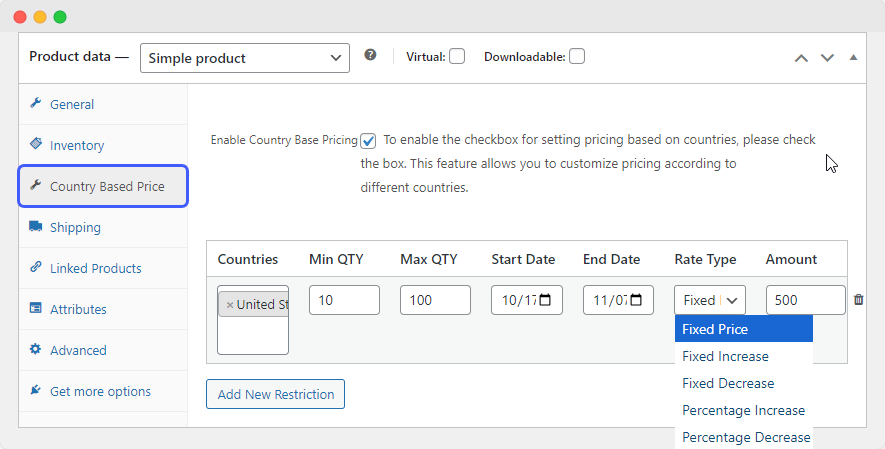
Once in the product editing page, find the “Product Data” section.
Within the “Product Data” section, locate the option labeled “Price by Country” and click on it. This will allow you to set pricing rules specific to different countries.
To create restrictions for the pricing rule, click on “Add New Restriction”.
Countries: Choose the countries on which the pricing rule will be applied.
Rate Type: Select the rate type that best fits your pricing strategy:
- Increase by Fixed Amount: Add a specific amount to the product’s price.
- Decrease by Fixed Amount: Subtract a specific amount from the product’s price.
- Increase by Percentage: Increase the product’s price by a certain percentage.
- Decrease by Percentage: Decrease the product’s price by a certain percentage.
- Fixed Price: Set a fixed price for the product, regardless of its original price.
Amount: Enter the respective amount for the price adjustment.
Once you’ve filled out all the necessary details and set the pricing rules, click on “Publish” to save the changes.