Charging Weight-Based Shipping Fee
Charging customers based on shipping weight is crucial for store owners as it prevents overcharging or undercharging customers, which can affect customer satisfaction and loyalty. Additionally, it helps in covering the actual shipping costs, leading to better financial management and profitability for the business. To apply this functionality to your store:
Install and activate the WooCommerce Weight-Based Shipping Fee plugin.
This plugin provides the option to charge customers based on weight-based shipping fees. To do this, you can create multiple rules and set the conditions as desired.
In your WordPress dashboard, go to WooCommerce > Weight-Based Shipping Fee.
Click on “Add New Rule”. A new interface will appear where you need to provide the following details:
Configure the Rule:
- Add Title: Enter a unique title for the rule.
- Shipping Setting:
- Shipping Title: Enter the title for the shipping method.
- Is Taxable: Select Yes or No to indicate if the shipping fee is taxable.
- Disable Shipping if Fee is Zero: Enable this checkbox if you want to remove the shipping method when the fee is 0.

- Shipping Pricing: Click on “Add New” and provide the necessary details:
- Selection Type: Choose from Specific Product, Specific Category, Specific Tag, or Specific Shipping Class.
- Select Specific: Specify the product, category, tag, or shipping class.
- Min Weight: Enter the minimum weight.
- Max Weight: Enter the maximum weight.
- Fee Type: Choose the fee type to be applied (Once or Per Kg).
- Fee Amount: Enter the fee amount.
- Specify Weight Based Shipping Cost: Enter the cost.

- Additional Conditions: Click on “Add Group” and provide the necessary details:
- Cart Based: Set conditions based on Subtotal, Subtotal Excluding Tax, Tax, Quantity, Coupon, Weight.
- User Based: Set conditions based on Zip Code, Country, State, City, User Role, Specific Customer.
- Product Based: Set conditions based on Width, Height, Length, Stock, Stock Status.
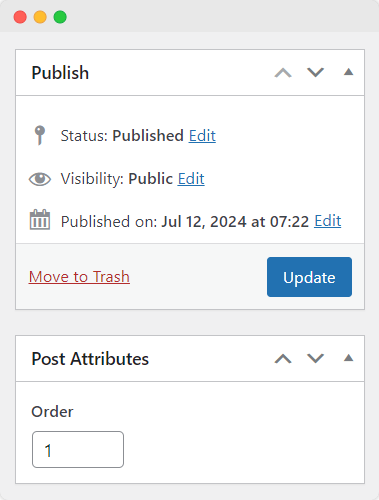
- Post Attributes: Specify the order of the rule.
Click on “Publish” to apply the rule or save it as a draft.