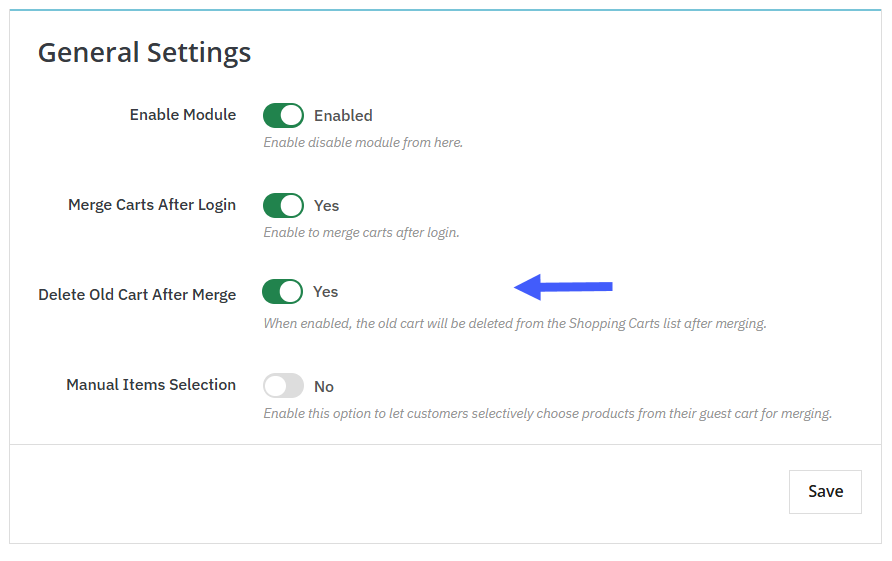
General Settings of PrestaShop Advanced Cart Merges
General Settings
Once you have installed the module, go to Module > Module Manager > Addify Merge Carts After Login and click on “Configure”. From its general settings, you can:
- Enable Module: Turn on the button to activate module and keep it disabled if you dont want to use it yet.
- Merge Carts After Login: Enable the option if you want to automatically merge guest users’ carts with logged-in users’ carts.
- Delete Old Cart After Login: Activate the button to delete old cart from the shopping list after merging.
- Manual Items Selection: Enable the option to let customers selectively choose products from their guest carts for merging.
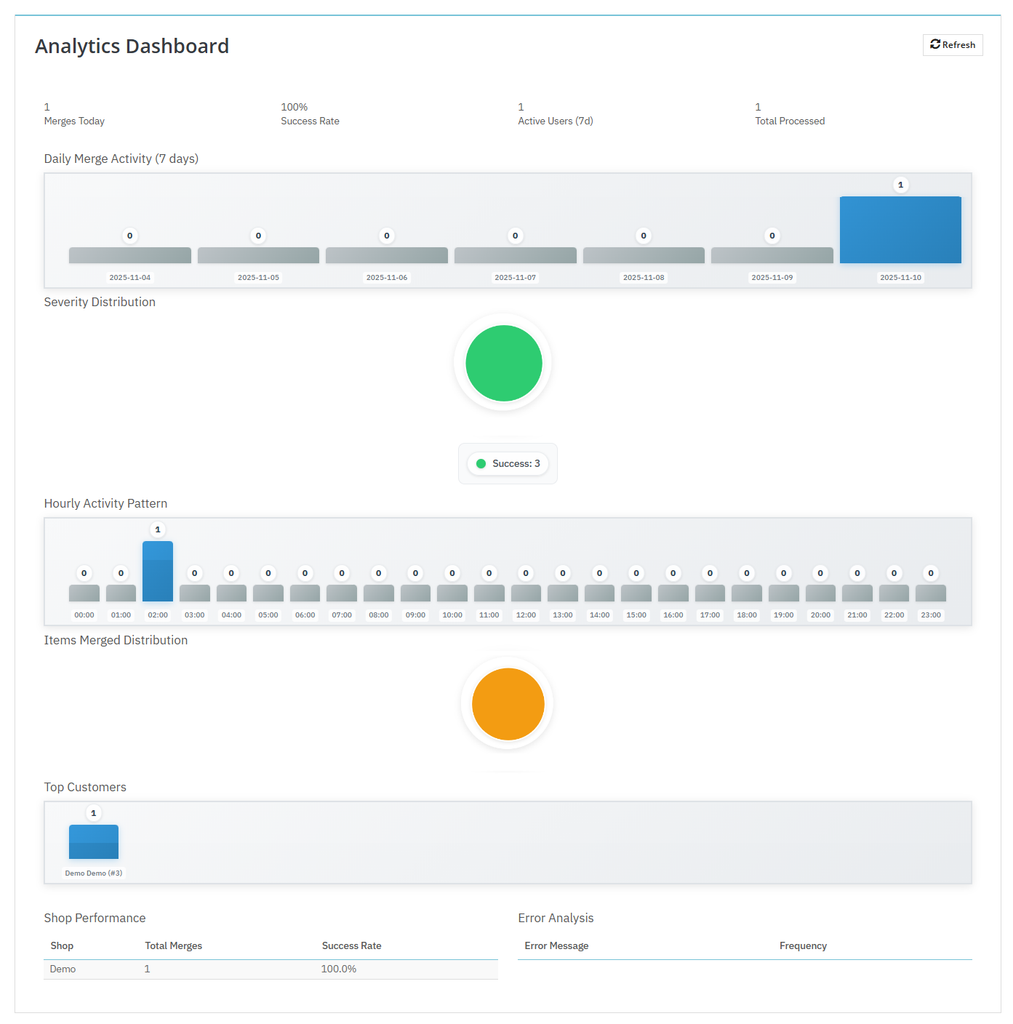
Analytics Dashboard
After configuring its general settings, go to the top menu bar and click on “Analytics Dashboard”. From this section, you can track insights related to merged carts. This ackend dashboard allows you to view:
- Total Merges Today: View total count for cart merges
- Success Rate: Manage success rate of each merged cart
- Active Users: View count of active users on your store
- Total Processed: View count for total processed carts
- Daily Merge Activity (07 Days): View merge activity for the last 07 days based on specific dates. You can also check a detailed graph for deeper insights and better tracking.
- Severity Distribution: Check severity rate
- Hourly Activity Pattern: The graph helps you understand the activity trends across different times of the day.
- Items merged Distribution: Here, you can view a graph showing how many items from the guest carts are merged and distributed among logged-in users.
- Top Customers: View top customers of your store
- Shop performance: Here you can view:
- Total merges
- Success Rate
- Error Analysis
- Error Message
- Frequency
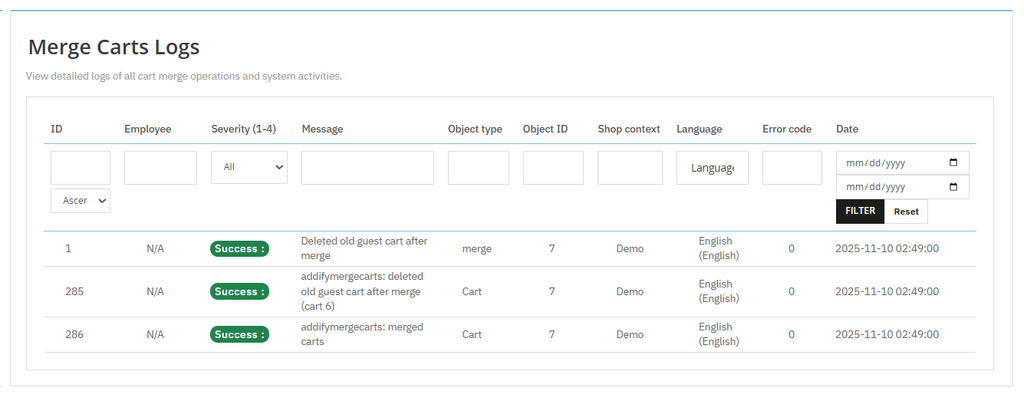
Merge Cart Logs
To manage all merged cart details, go to the top menu bar and click on “Merge Cart Logs”. From this section, you can view:
- ID
- Employee
- Severity
- Message
- Object type
- Object ID
- Shop Context
- Language
- Error Code
- Date