Configuring Product Visibility Based on User Roles
Allowing Search Engines to Crawl
Go to WooCommerce > Products Visibility > General Settings to configure the plugin’s general settings.
Allow Search Engines to Index: Permit search engines to index and rank products, categories, and other pages.

Showing/Hiding Products for All Customers
Go to WooCommerce > Products Visibility > Global Visibility to configure the visibility of products globally.
Enable Global Visibility: Checkmark to enable products to all registered and non-registered users
Show/Hide: Select whether you want to show or hide products from users
Select Products: Select products on which you want to apply the global visibility settings
Select Categories: Select categories on which you want to apply the global visibility settings
Redirection Mode: Choose a redirection mode for restricted items from the two options:
- Custom URL
- Custom Message
Custom URL: Add a custom URL to redirect when a user tries to access the restricted catalog
Custom Message: Add a custom error message to display when a user tries to access the restricted catalog

Concealing Products by User Roles
Go to WooCommerce > Products Visibility > Visibility By User Roles to configure the visibility of products based on user roles.
The available user roles are:
- Administrator
- Editor
- Author
- Contributor
- Subscriber
- Customer
- Shop manager
- Wholesale
- B2B
- Retailer
- Guest

Show or Hide Products By Specific Customer
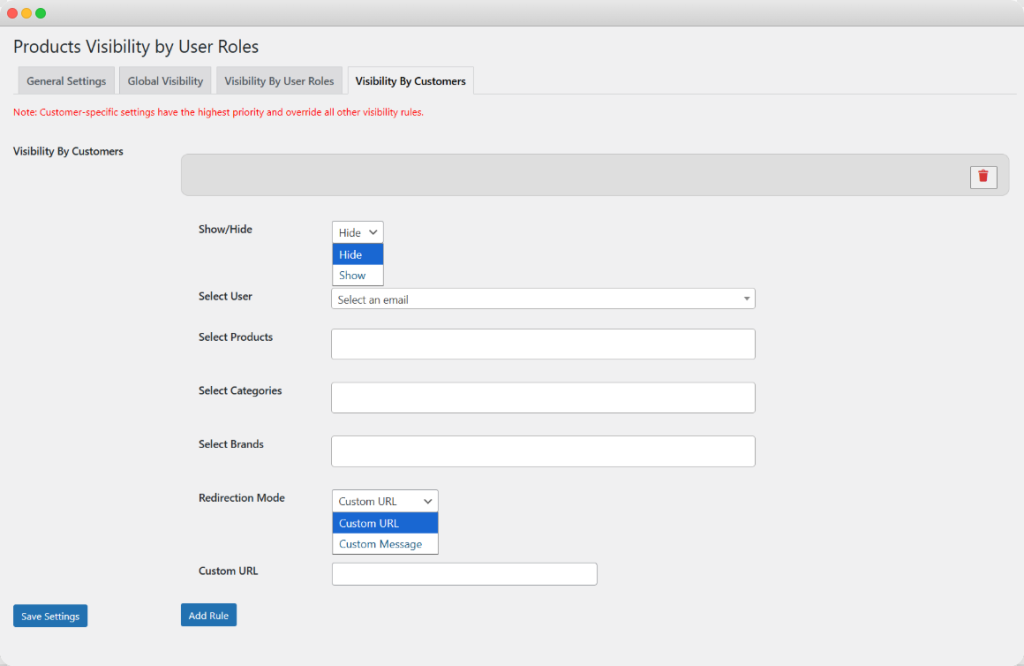
Go to woocommerce> Product Visibility> Visibility by customers to configure the visibility of products based on specific customers.
Click on add rule to view available configuring options.
- Show/Hide: Choose whether the selected items will be visible or hidden from customers.
- Select User: Select an email for whom the products will be shown or hidden.
- Select Products: Enter the products that will be shown or hidden for the selected customers.
- Select Categories: Enter categories that will be shown or hidden for the selected customers.
- Select Brands: Enter brands to show or hide products belonging to them for specific customers.
- Redirection Mode:
- Custom URL: Provide a custom URL where users will be redirected based on the selected redirection mode.
- Custom Message: Allows you to display a personalized message to users when they try to access restricted content.
When selecting a desired user role, you will see the following options:
Enable for this Role: Checkmark to enable products to this specific user
Show/Hide: Select whether you want to show or hide products from the user
Select Products: Select products on which you want to apply this functionality
Select Categories: Select categories on which you want to apply this functionality
Redirection Mode: Choose a redirection mode for restricted items from the two options:
- Custom URL
- Custom Message
Custom URL: Add a custom URL to redirect when the user tries to access the restricted catalog
Custom Message: Add a custom error message to display when the user tries to access the restricted catalog