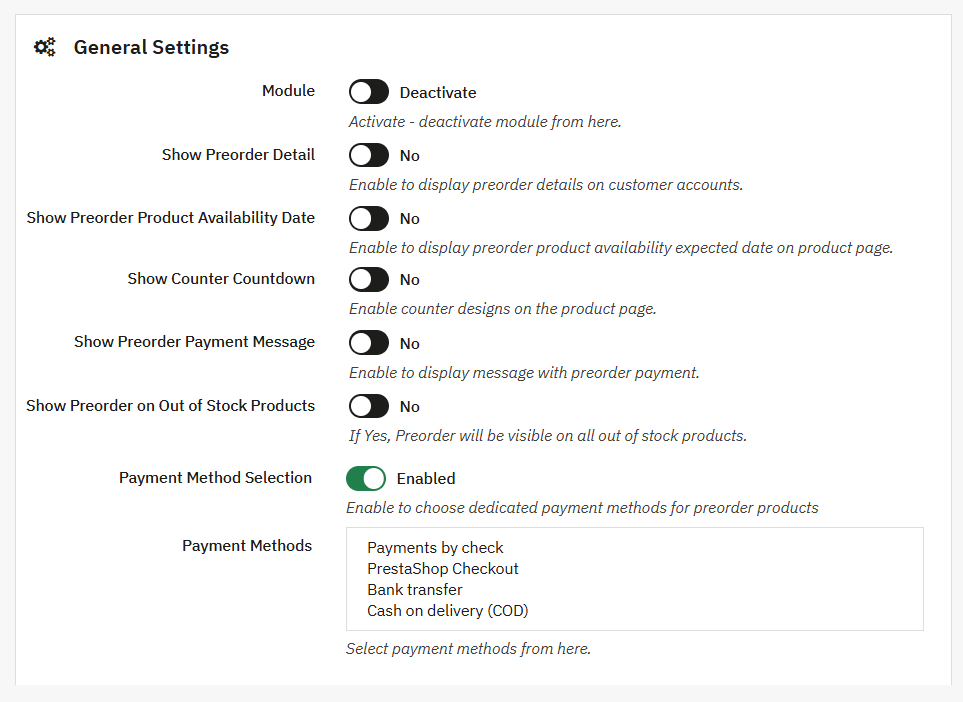
General Settings
Once the module is activated and installed, go to Modules > Module Manager > Addify Pre-Order and select Configure. Now, from the general settings, you can:
- Activate Module: Enable the option to activate pre-order rules and settings. Disable it to deactivate the pre-order module.
- Show Pre-order Details: Enable the option to display pre-order details on the customer account page. Disable the button to hide pre-order details from customer accounts.
- Show Pre-order Product Availability date: Activate the option to display the expected product availability date on the product page. The displayed date is based on the availability date defined in the pre-order rules.
- Show Counter Countdown: Enable this option to display a countdown timer for pre-order products.
- Select Countdown Designs: Select the following designs for the countdown timer:
- Style 1: Select this to display the countdown timer as a digital clock showing separate boxes for days, hours, minutes, and seconds.
- Style 2: Select this to display the countdown timer in a dark boxed layout.
- Style 3: Select this to display the countdown timer in a structured layout, with days, hours, and minutes shown within a single box.
- Select Countdown Designs: Select the following designs for the countdown timer:
- Show Preorder Payment Message: Add a custom message for the following payment options:
- Full Payment Content: Write a custom message for full payment such as “Pay the full amount now to pre-order this product”
- Partial/Dynamic Payment Content: Use this field to create a custom payment message. You can use the available variables to automatically display the pre-order and original prices.
- Show Preorder on Out-of-Stock Products: Enable this option to make out-of-stock products available for pre-order.
- Set Price for Pre-order: Choose from the following pricing options:
- Actual Price: Select this if you want to sell the pre-order product at its actual price.
- Partial Price: Select this if you want to add a certain percentage of the product price.
- Add Price Percentage: You can add 20%, 30%, or 50% of the product’s actual price and allow customers to pay the selected percentage upfront when placing a pre-order.
- Set Price for Pre-order: Choose from the following pricing options:
- Payment Method Selection: Select the payment methods you want to offer for pre-order products:
- Payments by Check
- PrestaShop Checkout
- Bank Transfer
- Cash on Delivery
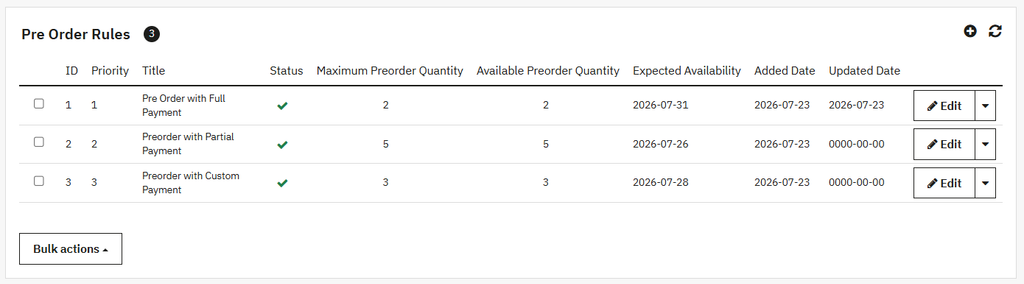
Configure Pre-Order Product Rules
Go to Modules > Module Manager > Addify Pre Order > Configure and select “Preorder Product Rules”. From this section, you can:
- Create, manage, and organize multiple pre-order rules. You can also view the following details for each rule:
- ID
- Priority
- Title
- Status
- Maximum Pre-order Quantity
- Available pre-order Quantity
- Expected Availability
- Added date
- Updated date
- Locate any created rule and click Edit to update its configuration.
- Select the “+” symbol and create a new rule.
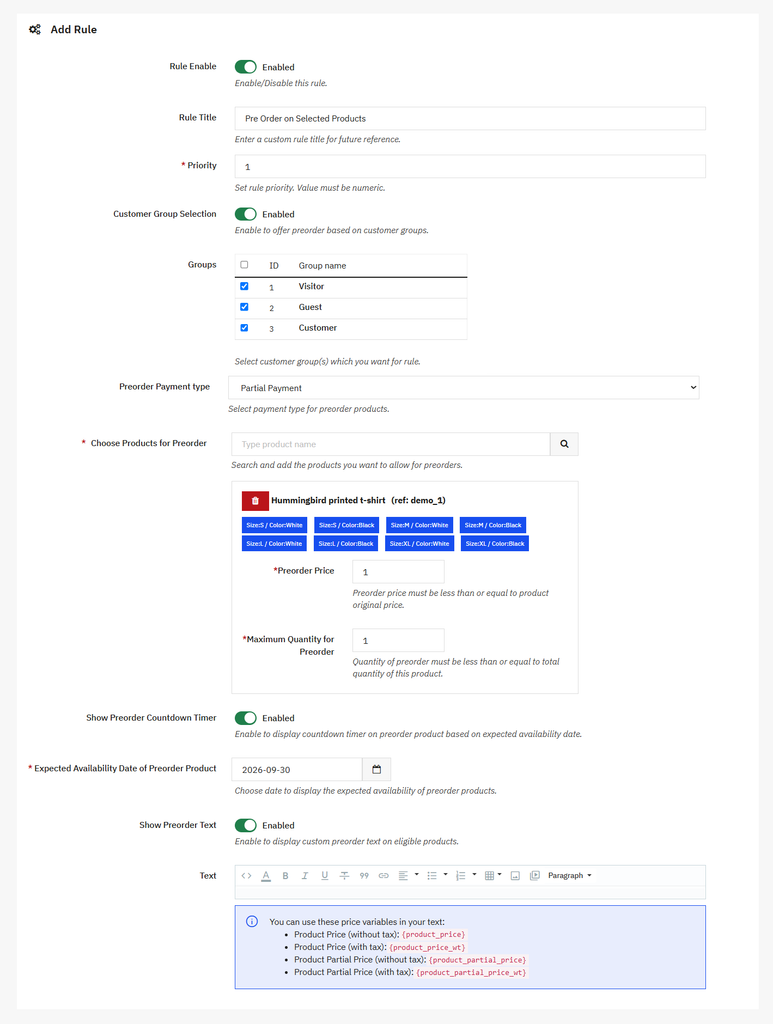
Creating New Pre-order Rule
Click “+” to create a new pre-order rule and fill in the following details:
- Rule Enable: Activate the option to enable the pre-order rule. You can deactivate it anytime to disable the rule
- Rule Title: Add a custom rule title
- Priority: Set priority for the rule
- Custom Group Selection: Enable the option to offer pre-order products only to selected customer groups
- Groups: From the table, select the customer groups that can order pre-order products:
- Visitors
- Guest
- Customer
- Preorder Payment Type: From the dropdown, select the payment type for the pre-order products as:
- Full Payment: Select this if you want to collect full payment upfront for the preorder products
- Partial Payment: Select this if you want to collect partial payment upfront
- Dynamic Payment: Allow customers to choose the amount they want to pay upfront.
- Choose Products for Preorder: Search and select the products you want to make available for pre-order.
- Select Combinations: Once a product is selected, choose the specific combinations you want to include or exclude from the pre-order option.
- Maximum Quantity for Pre-order: Set the maximum number of items that customers can pre-order for the selected product or combination.
- Select Combinations: Once a product is selected, choose the specific combinations you want to include or exclude from the pre-order option.
- Show Preorder Countdown Timer: Enable the option to display a countdown timer that shows the expected availability date for the pre-order product.
- Expected Availability Date of Preorder Product: Choose a date when the pre-order product is expected to become available.
- Show Preorder Text: Enable this option to display custom pre-order text on eligible products.
- Add Text: Enter custom text to display for the pre-order product. You can also use the following variables in your text:
- Product Price (without tax):{product_price}
- Product Price (with tax):{product_price_wt}
- Product Partial Price (without tax):{product_partial_price}
- Product Partial Price (with tax):{product_partial_price_wt}
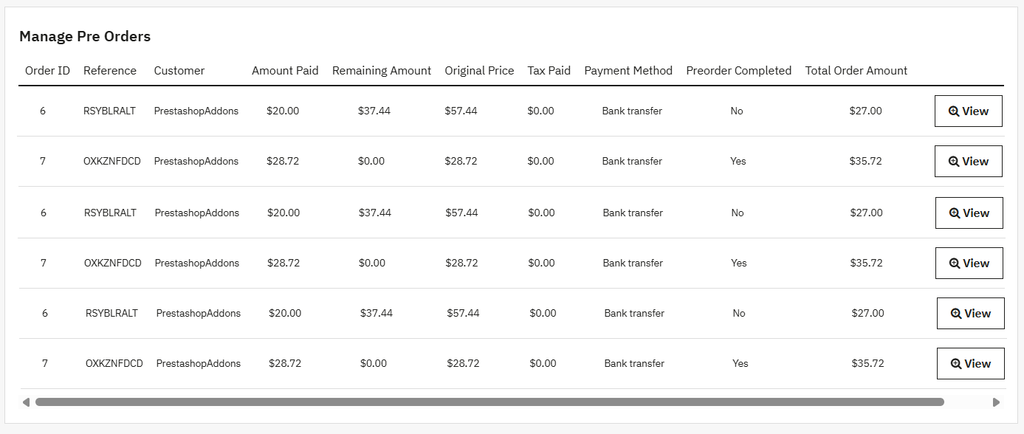
Pre-Order Log
To access pre-order log, go to Modules > Module Manager > Addify Pre Order and select Configure. From the main menu, select “Pre Order Log”. Here you can manage the following details for pre-orders:
- Order ID: Shows the unique ID assigned to the customer’s order
- Reference: Shows the reference number associated with the order
- Customer: Shows the customer who placed the pre-order
- Amount Paid: Shows the amount already paid by the customer
- Remaining Amount: Shows the amount left to be paid
- Original Amount: Shows the actual price of the product
- Tax Paid: Shows the amount of tax paid on the pre-order
- Payment Method: Shows the payment method used
- Preorder Completed: Shows whether the pre-order has been completed or not
- Total Order Amount: Shows the total amount
- Date: Shows the date when the pre-order was placed