
Applying Restriction Rules for Products and Categories Based on Specific Countries
Applying restriction rules for products and categories based on specific countries can be a powerful feature for managing a store’s visibility and sales strategy. By limiting access to certain products or categories based on a customer’s geographical location, you can control your product catalog more effectively, prevent shipping issues, adhere to local regulations, and offer region-specific promotions.
Here’s a step-by-step guide to implementing these rules using the Addify Country Restriction Module:
Installing the Addify Country Restriction Module:
Download and install the Addify Country Restriction Module.
Activate the module by navigating to your store’s module or plugin section and clicking on the “Activate” button.
Ensure the module is configured properly and ready for use by checking the settings.

In the General Settings tab, enable the module to activate country restrictions.
Creating a New Country Restriction Rule:
Navigate to the Country Restriction Rule Log within the module.
Click on the “+” icon located at the top right corner of the screen to create a new restriction rule.

Configuring General Settings for the Restriction Rule:
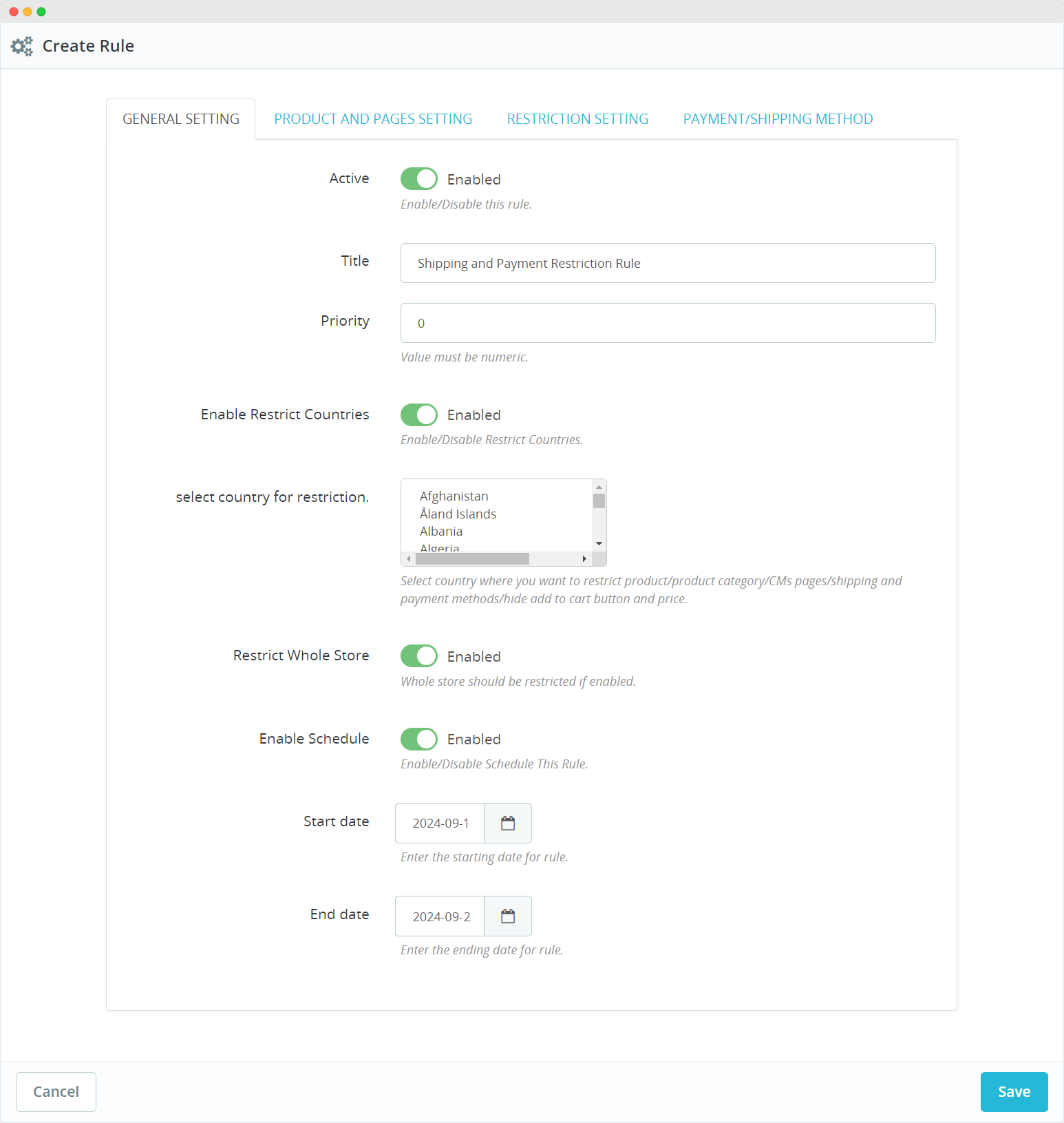
- Active: Toggle this setting to enable or disable the rule.
- Title: Provide a descriptive name for the restriction rule.
- Priority: Set the priority level for the rule. If multiple rules are applied, the rule with the highest priority will be processed first.
- Selecting Countries for Restriction: Enable the restrict counties field and choose the country or countries where you want to apply the restriction.
- Restrict Whole Store: Enable or disable to restrict the entire store.
- Enable Schedule: Enable or disable country restrictions by specifying the start and end dates.
Restricting the Products & Categories for the Rule:
In the “Product and Pages Setting” tab, configure the following:
- Adding Products to Restrict: Use the Search Product option to find and select the product(s) you want to hide from customers in the selected country.
- Selecting Categories to Restrict: In the Categories section, choose the product categories that you want to restrict from being displayed to customers in the selected country.
Provide the necessary details of the rule to finish creating the rule.

Saving the Rule:
After configuring all the settings as per your requirements, click the “Save” button.
The rule will be activated, and the specified products or categories will now be hidden or restricted based on the settings.