
Managing Product Stock at the Attribute and Variation Level
To manage product stock at the attribute and variation level with the WooCommerce Shared Attribute Stock Management, follow these steps:
Go to your WordPress admin dashboard.
Navigate to WooCommerce > Attribute Stock > Rules.
View and Manage Existing Rules:
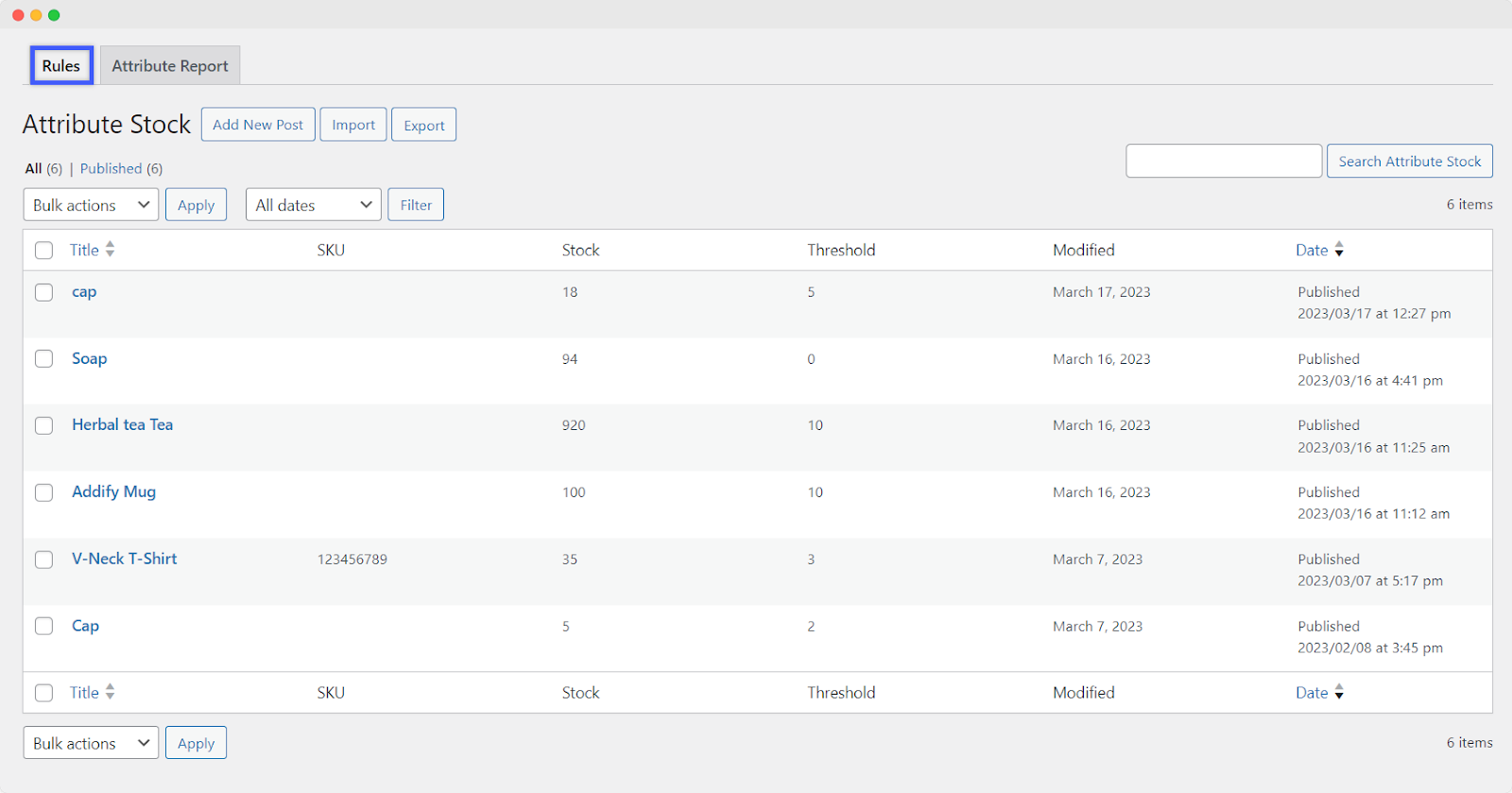
In the Rules section, you can view and manage a complete list of all shared stock rules created. The log includes details such as SKU, stock, and threshold.
Perform Actions:
Perform various actions, including adding a new attribute stock rule, importing and exporting rules, and applying bulk actions to edit or delete rules.
Filter and Search:
Apply a date-based filter to rules or use the search bar to find specific attribute stock rules.
View Rule Details:
In the list of attribute stock rules, you can view details such as SKU, current stock, and the low stock threshold.
Add New Attribute Stock Rule:
To add a new attribute stock rule, click on “Add New” in the Attribute Stock Rules section.
After filling in the details, click on the “Save” or “Publish” button to save the attribute stock rule.
By following these steps, you can effectively manage product stock at the attribute and variation level using the WooCommerce Shared Attribute Stock Management. This allows for more granular control over inventory, especially when dealing with products with various attributes and variations.