Create Multiple Password Protection Rules
From the Password Protected option, go to Rules. From here, you can adjust the following settings:
Apply Passwords on Desired Sections or the Whole Website
You can create multiple rules to control which sections are password-protected. You can choose from the following options to apply password protection:
- Whole website: Complete website including WordPress pages
- Whole store: WooCommerce store section only
- Selected items: Specific products, pages, categories, etc

Password Protect Selected Pages, Products & Categories
To protect only specific areas of your website, you can choose desired sections from the following options:
- Products – Password on selected products
- Categories – Password on selected categories
- Pages – Password on selected pages
Insert Multiple Passwords Manually or Import in Bulk
You can insert multiple passwords manually or import passwords in bulk to save time. You can use the following options to set passwords:
- Custom Password: Enter multiple comma-separated passwords
- Bulk Import: Import a CSV file with multiple passwords in a single column

Password Analytics
This section shows all existing passwords in a grid view. You can also download the details as a CSV file.
Download CSV (button): Click this button to download the file.
Grid Details:
- Password: Shows the password.
- Password Analytics: Shows analytics related to the password.
- Sales Analytics: Shows sales analytics.
- Action: Edit or delete the password as needed.

Detailed Analytics
View Detailed Analytics of Protected Products & Orders
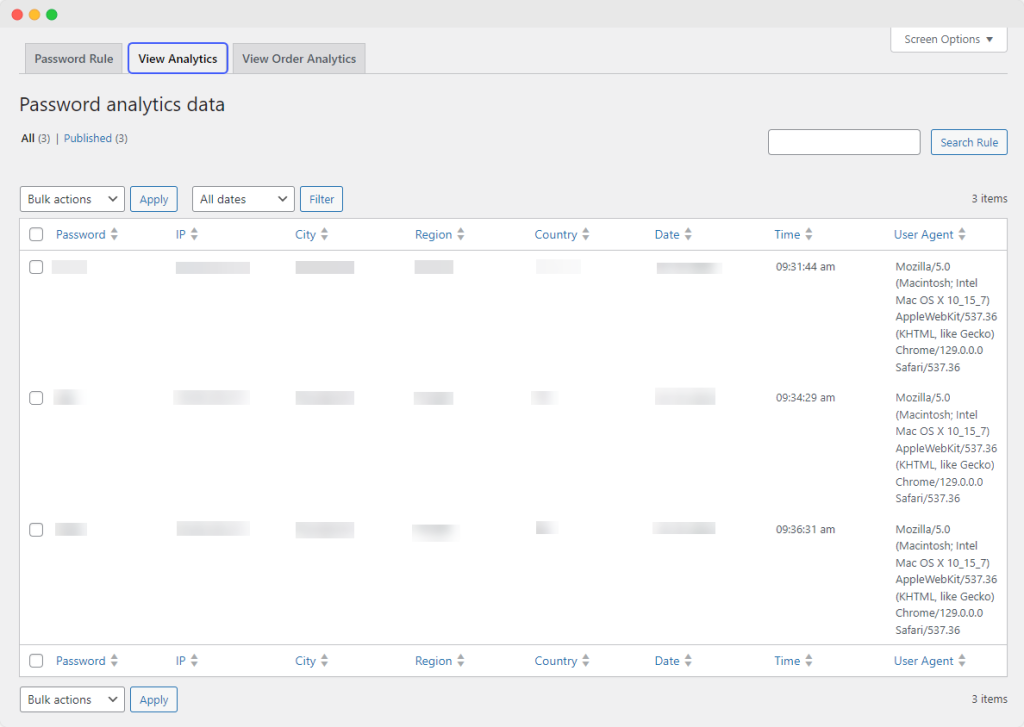
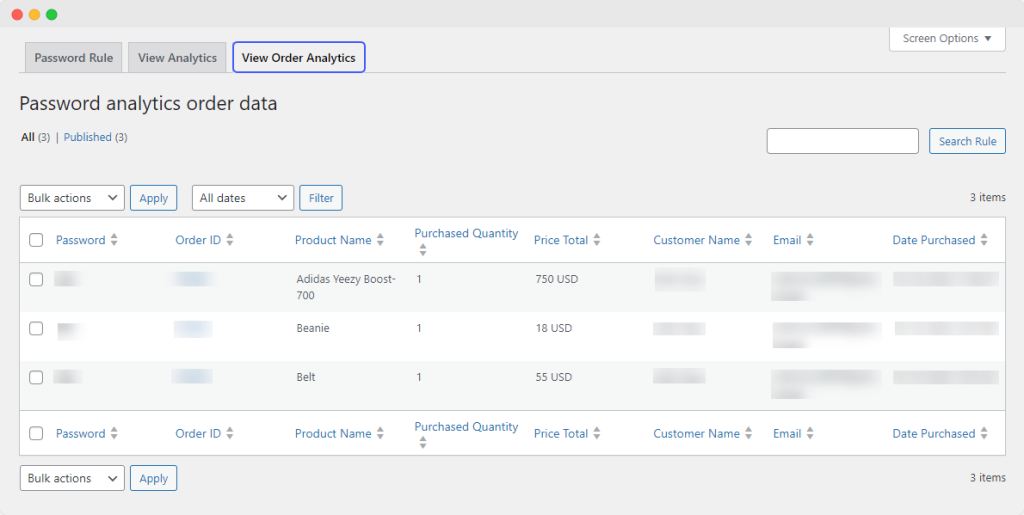
To analyze the performance of your password-protected products & orders, go to WooCommerce > Password Protected > View Analytics and View Order Analytics. From there, you will see the following details:
Protected Products Analytics
- Password: The password for which details are shown
- IP Address: Customer IP address based on geolocation
- State/City: Customer’s state based on geolocation
- Region: Customer’s region
- Country: Customer’s country
- Date: Date of access
- Time: Time of access
- User Agent: User’s device information
Order Analytics
- Password: password in question
- Order ID: ID associated with password
- Product name: product associated with password
- Product quantity: product quantity associated with password
- Price: the price of password-protected product
- Customer name: name of customer
- Email: customer email
- Purchase date: date of product purchase
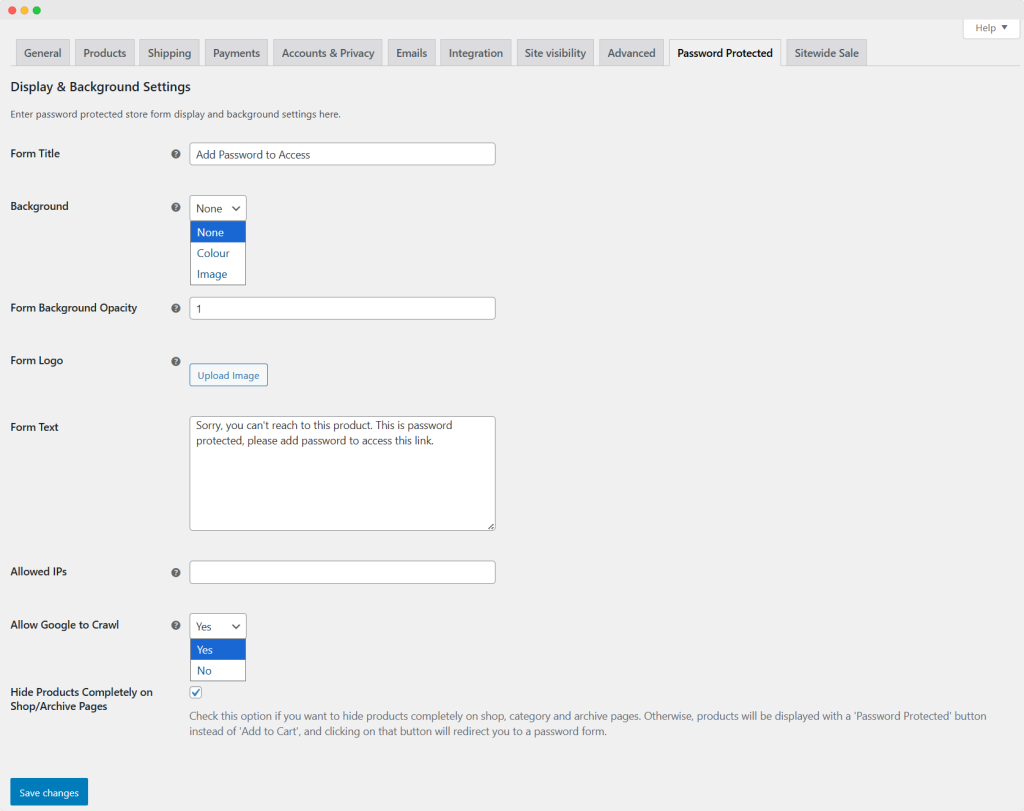
General Setting:
Go to the WooCommerce settings → Click on the Password protection option and apply the following settings:
- Form Title: Add the title or label of the form.
- Background: Set the background type, such as color or image.
- If you select a color option in a dropdown:
- Background color: Add the custom color for the background.
- If you select the image option:
- Background Image: Upload the custom image for the background.
- Form Background opacity: Set the opacity of the form, such as 1, 2, etc.
- Form logo: Add the custom logo for the form.
- Form text: Add the custom text for the form.
- Allows IPs: Add the specific IP address that will access easily without any restriction.
- Allows Google Crawler: Select this option to allow or block Google from crawling the page. Choose Yes or No based on your preference.
- Hide Products Completely on the shop/Archive page: Enable this option if you want to completely hide the product on the shop page or archive page.