


AI Virtual Try On For Woocommerce
Trying on an item tells customers what fits better and increases their confidence in making a purchase. AI Virtual Try on for WooCommerce extension is built on the same idea. It adds a new Try On button to your product pages and lets customers visualize how products look on them.
You can simply display a try-on popup and allow users to either upload an existing image or click a new one. Customers can easily compare different styles, clothes, accessories, and more. With just one quick feature, you can provide a personalized shopping experience, boost customer engagement, and drive more sales.
Key Features
- Allow customers to try on different items in your store virtually
- Enable virtual try-on for specific products, categories, and brands
- Upload custom watermarks to add brand identity and security
- Let customers upload an existing image or capture a new one
- Manage try-on details from a dedicated history log
- Restrict image uploads to selected file formats
- Show past try-on images for quick preview
-

Marketplace Verified
-
Extension Partner
$4.92/month
Billed annually at $59 / year
- 1 year free support
- 1 year extension updates
30 DAYS MONEY BACK GUARANTEE
Your money is secure with our buyer protection. Claim a full refund for any reason.
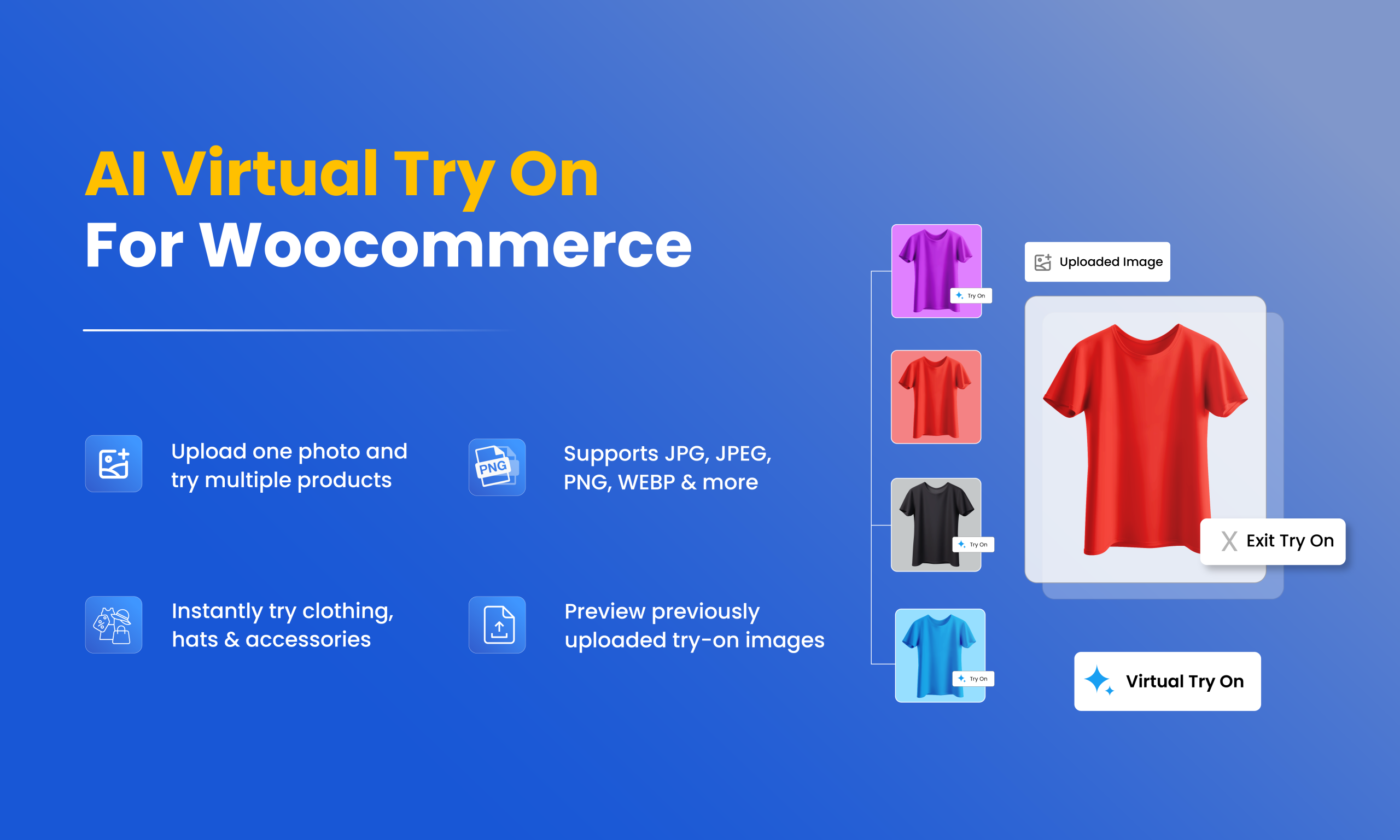
Features of WooCommerce Virtual Try On
Virtual Try-On Use Cases
- Fashion and Apparel Store: Allow users to visually try on clothes, hats, shirts, or scarves to see which style or color suits them the best.
- Jewelry Shops: Let customers try rings, bracelets, necklaces, or earrings virtually and encourage them for a quick purchase decision.
- Eyewear Retailers: Allow users to see which types of glasses or sunglasses fit their face and help them make confident yet quick purchase decisions.
- Watch or Accessory Store: Provide a realistic preview of watches and other accessories on the customer’s wrist, helping them visualize the fit, style, and design.
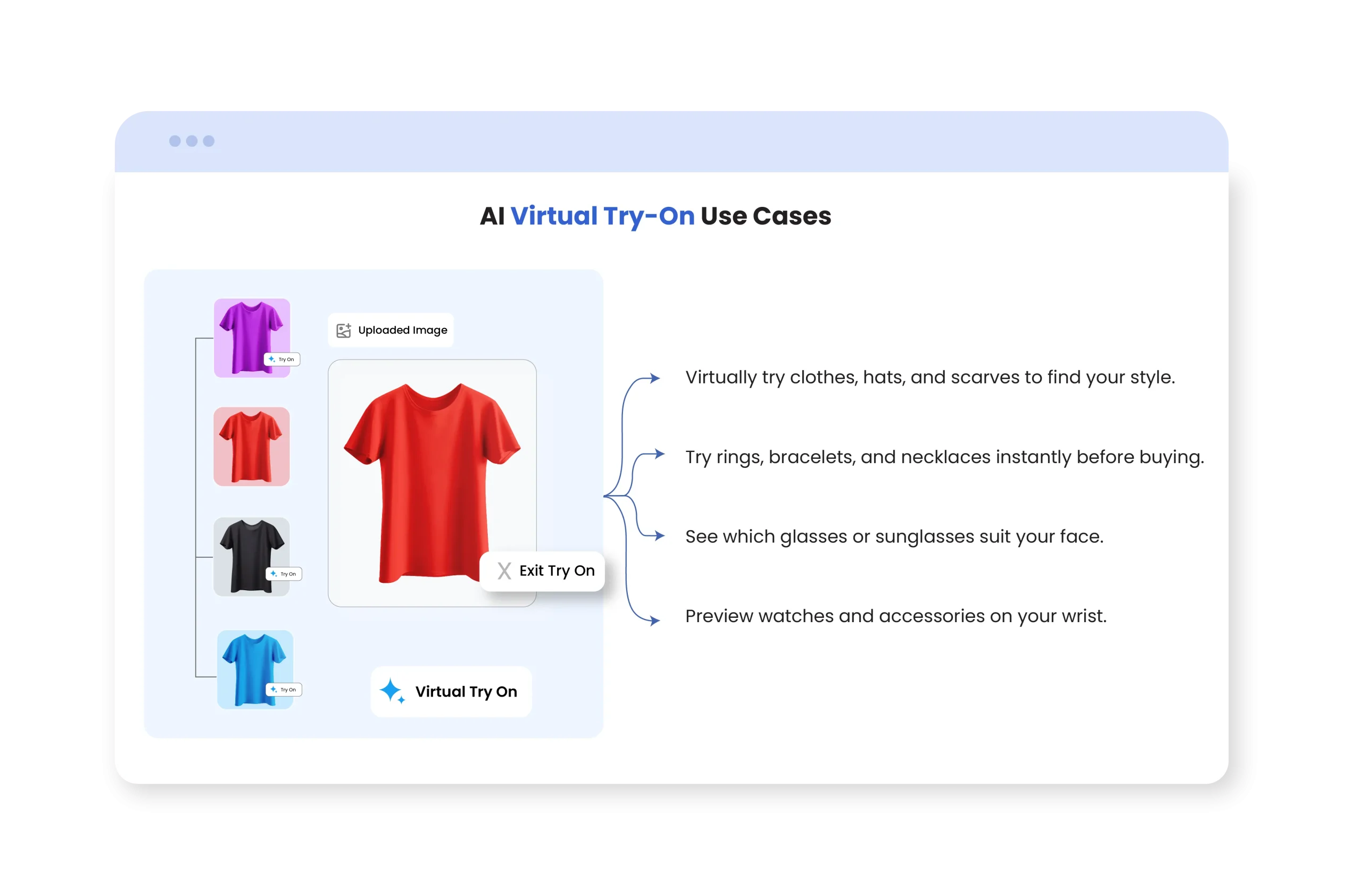
Instant Virtual Try-On Experience
Virtual Try On for WooCommerce extension allows you to display a new “Try On” button on product pages and let customers see how your products look on them. Offer a try-on option for watches, clothes, hats, eyewear, jewelry, and more. In this way, users can make informed purchase decisions and clearly visualize the item for themselves before buying.
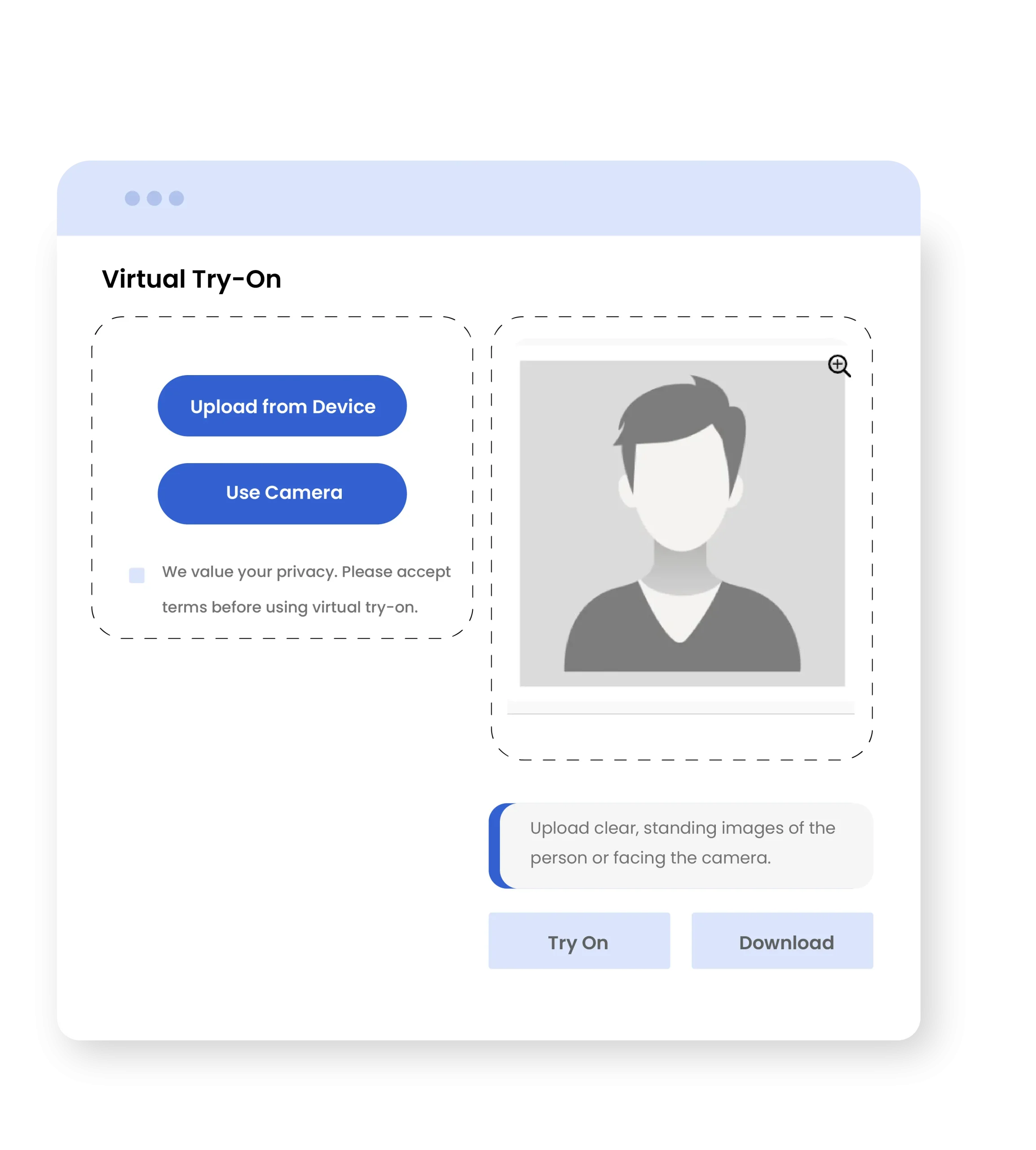
Take a Photo or Upload an Image to Try Virtually
Admins can provide customers the option to either upload an existing image or use the camera to click a new one. This means users can easily try on multiple items, compare different styles, and see how each product looks on them in real time.
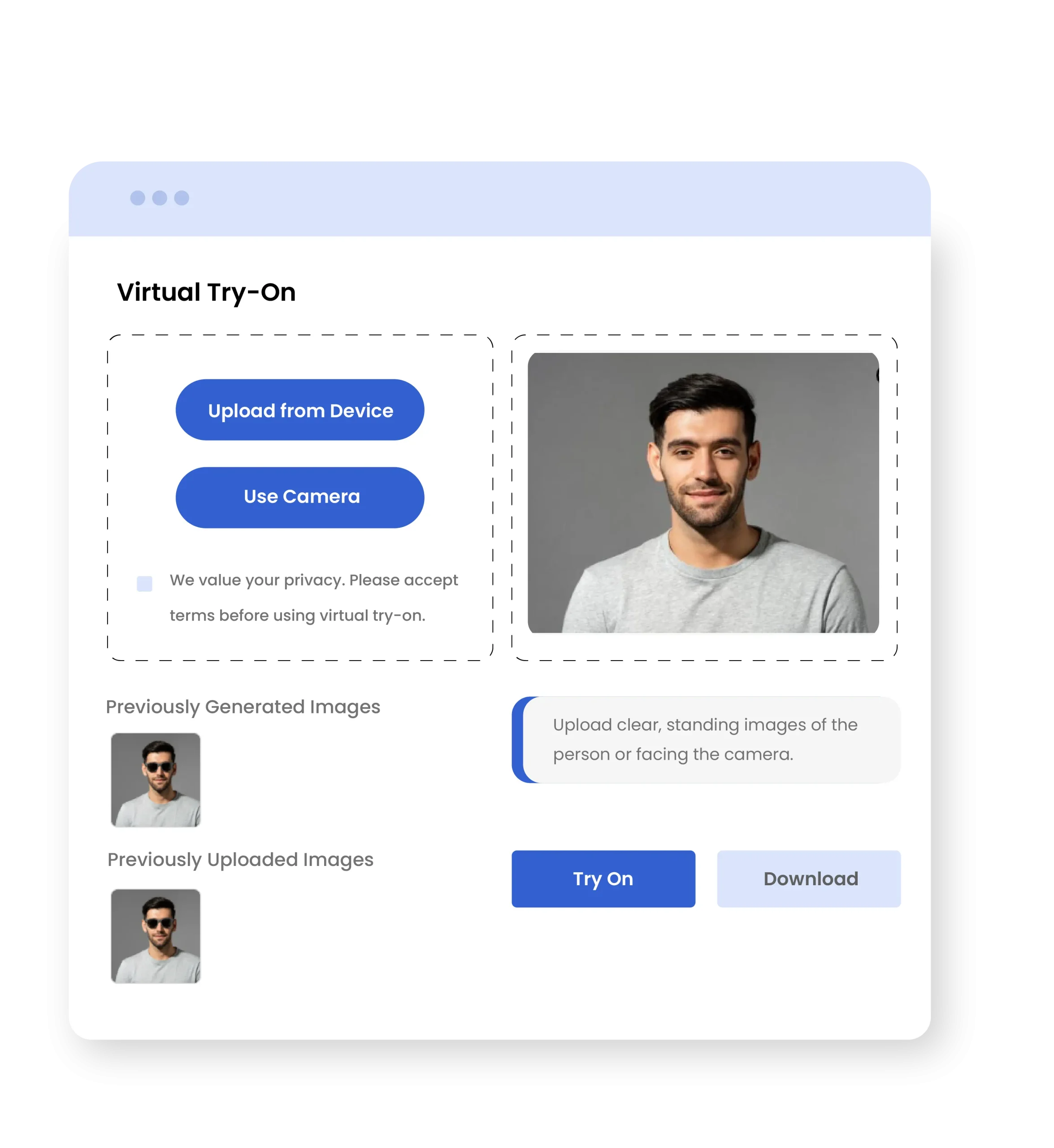
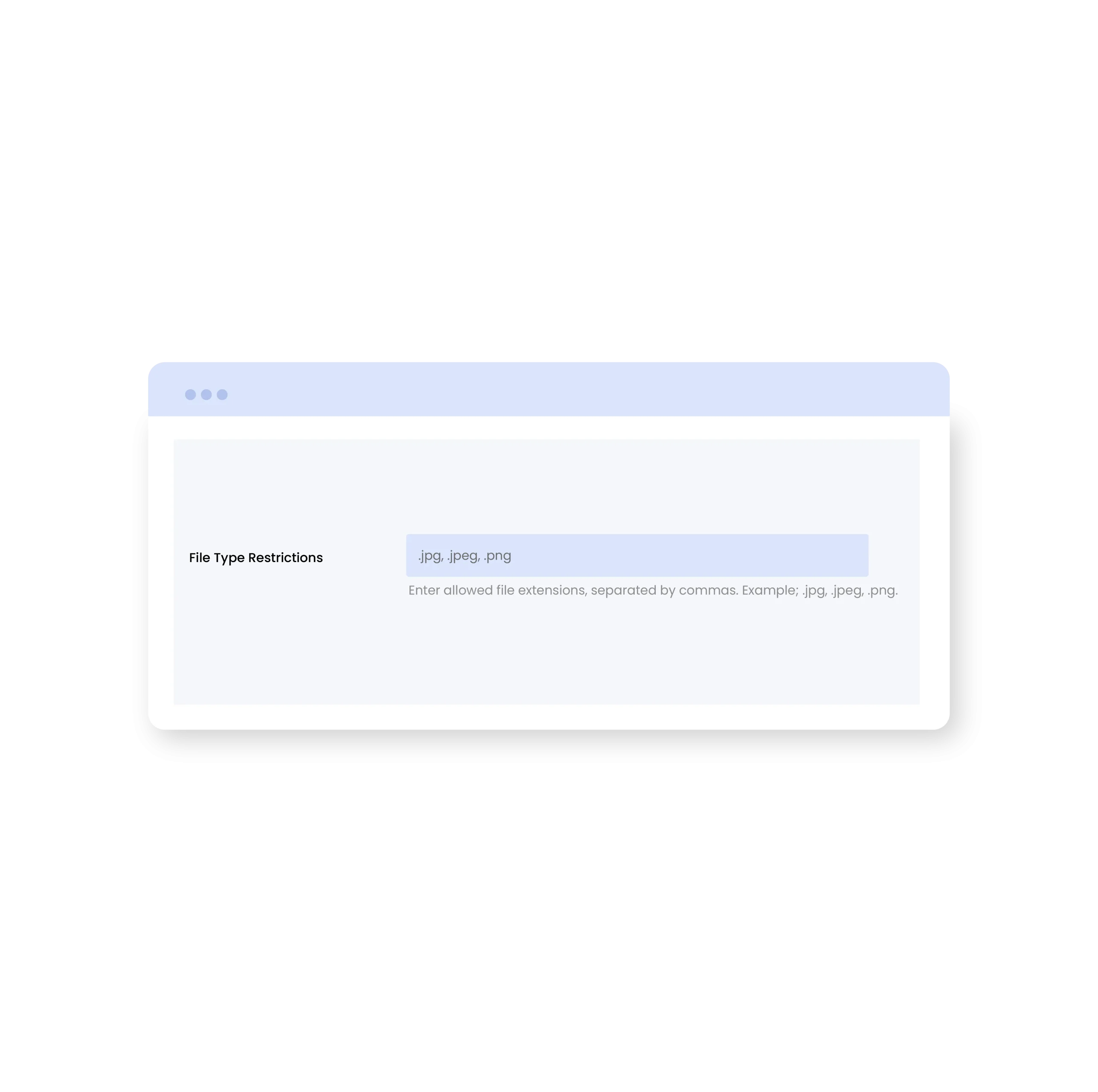
Upload Images in Any Supported Format
By using WooCommerce Virtual Try On plugin, merchants can allow customers to upload images in specific file formats such as JPG, JPEG, and PNG. This provides compatibility across multiple devices, whether they are using a smartphone, tablet, or desktop; their images will upload smoothly without any errors or format issues.
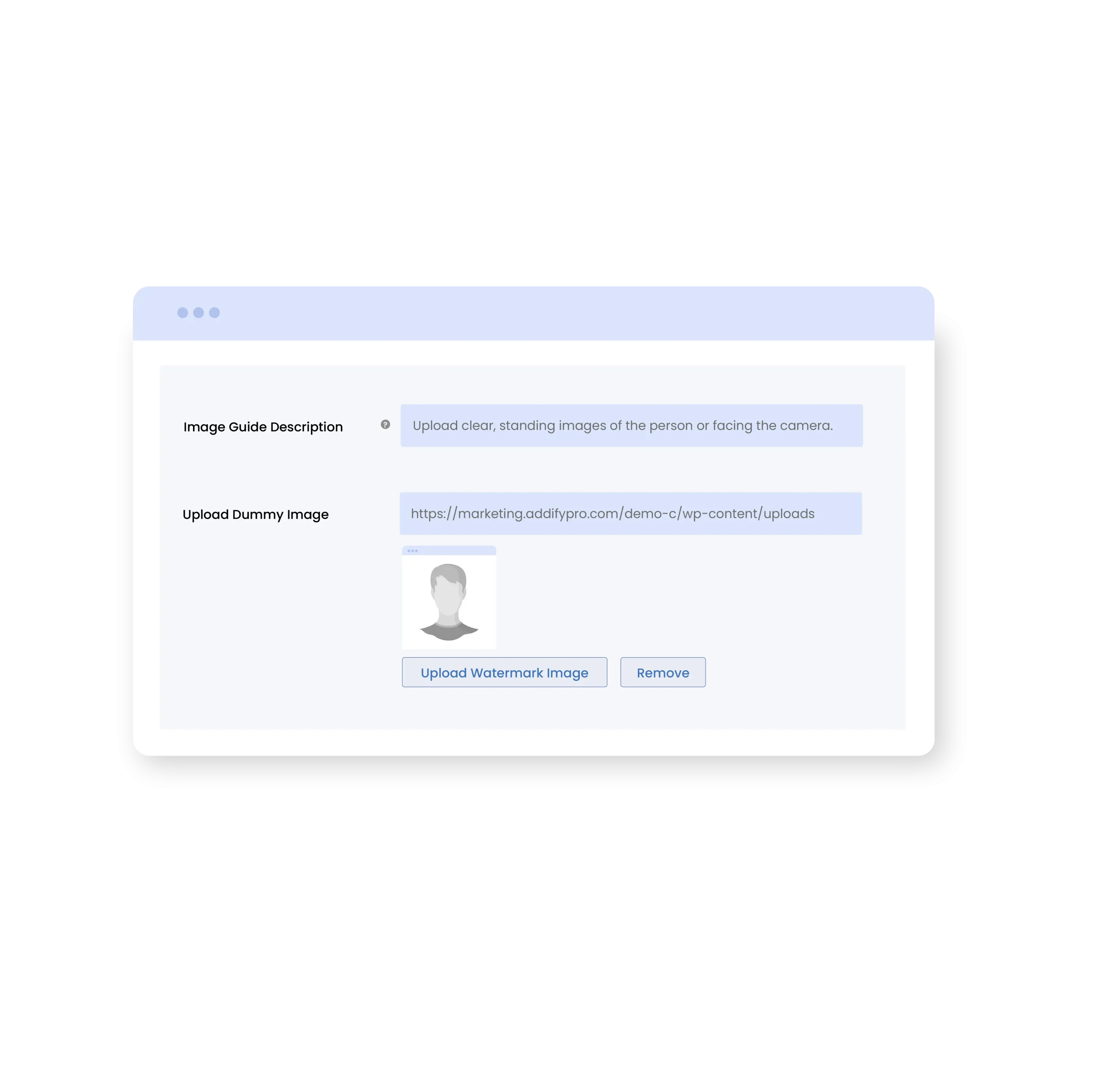
Help Customers with Visual Upload Guides and Sample Images
Merchants can display custom descriptions for the try-on feature and help customers understand how to upload their images correctly. You can also add sample images to demonstrate the whole process and provide a clear reference for users.
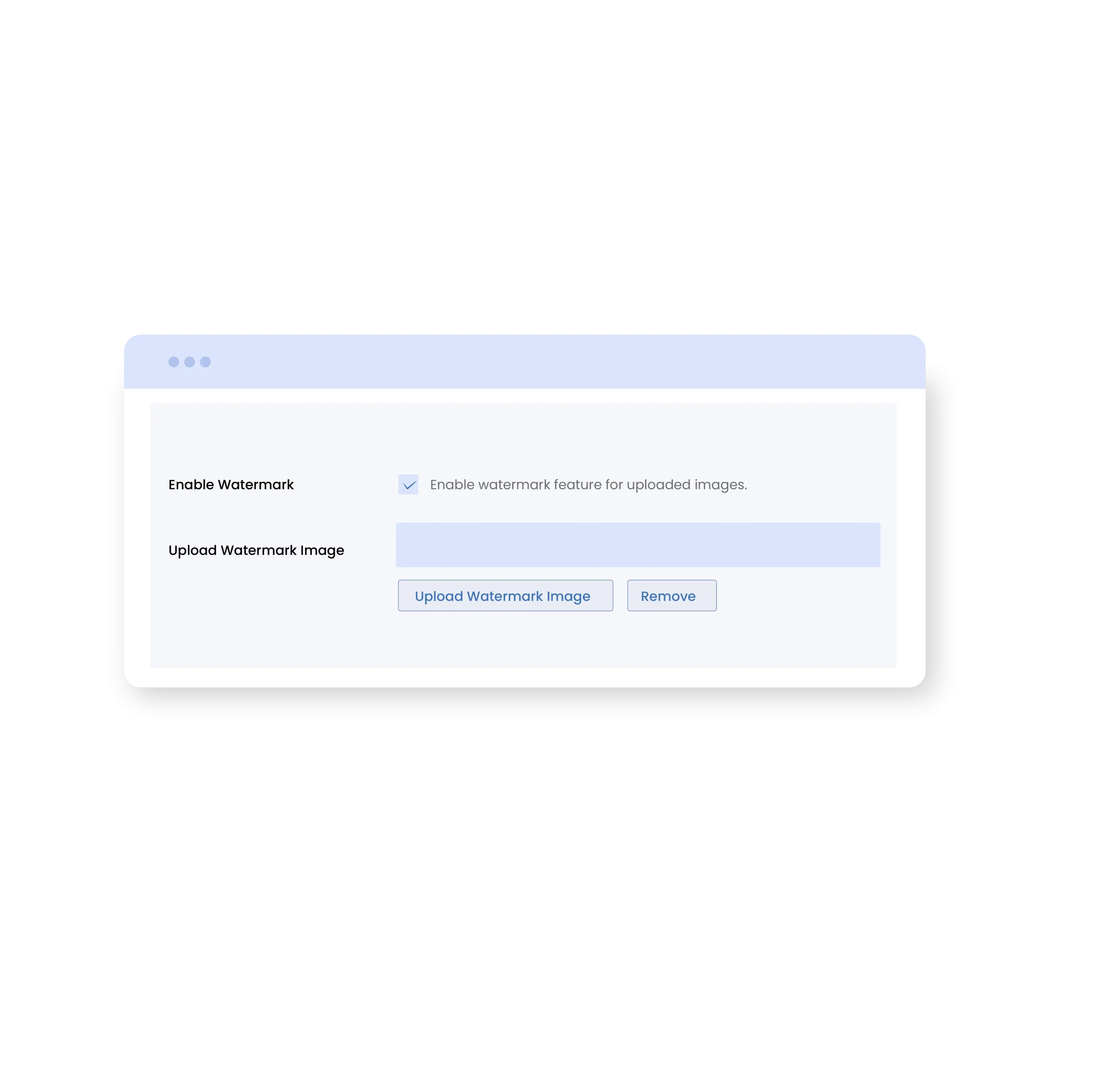
Add Custom Watermarks to Protect Try-On Images
Upload custom watermarks to protect try-on images and add brand ownership for your store. In this way, all images shared or downloaded by customers will carry your unique watermark, preventing unauthorized users while promoting the brand at the same time.
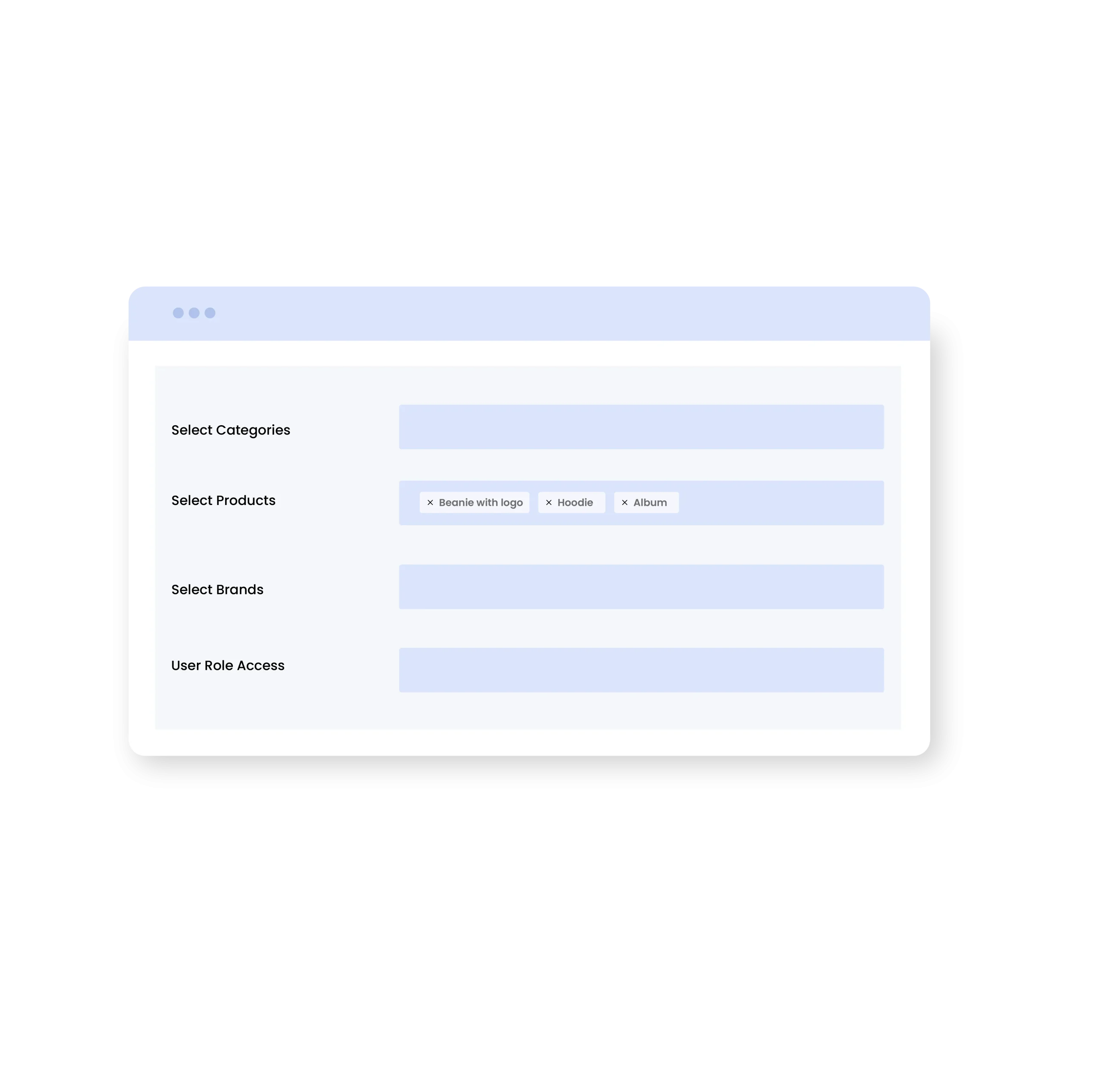
Restrict Virtual Try On to Selected Products, Categories, Brands, and User Roles
By using Virtual Try On for WooCommerce extension, you can enable the try-on feature for specific products, categories, and brands. This means you can add the try-on button for premium, customizable, or high-priority products while excluding others. You can also restrict access based on selected user roles and create a targeted shopping experience for your store.
Completely Customizable Try On Popup
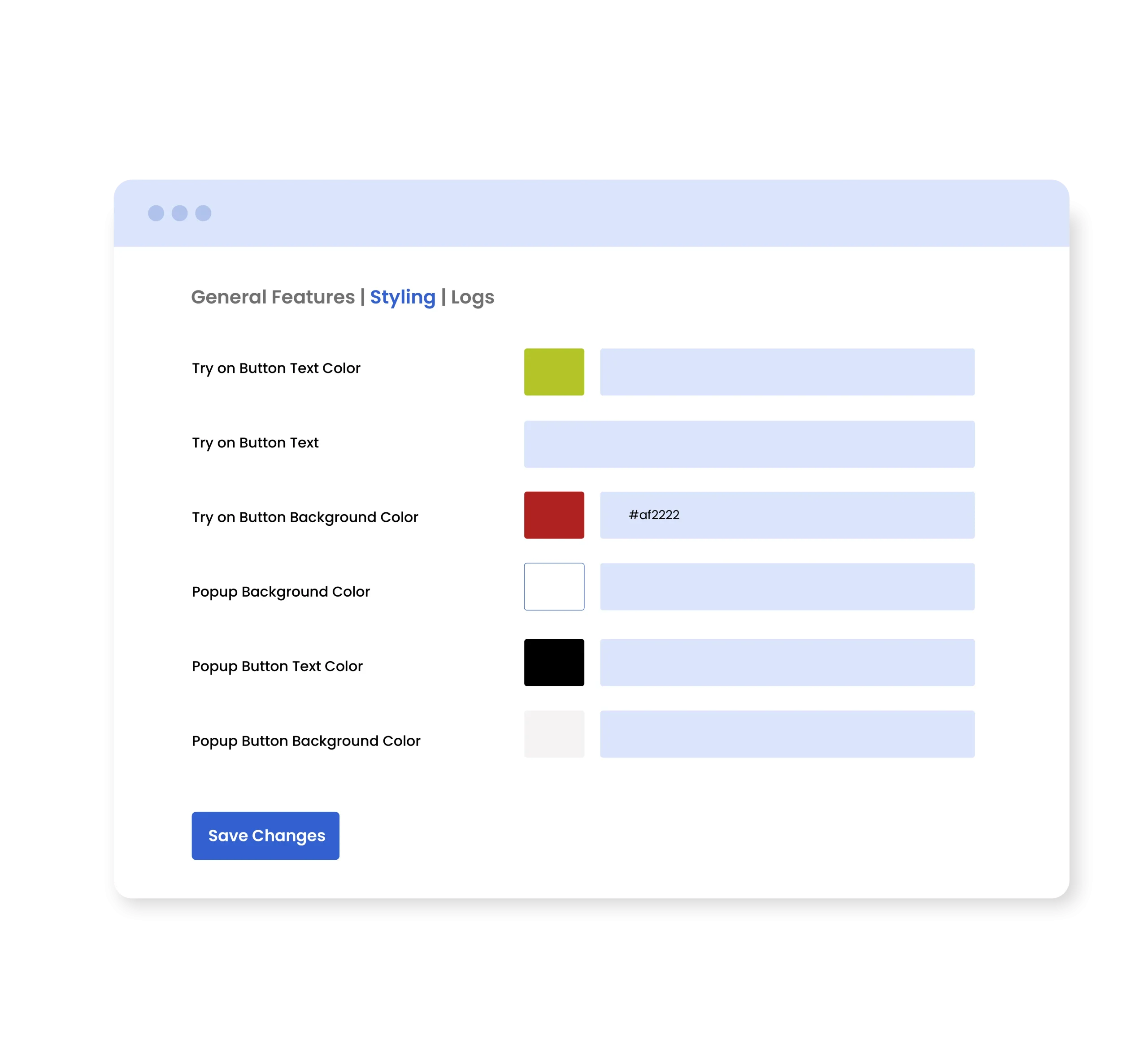
Admins can customize the try-on pop-up by adding custom text, background, and button color. You can choose the position of the Try-On button, placing it either before or after the add-to-cart button. Additionally, you can add a custom terms and policy note that users must approve before generating any image.
Manage Try On History Log
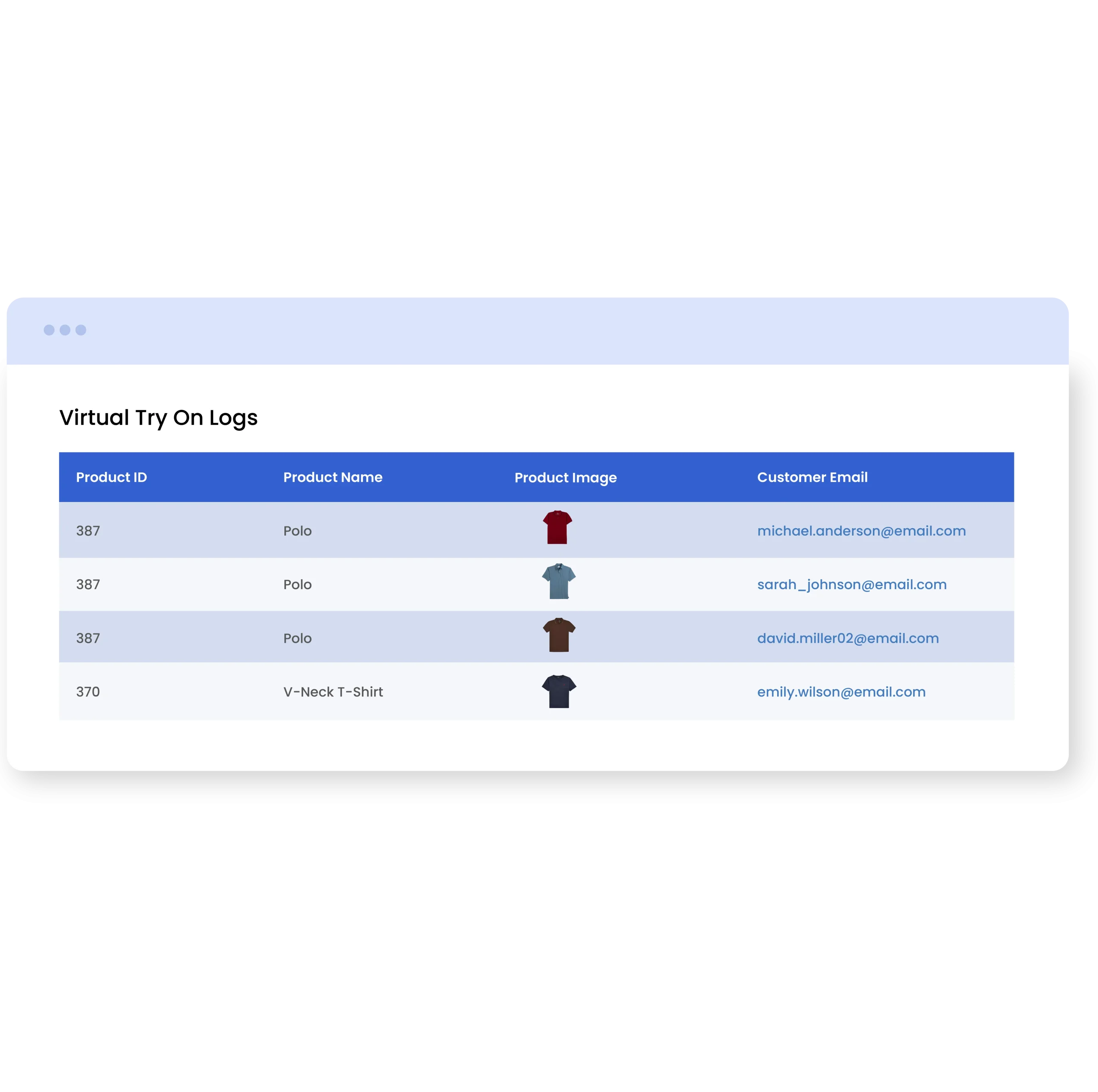
View and manage a dedicated try-on log to monitor essential details such as Product ID, product name, product image, and customer email. This allows you to keep track of customer interactions and maintain records.
Product Level Settings
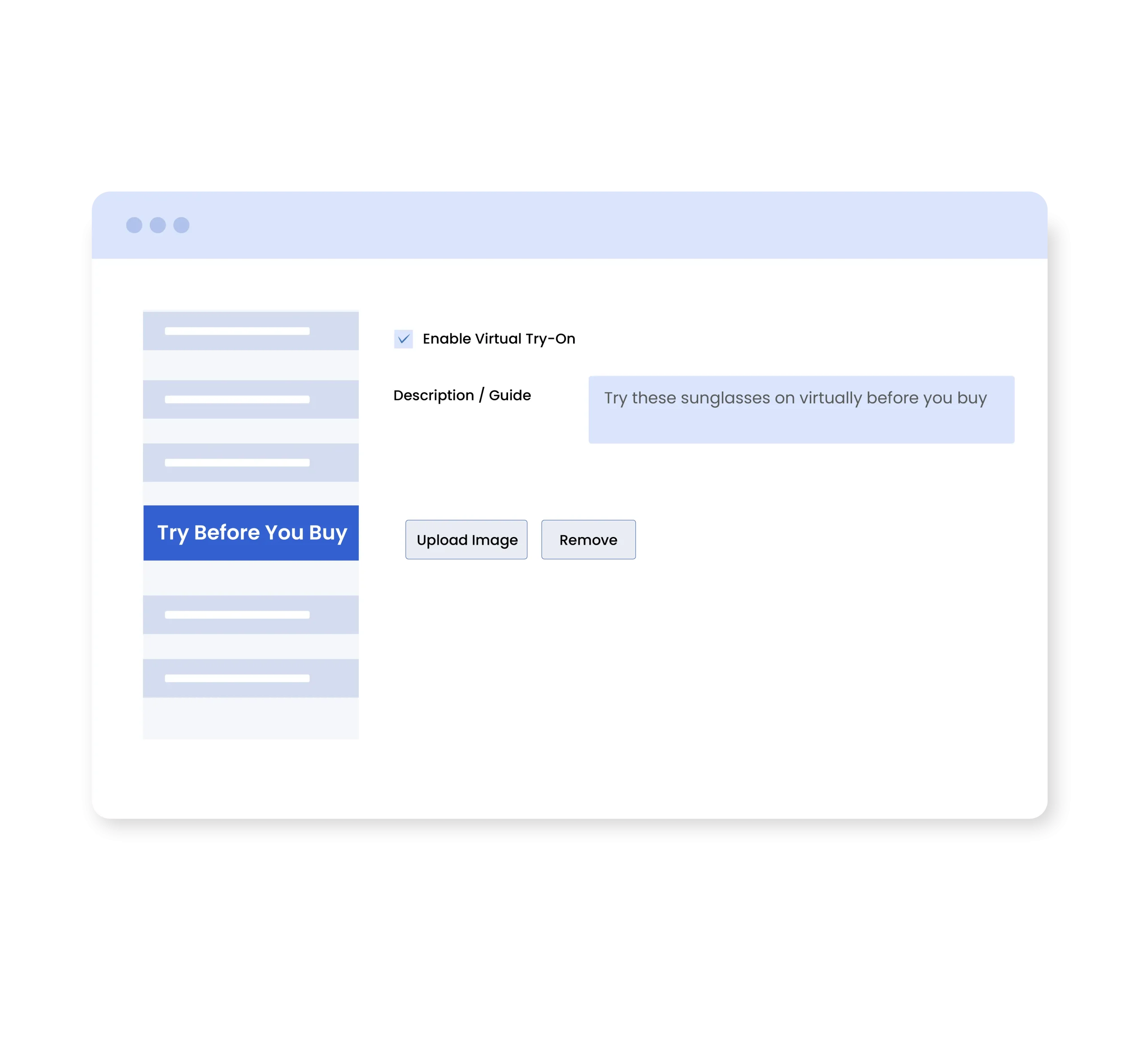
WooCommerce Virtual Try On plugin allows you to enable the try-on feature for individual products directly from the product level settings. You can simply add a custom description for the selected item and upload relevant dummy images to guide customers.
Technical Compatibility
- Version 1.0.1View changelog
- WooCommerce version required3.5.0 or higher
- WordPress Version Required4.6 or higher
- Multi-Site SupportYes
- LanguagesEnglish
- WPML CompatiblityWPML Supported
- TranslatableYes, Translation Ready
- CountriesWorldwide
Complete Features List
- Allow customers to try on multiple items directly from the product page
- Let users visualize your items in real time
- Enable users to upload their existing images or capture a new one to preview items
- Add Try-on button for specific:
- Products
- Categories
- Brands
- Dispaly try-on button on each product page
- Restrict the try-on option to selected user roles
- Allow users to upload the following file formats:
- Jpg
- Jpeg
- Png
- Set the position of the try-on button as:
- Before add-to-cart
- After add-to-cart
- Show or hide past try-on images of customers
- Enable watermark on each image
- Write custom terms and policy message
- Display terms and policy note on the try-on pop-up
- Give customers the option to download their generated images
- Get a separate log to manage the following try-on details:
- Product ID
- Product Name
- Product Image
- Customer Email
- Use product-level settings to enable try-on feature for any selected item
- Customize the try-on button by adding custom text and color
- Style try-on popup by adding custom:
- Background color
- Text color
- Button background color
- Upload a dummy/sample image for the try-on process
- Write a custom description to guide users about image upload
- Upload a custom watermark for the try-on images
- Enable watermark on each image