

Shopify Show Variants as Products
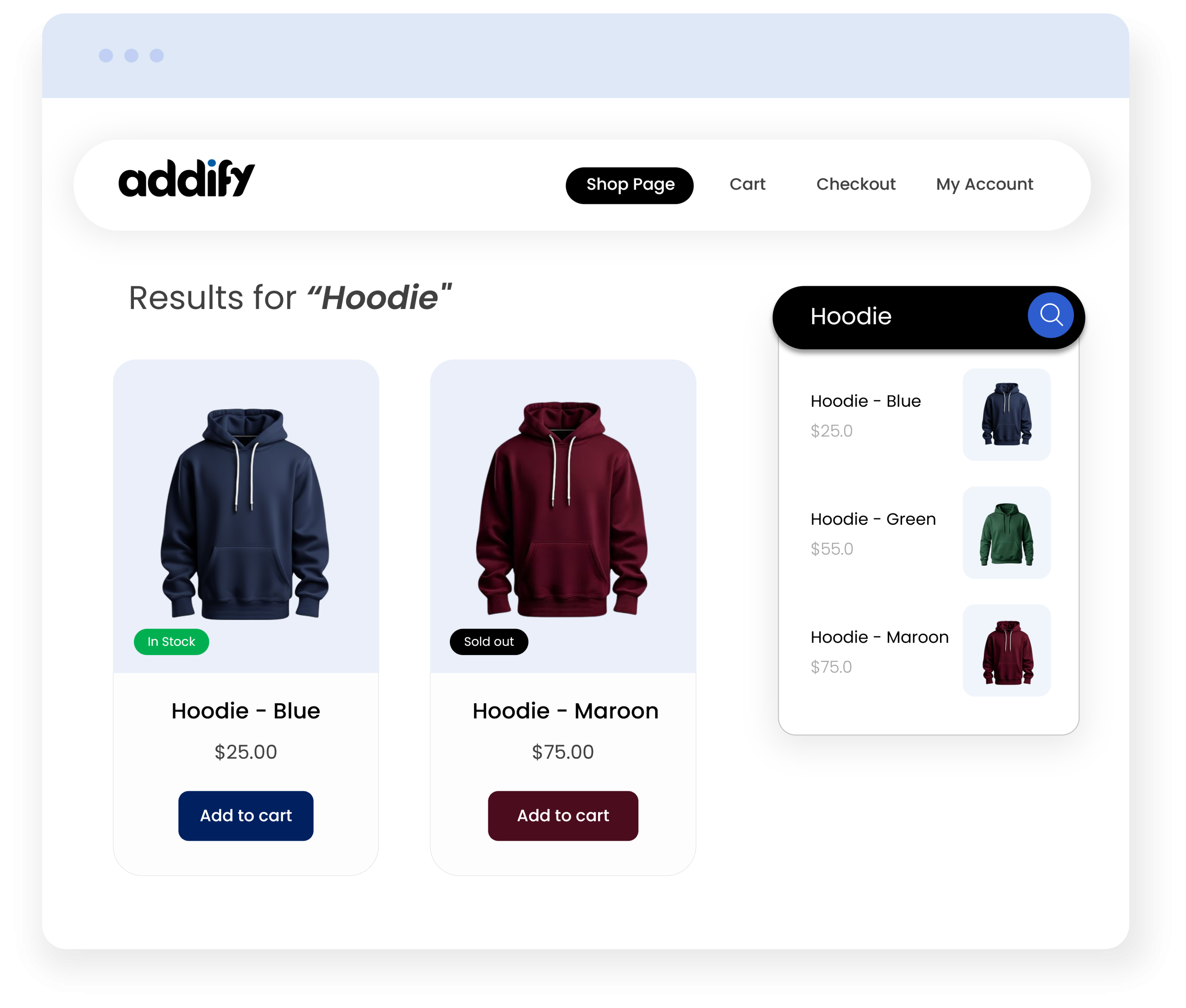
Make every product variant discoverable and easy to purchase by displaying variants as separate products. Showcase individual variants across collections, search, and home pages with a variant app for shopify, helping customers quickly find the exact product they need. With flexible controls for variant visibility, pricing, stock labels, tiles, and the Add to Cart button, you can create a cleaner shopping experience, improve product visibility, and boost conversion rates.
Key features:
- Show variants as separate products on collection page, home page, and search results.
- Show or hide variant pricing and customize in-stock and out-of-stock label text.
- Customize variant titles, prices, stock labels, and add-to-cart buttons.
- Choose which variant to display or hide based on availability and images.
- Add a direct “Add to Cart” button to variant cards for faster purchases.

Shopify Market Place Approved. View Listing
-
Marketplace Verified
-
Extension Partner
- 1 year free support
- 1 year extension updates
30 DAYS MONEY BACK GUARANTEE
Your money is secure with our buyer protection. Claim a full refund for any reason.
Detailed Features of Shopify Show Variants as Products
Use Cases Example
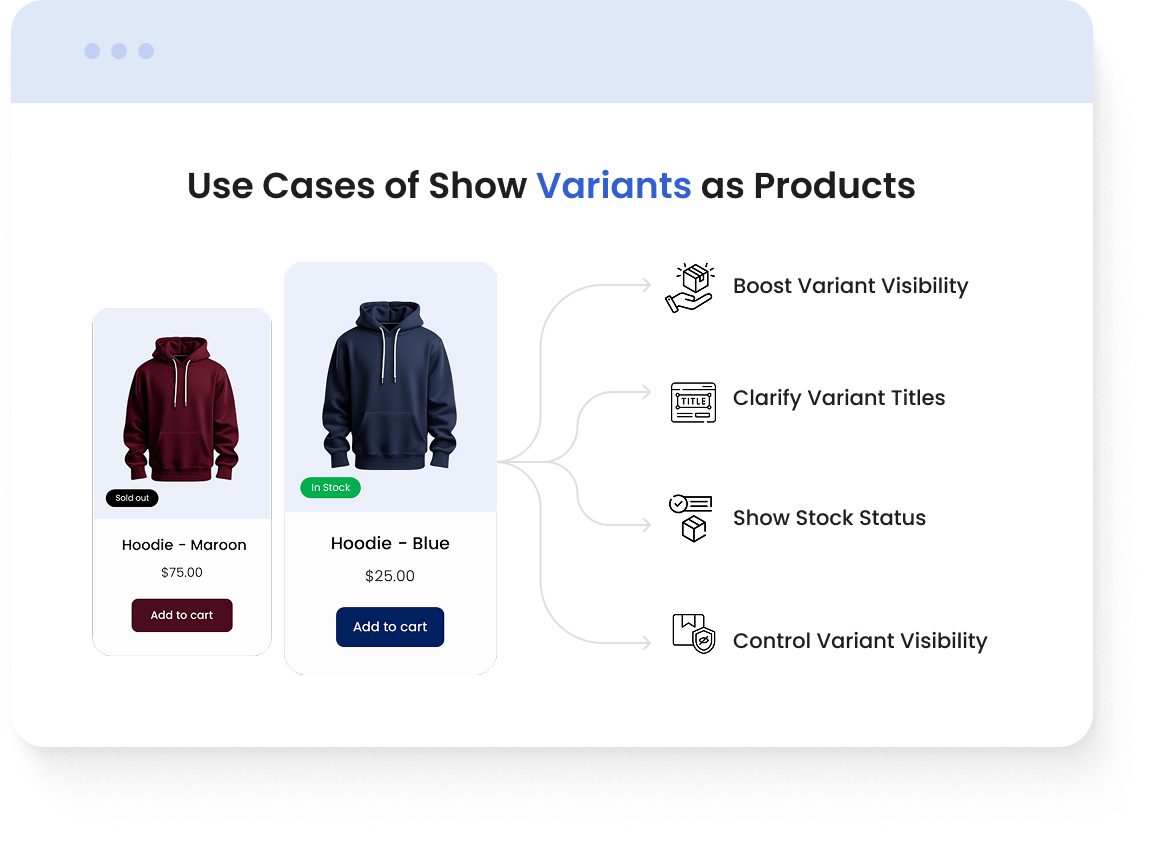
- Boost Variant Visibility: A fashion store can display popular colors and sizes as separate products to boost their visibility.
- Clarify Variant Titles: An apparel store can display product and variant titles together to make styles and colors easier to identify.
- Show Stock Status: A limited-edition store can customize stock labels to clearly show which variants are available.
- Control Variant Visibility: A growing store can hide unavailable or incomplete variants to keep product listings clean and relevant.
Manage Variant Visibility
Choose where and which variants are visible to customers to keep the storefront clean and relevant.
You can control where variants appear:
- Display variants on collection page
- Display variants on the home page
- Show variants in search results
- Hide out-of-stock variants
- Hide variants without images
Easily manage how variants are displayed across your store by enabling the options that best suit your storefront. You can display variants as individual products while hiding unavailable or incomplete variants; this improves product visibility for customers.
Configure your Variant Cards
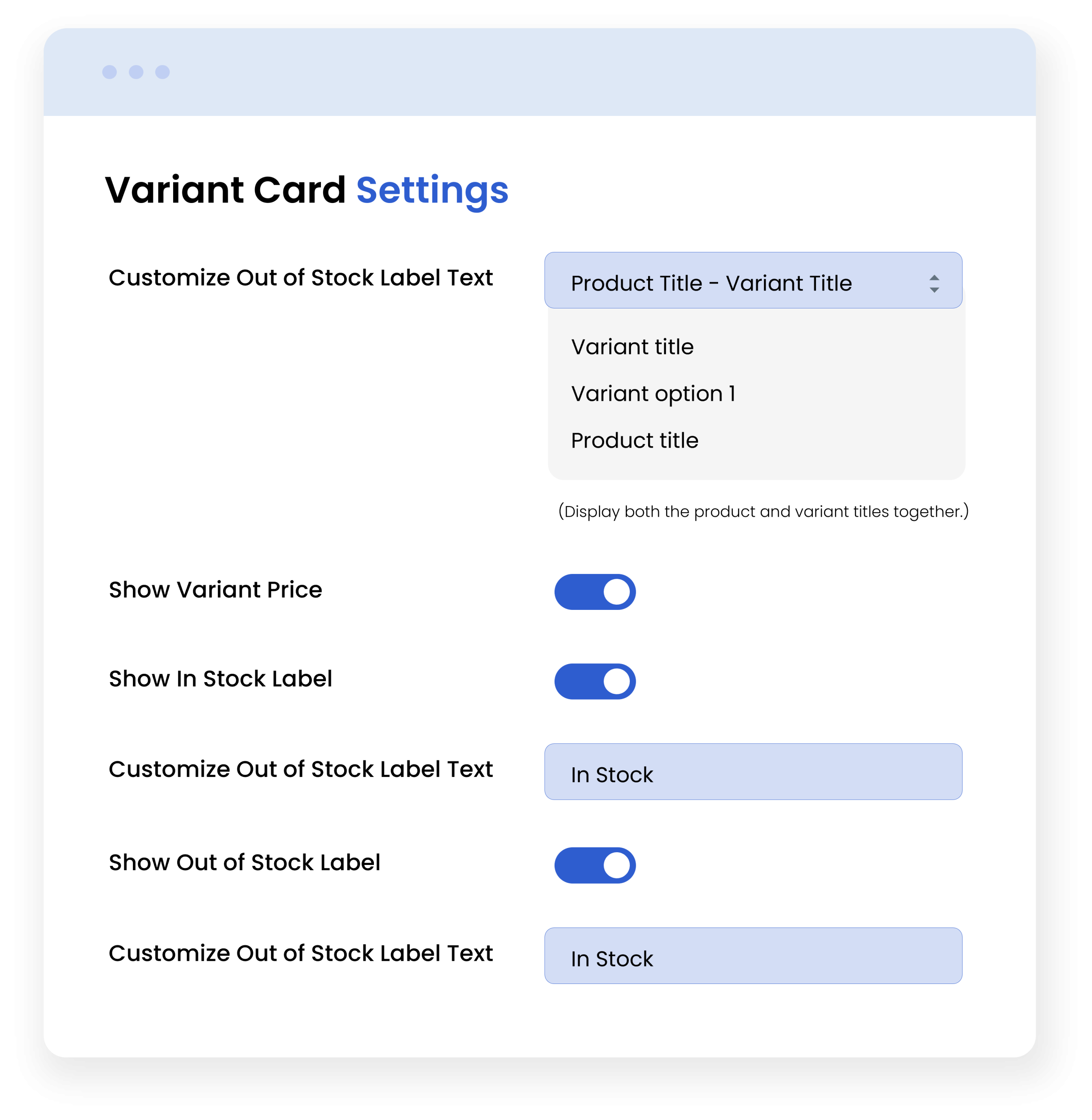
The variant card setting lets you customize how variant titles appear on your variant cards. You can choose different title formats such as
- Product title with variant title: Shows the main product name together with the selected variant.
- Variant title: Displays only the variant name.
- Variant option 1: Displays the first variant option, such as color or size.
- Product title: Displays only the product name.
You can also enable or disable variant pricing and stock labels to show customers the information they need. Customize the in-stock and out-of-stock label text to match your store style and make each variant easier to understand while browsing.
It lets you choose the title format, pricing, and stock labels that best suit your store. This creates a clear and consistent shopping experience while helping customers quickly understand the available variants.
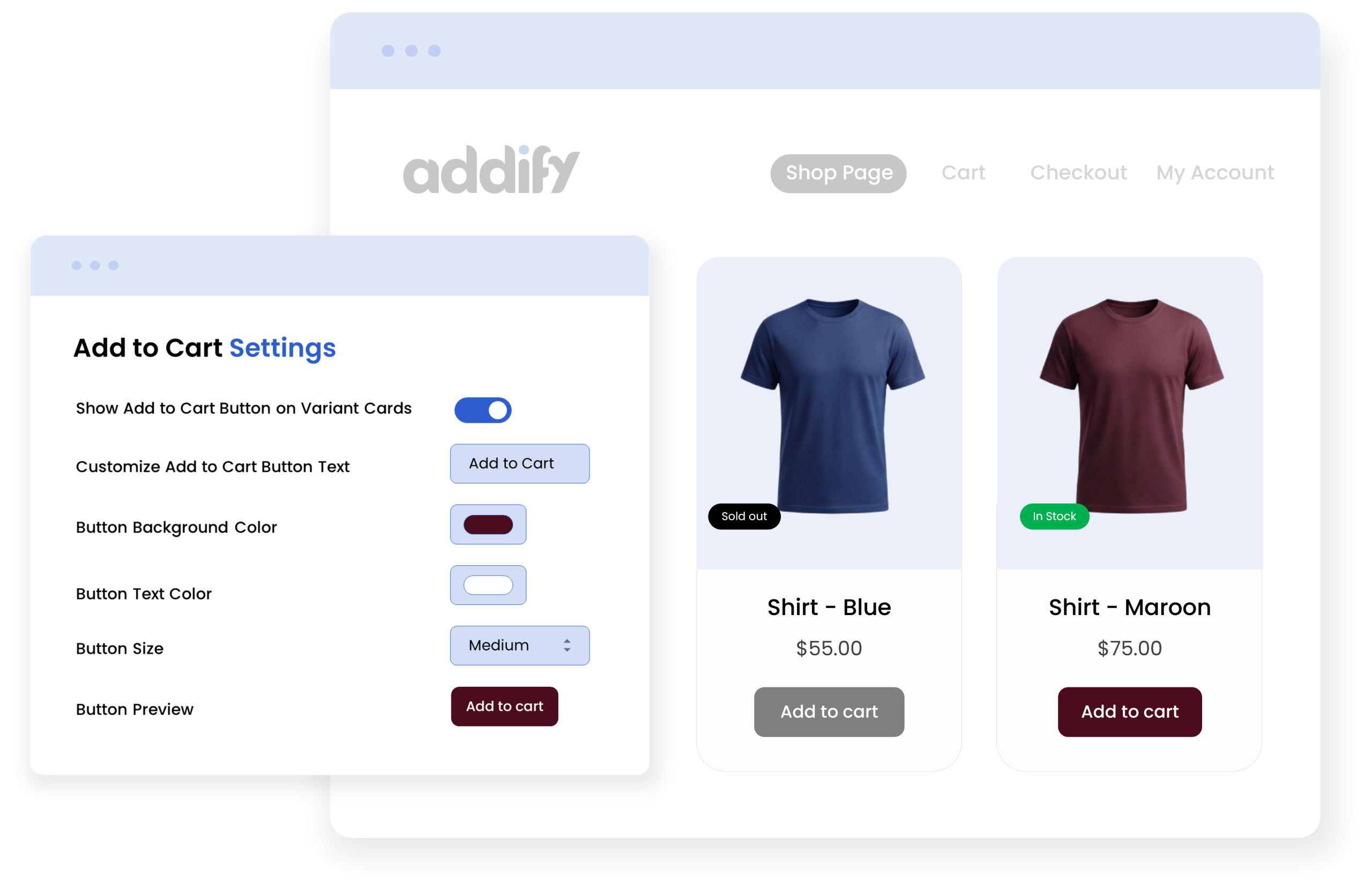
Optimize Add to Cart Settings
Show an Add to Cart button directly on your variant cards, allowing customers to add their preferred variant without opening the product page.
Customize the button text, background, and text colors, and choose from different sizes to match your store’s design. View button preview to see how it looks and make sure it fits well with your storefront.
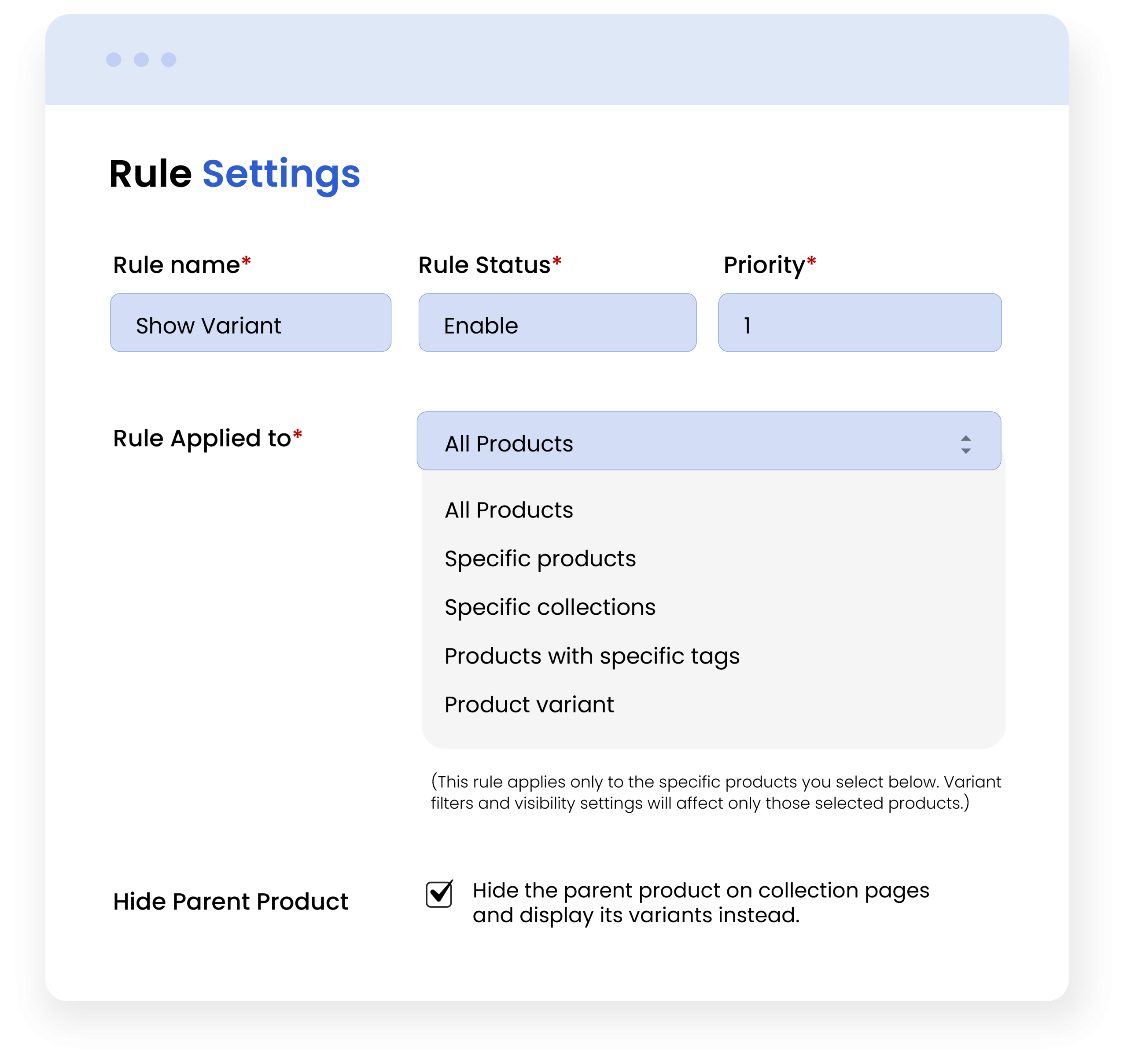
Set Variant Display Rules
Create custom rules to control to whom and which product variants are displayed across your Shopify store. Set a rule name, enable or disable it, and assign a priority to determine which rule takes place first when multiple rules apply.
You can apply rules to
- All products
- Specific products
- Collections
- Products with specific tags
- Product variants.
Also, you can hide the parent product from collection pages and display its variants instead, helping customers discover and shop individual options more easily.
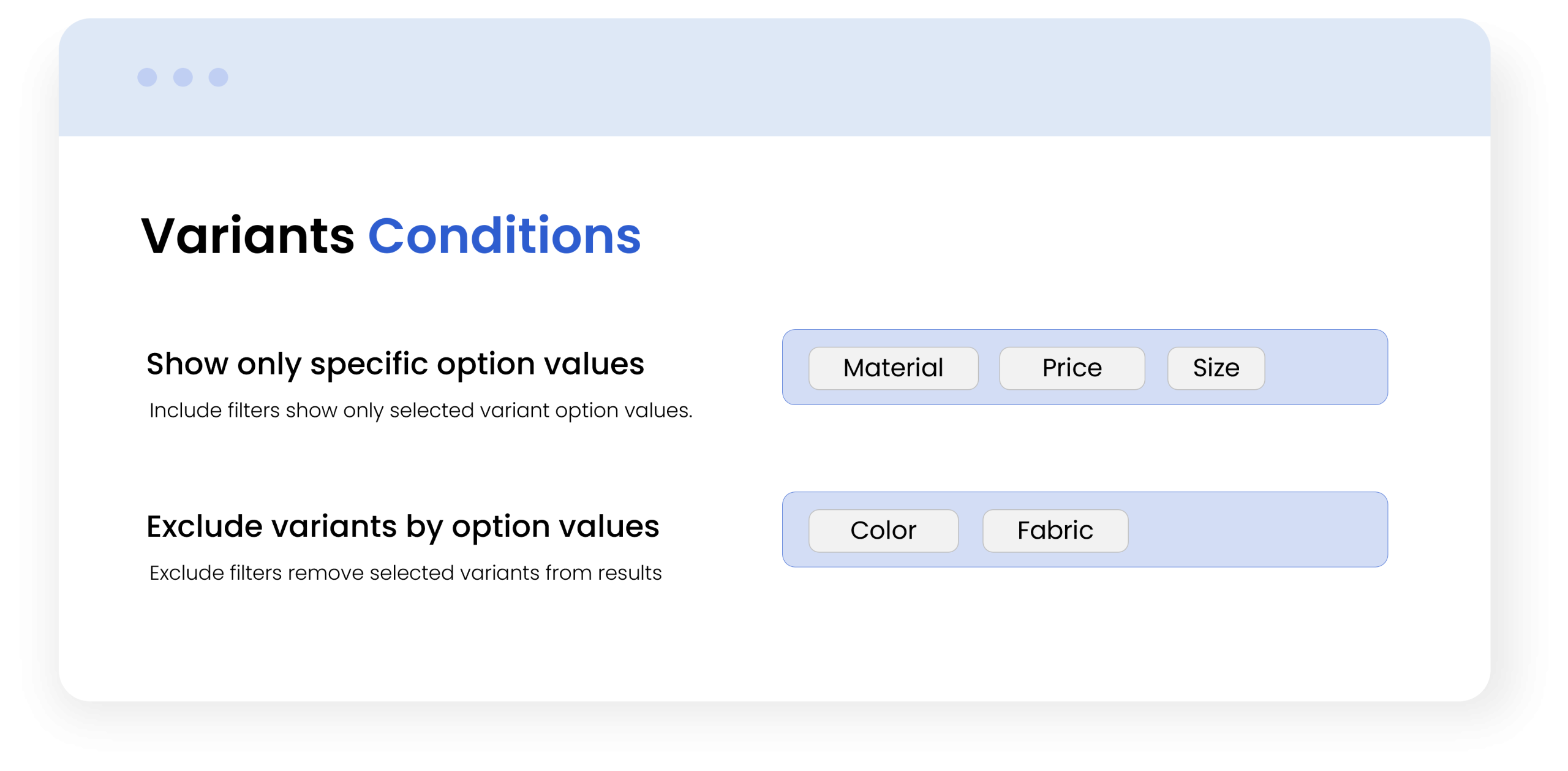
Apply Variant Conditions
Choose which variant option value should be displayed or hidden globally across all applicable products
- Show Only Specific Option Values
Choose specific variant option values to display across applicable products. This lets you highlight selected options, such as particular sizes, colors, or other variant choices.
- Exclude Variants by Option Values
Select variant option values that should be hidden from the results. This helps you remove unwanted options while keeping the rest of the applicable variants visible.
When both conditions are used, the Show Only condition takes priority, so only the selected option values are displayed.
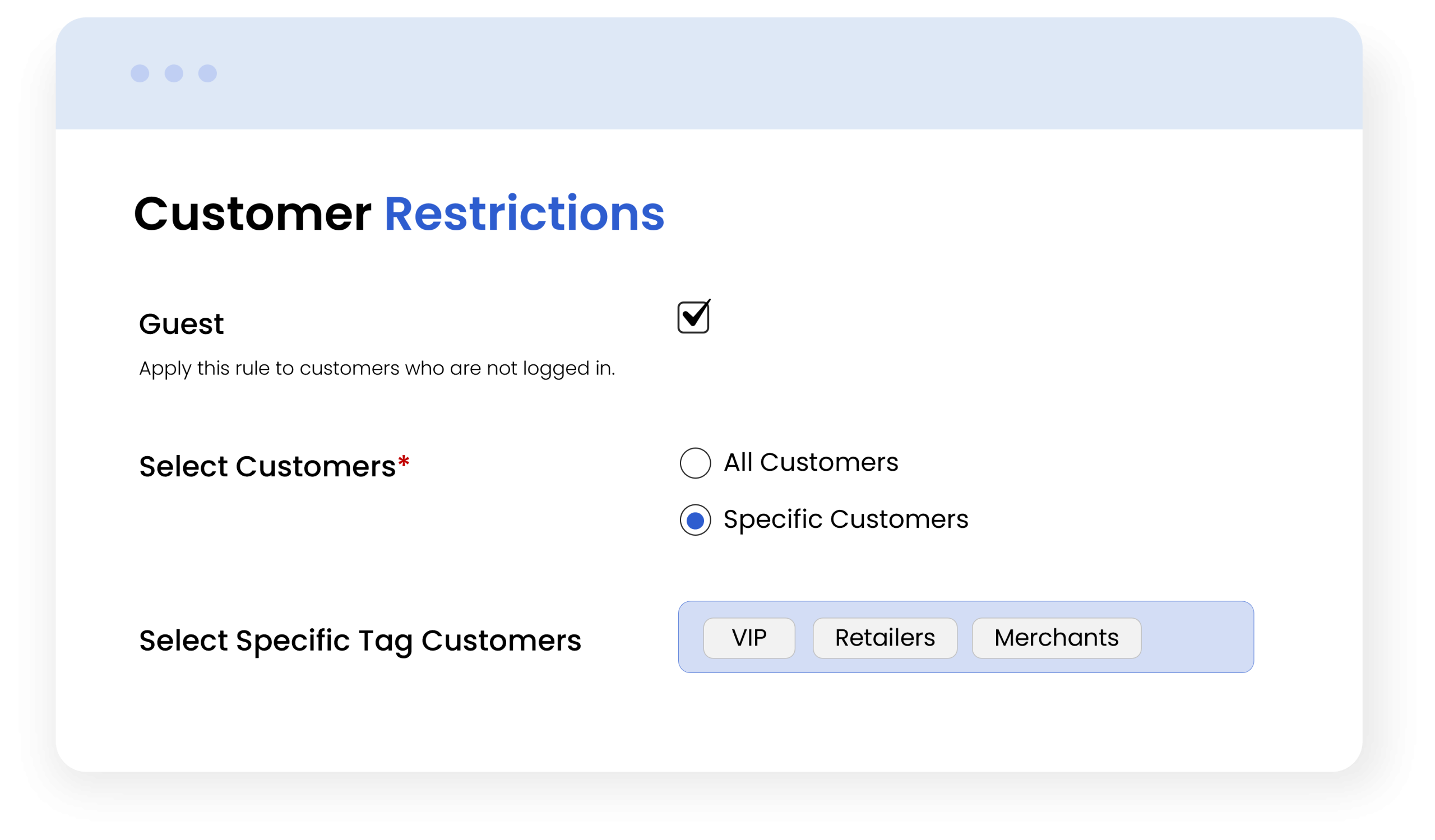
Apply Customer Restrictions
Choose which customers the rule applies to, whether they are:
- Guests
- All customers
- Customers with specific tags.
This gives you more control over which customer groups can see the variants based on your store’s requirements.
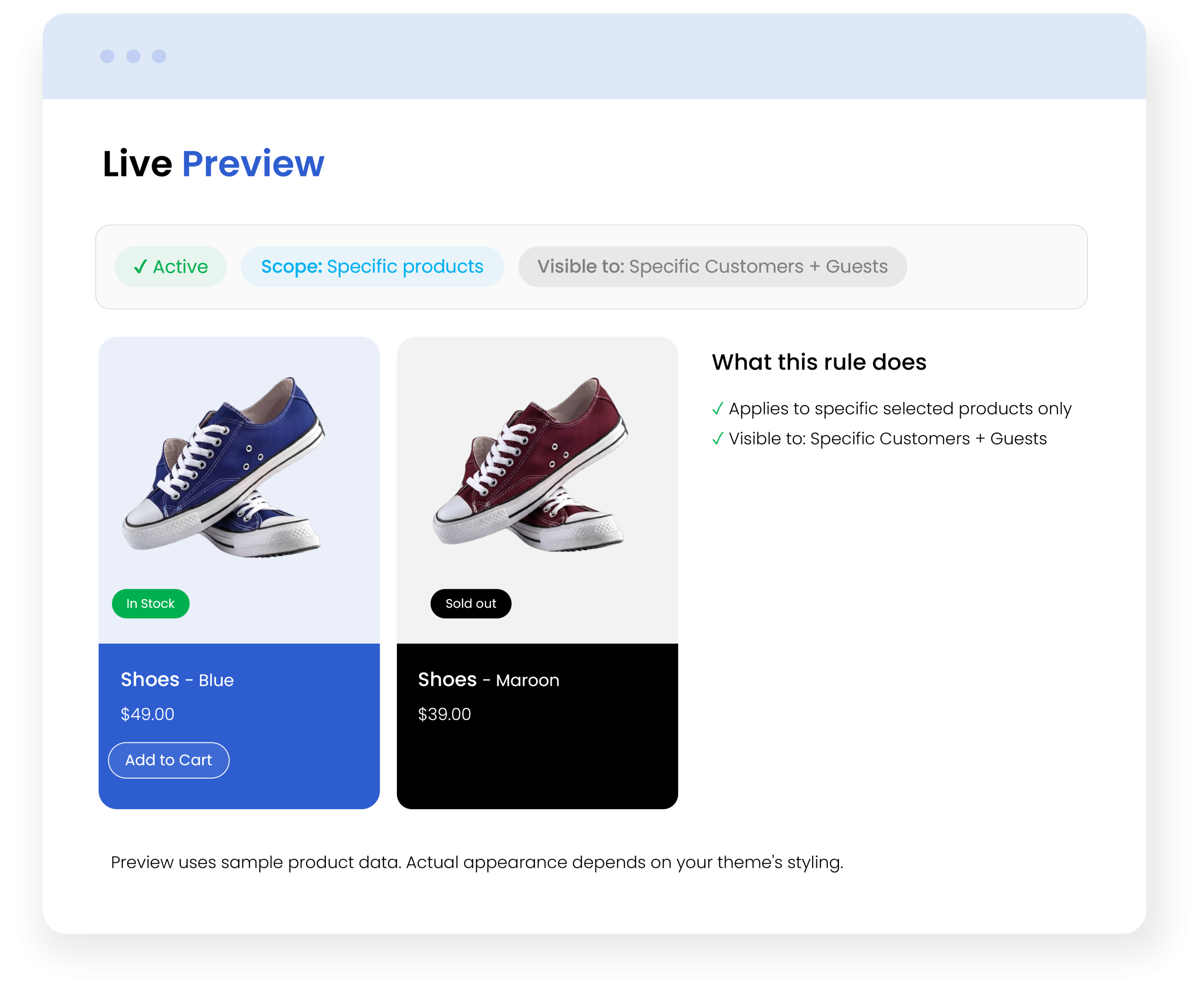
Preview Your Setting
See how variant cards will appear to customers on the collection and home page based on the set rule and general settings.
Quickly review the products, customers, and variant settings to make sure everything is configured as expected.
Complete Features List
- Enable or disable the app functionality across your entire store.
- Show product variants on collection page, home page, and search results.
- Show or hide variant prices and in-stock or out-of-stock labels, with customizable label text.
- Show or hide the Add to Cart button on variant cards and customize its
- Text
- Background color
- Text color
- Size
- Select from a variety of font sizes such as small, medium, or large.
- Create multiple rules to manage variant visibility across your store.
- Set a rule name, status, and priority according to your requirements.
- Apply rules to all products, specific products, collections, products with specific tags, or individual product variants.
- Show only selected variant option values or exclude specific variants based on their option values.
- Use inclusion and exclusion conditions together, with included values taking priority.
- Hide the parent product from collection pages; show all variants on collection page instead.
- Apply rules to guest customers, all customers, or customers with specific tags.
- Automatically hide out-of-stock variants and variants without images from your storefront.
- Choose how variant titles are displayed on product cards.