Adding Request a Quote Button to Products
Managing Submitted Quotes
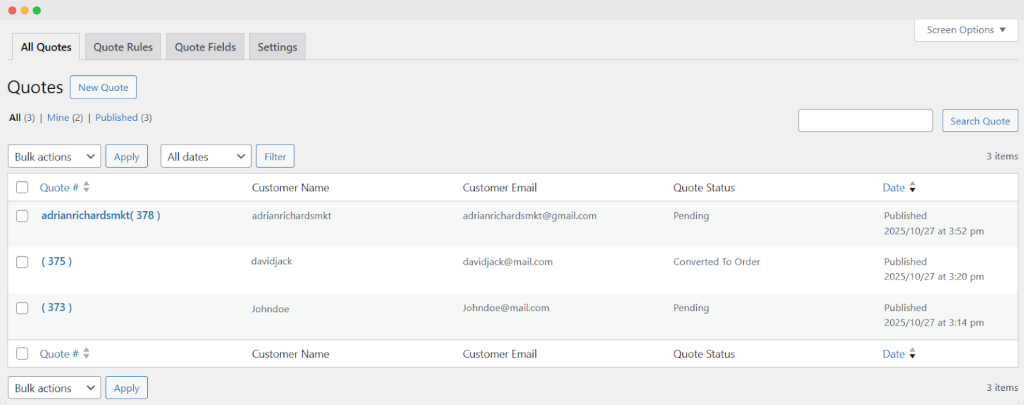
Get a full list of quote requests submitted by customers and admins in a grid. Click on any quote to view the details or even edit.
- Perform bulk actions on quotes
- Apply a filter to sort them according to month and year
- Add a New Quote
- Search for an existing quote
Add or Editing the Existing Quotes
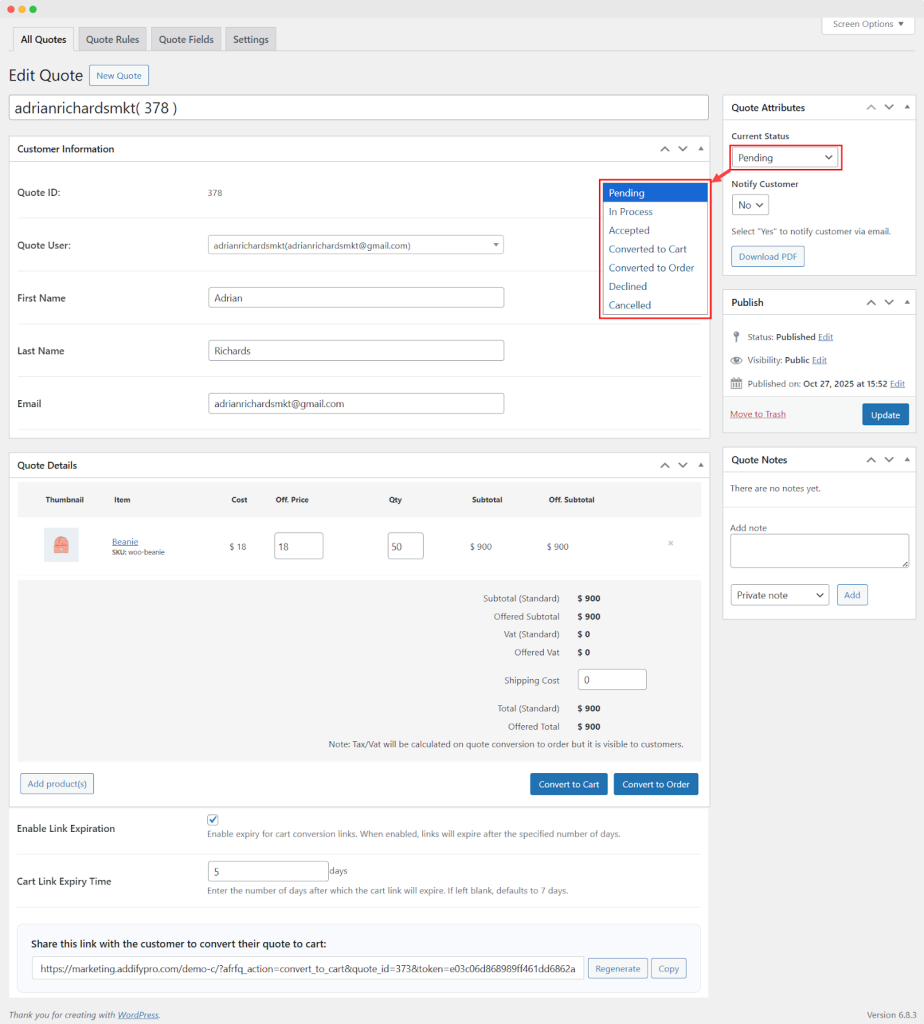
New Quote:
- Add Title: Add a unique title for future reference
Customer Information:
- Quote ID: Displays a unique rule number to distinguish from others
- Quote user: Select a user for whom you want to apply this rule.
- First Name: Enter the first name of the customer.
- Last Name: Enter the last name of the customer
- Email: Enter the email address of the customer
Quote Details:
View the following quote details here. Add new products or delete an existing one.
- Thumbnail
- Item
- Cost
- Offered Price
- Quantity
- Subtotal (Standard)
- Offered Subtotal
- Offered vat
- Shipping Cost
- Total (Standard)
- Offered total
- Note: Tax/VAT will be calculated on quote conversion to order, but it is visible to customers.
Add Product(s):
Click on “Add Product(s)”, a pop-up will appear:
- Product: Select a product to add to a quote
- Quantity: Add product quantity
- Add Quote (button): After adding the required information, the “Add quotes” button will be enabled, and you can click it to add the product to the quotes.
Convert to cart: (New)
Once you add the desired product, click on the “Convert to cart” button to add the order to the cart.
- Enable link Expiration: You can enable or disable the expiry date of the generated link. If enabled:
- Cart link Expiry time: Add the total number of days when the linked will expire.
- Shared this link with the customer to convert their quotes to cart: Display the link that is automatically generated when the admin converts quotes to cart. You can also share this link with the customer via email.
- Regenerate: Click this option if you want to regenerate this link.
- Copy: Click this option to copy the link.
Convert to order:
Click on the “Convert to Order” button to convert the quotes into an order.
Quote Attributes:
Current Status: Change the current status of the quote from the dropdown
- Pending
- In Process
- Accepted
- Converted to Cart
- Converted to Order
- Declined
- Cancelled
Notify Customer: Choose “No” or “Yes” from the dropdown
Note: Choose “Yes” to notify customers via email
Quote Notes: (New)
You can add the notes to handle the important information related to each quote.
Add: Click on the “Add button” to save them.
Add Notes: You can write any comment, additional information, or reminders in this field. You can also make these notes private or note for the customer by selecting the option in a dropdown.
Viewing Quote Rules in a Grid
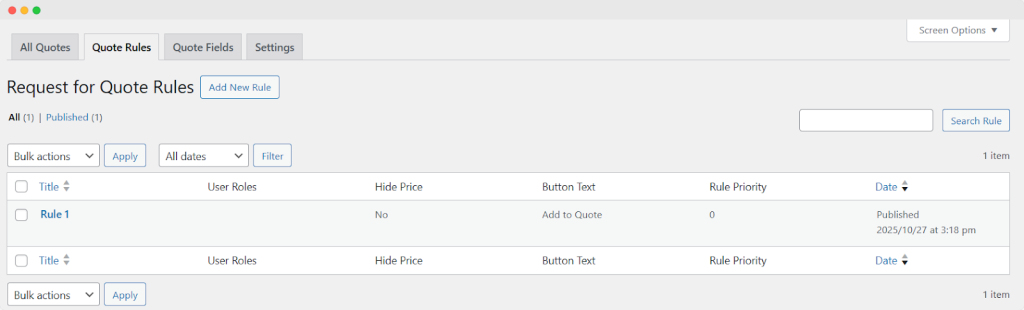
Get a full list of quote rules in a grid. Click on any quote rule to view the details or even edit.
- Perform bulk actions on quote rules
- Apply a filter to sort them according to month and year
- Add a New Rule
- Search for an existing quote
Adding a New Quote Rule
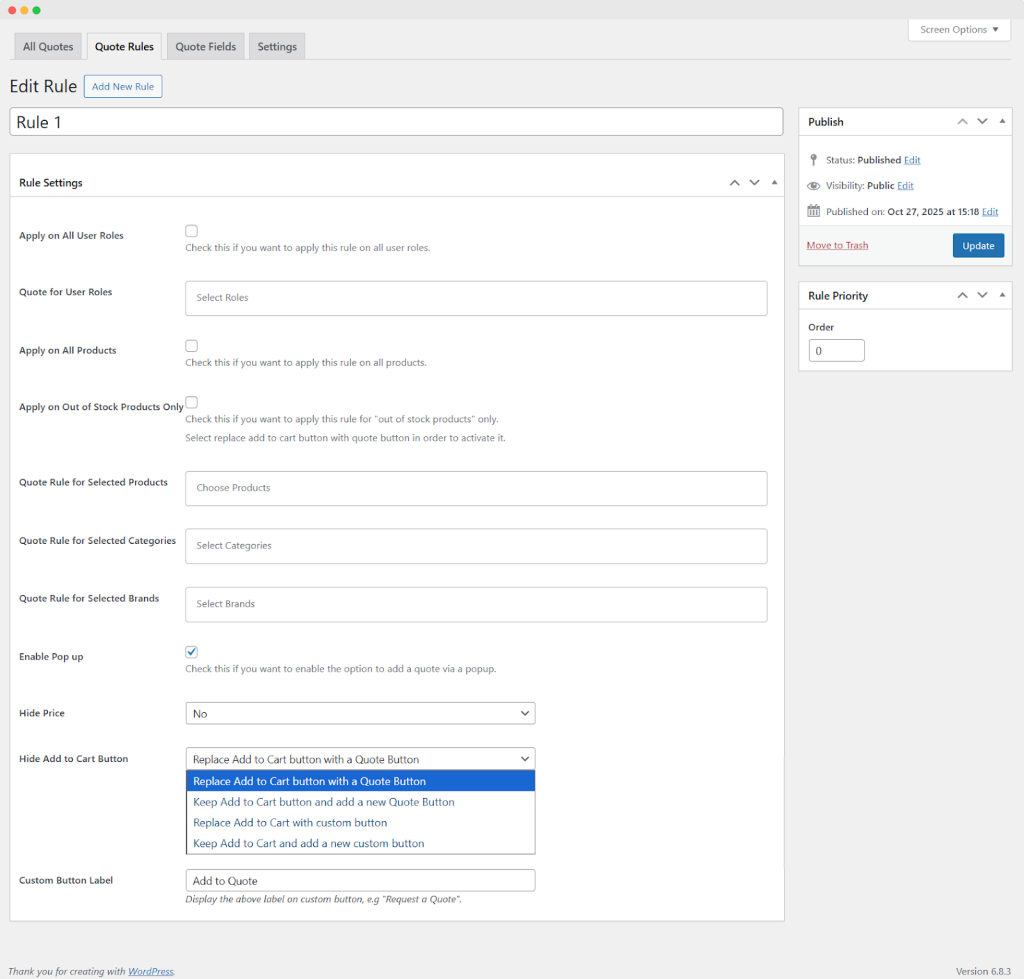
Add New Rule:
Add Title: Enter a unique quote rule title for future reference
Rule Settings:
- Apply on all user roles: Enable this option to apply the rule to all user roles. (NEW)
- Quote for User Roles: Select the specific user role by using a dropdown:
- Administrator
- Editor
- Author
- Contributor
- Subscriber
- Customer
- Shop manager
- Wholesale
- B2B
- Retailer
- Guest
- Apply to All Products: Check this box to apply this rule to all products
- Apply to out-of-stock products only: Check this box to apply this rule for “out-of-stock products” only (Note: Select the replace quote button with the add to cart to activate it)
- Quote Rule for Selected Products: Choose a product(s) to apply the quote rule
- Quote Rule for Selected Categories: Choose a category(s) to apply the quote rule
- Quote Rule for Selected brand: Choose a brand to apply the quote rule. (NEW)
- Hide Price: Choose “Yes” or “No” from the dropdown to enable/disable Hide Price
- Enable pop-up: Enable this option if you want to add a quote via pop-up. (NEW)
- Hide Add to Cart Button: Choose an option from the dropdown:
- Replace the Add to Cart button with a Quote Button
- Keep the Add to Cart button and add a new Quote Button
- Replace Add to Cart with a custom button
- Keep Add to Cart and add a new custom button
- Custom Button Link: Add a link for a custom button
- Custom Button Label: Enter a custom label on the button e.g. “Request a Quote”
Rule Priority:
- Order: Set a desired order for the quote rule
Managing Quote Form Fields
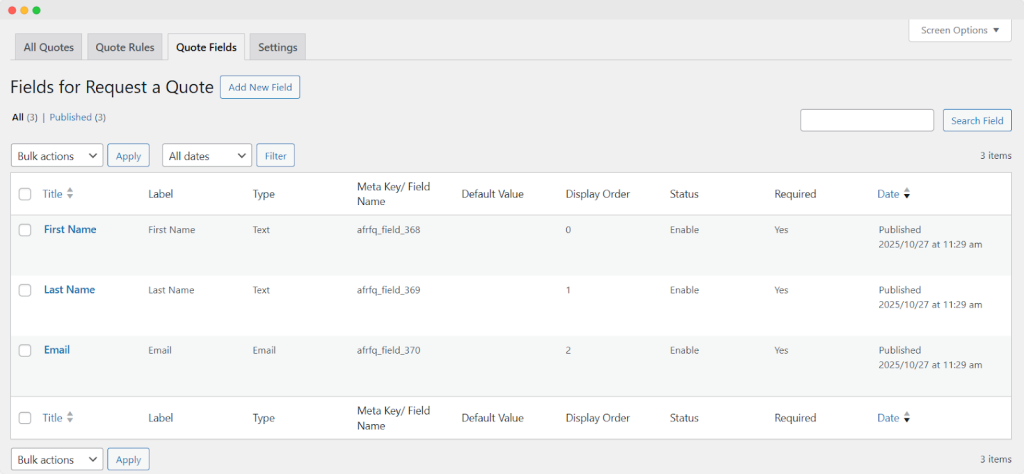
This section displays all of your Quote Fields in a single grid.
- View, edit, or delete any field
- Perform bulk actions on form fields
- Search for an existing form field
- Filter the fields according to month and year
- Add new form fields
Adding a New Form Field
To add new form fields, enter the following details:
Add New Field:
Title: Enter the name of the field that appears on your All Quotes pages
Field Attributes and Values:
- Field Name: Add a unique name for each quote field. It is also used as a meta_key to store values in a database (field name can not be changed once published)
- Field Type: Select an input format type for the field
- Text
- Number
- File
- Time
- Date
- DateTime
- Textarea
- Select (Dropdown)
- Multi Select
- Radio
- Checkbox
- Terms & Conditions
- Field Label: Enter the field label that will be visible to customers at the frontend
- Field Default Value: Select any default customer value against which that field’s data should be stored
- Set a default value
- Username
- First Name
- Last Name
- Nickname
- Display Name
- Billing First Name
- Billing Last Name
- Billing Company
- Billing Address 1
- Billing Address 2
- Billing City
- Billing Postcode
- Billing Phone
- Billing Email
- Shipping First Name
- Shipping Last Name
- Shipping Company
- Shipping Address 1
- Shipping Address 2
- Shipping City
- Shipping Postcode
- Shipping Phone
- Shipping Email
Field Width: Set the field width, such as full-width or half-width, from a dropdown.
Field Placeholder: Enter a customized text to give your customer an additional description or hint of what you want from them in this field

Personalizing Global Configurations for Request a Quote
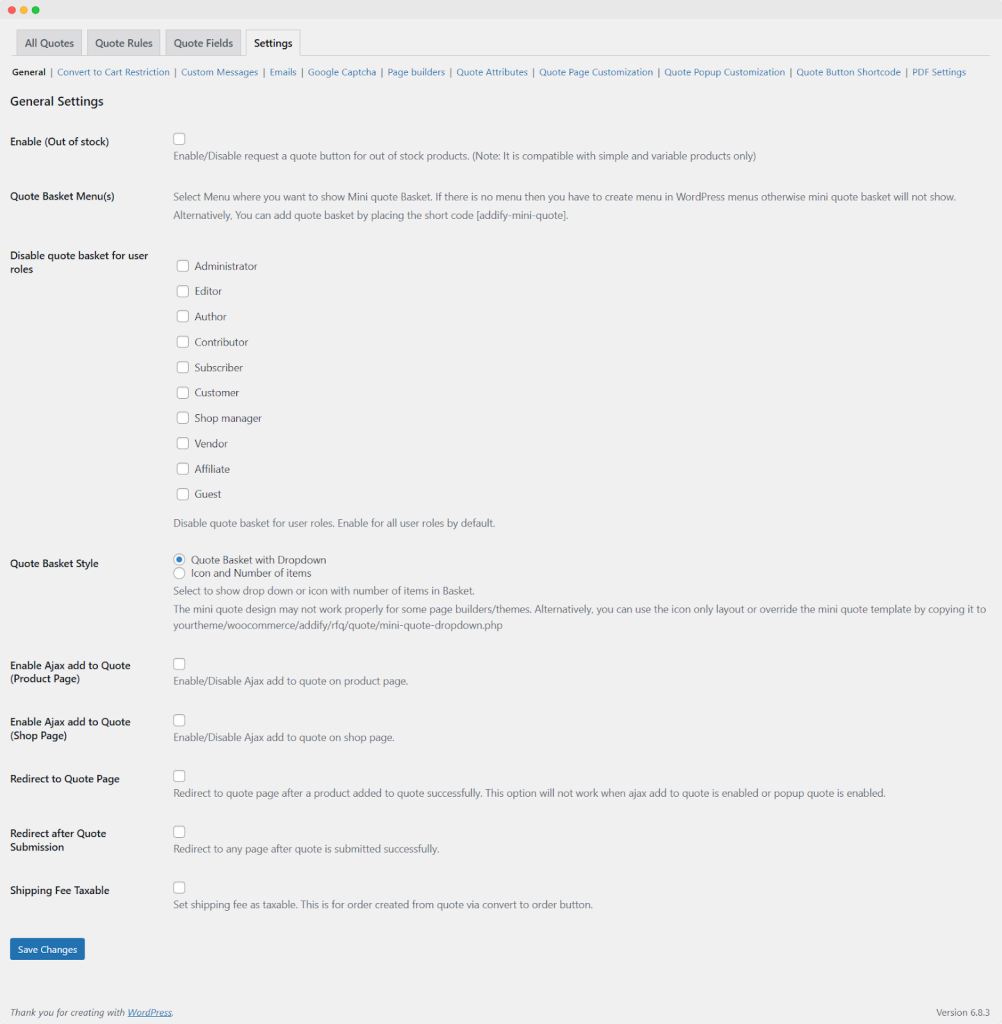
General Settings:
Enable (Out-of-Stock): Enable/disable the request a quote button for out-of-stock products (Compatible with simple and variable products only)
Quote Basket Menu(s): Add a Mini Quote Basket: Select the menu where the mini quote basket should be added (Option to add on multiple menus). Use the shortcode [addify-mini-quote]
Disable quote basket for user roles: Select user roles to display the quote basket (By default, it is enabled for all)
Set Basket Style: Select the style to display the number of items in the customer’s basket
- Quote Basket with Dropdown
- Icon and Number of items
Enable Ajax add to Quote (Product Page): Enable/disable Ajax Add-to-Quote on the product page
Enable Ajax add to Quote (Shop Page): Enable/disable Ajax Add-to-Quote on the shop page
Redirect to Quote Page: Redirect customers to the Quote page once they have successfully added a product to the Quote
Redirect after Quote Submission: Redirect customers to any page once they have successfully submitted a Quote
URL to Redirect: Enter a URL to redirect after the quote is submitted successfully
Convert to Cart Restriction:
Hide payment method: Select the specific payment method from the dropdown that you want to hide when converting the quote to an order.

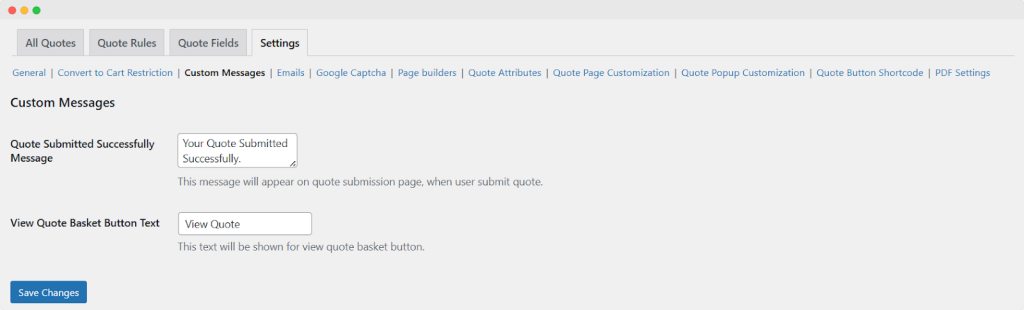
Custom Messages Settings:
Enabled Ajax add to quote to customize the success messages for:
Quote Submitted successfully Message: Enter a custom message when a user submits a quote (Message will appear on the quote submission page)
View Quote Basket Button Text: Enter a custom text to display for the view quote basket button
Emails Settings:
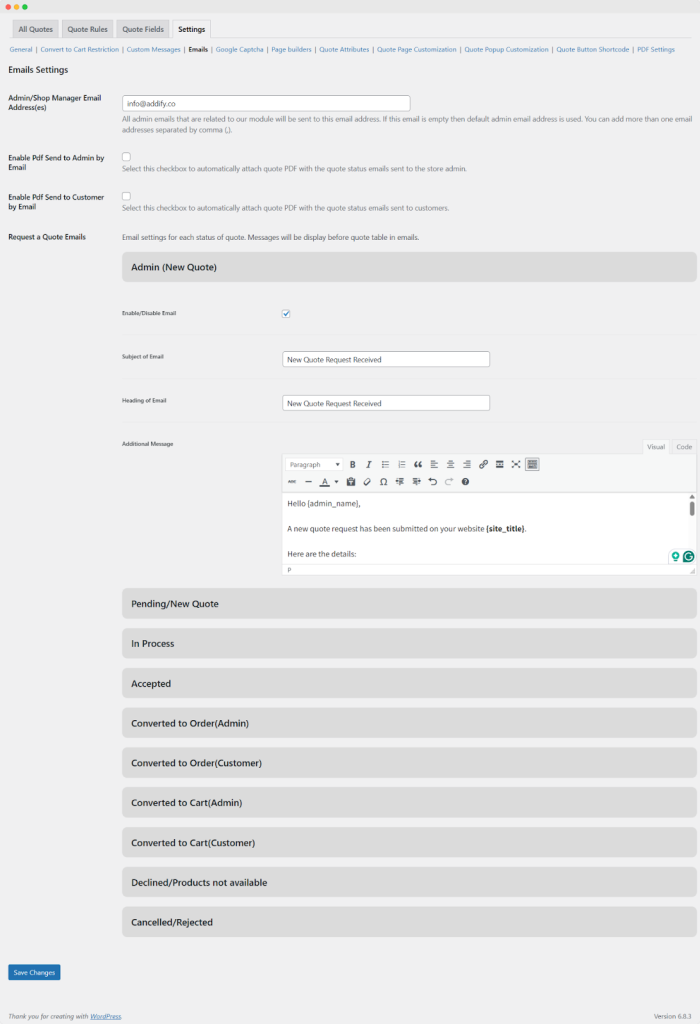
Open this option and perform the following settings:
- Admin/Shop manager Email Address(es): Add comma-separated email addresses of the admin/shop manager
- Enable PDF send to admin by email: Enable this option if you want to send the quotes PDF to the admin via email automatically. (NEW)
- Enable PDF send to customer by email: Enable this option if you want to send the quotes PDF to the customer via email automatically. (NEW)
- Request a Quote Emails: Set up emails for each quote status. Messages will be displayed before the quote table in emails. These quote statuses are:
- Admin (New Quote)
- Pending/New Quote
- In Process
- Accepted
- Converted to Order(Admin)
- Converted to Order(Customer)
- Declined/Products not available
- Canceled/Rejected
- Below are the email settings for each quote status:
- Enable/Disable Email: Checkmark to allow emails for this status
- Subject of Email: Enter a custom subject of the email
- Heading of Email: Enter a custom heading of the email
- Additional Message: Customize email message to send for this quote status
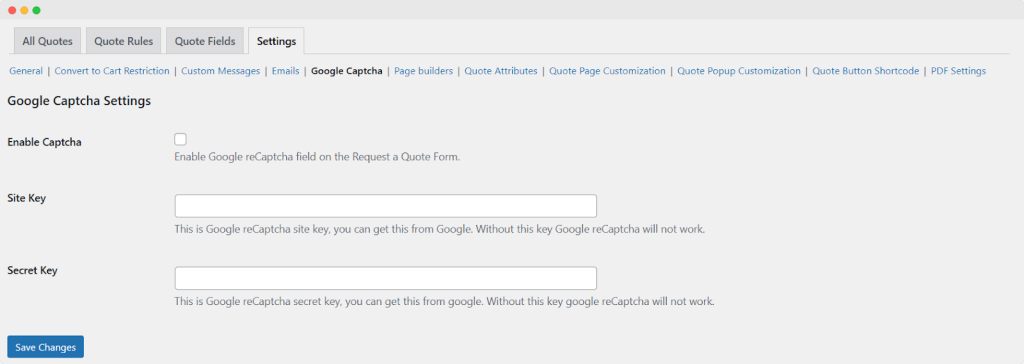
Google Captcha Settings:
Enable Captcha: Enable/disable Google reCaptcha field on the Request a Quote Form
Site Key: Enter a Google reCaptcha site key (available on Google). Without this key, Google reCaptcha will not work
Secret Key: This is Google reCaptcha secret key (available on Google). Without this key, Google reCaptcha will not work
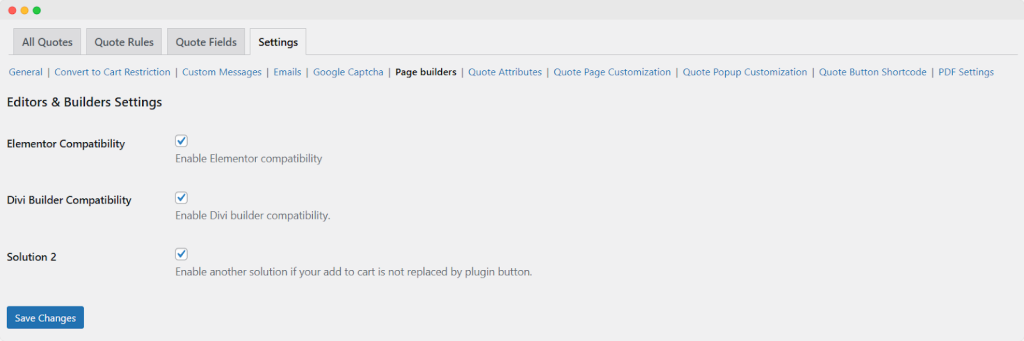
Editors & Builders Settings:
Elementor Compatibility: Enable/disable this option
Divi Builder Compatibility: Enable/disable this option
Solution 2: Allow another solution if your add to cart is not replaced by the plugin Button
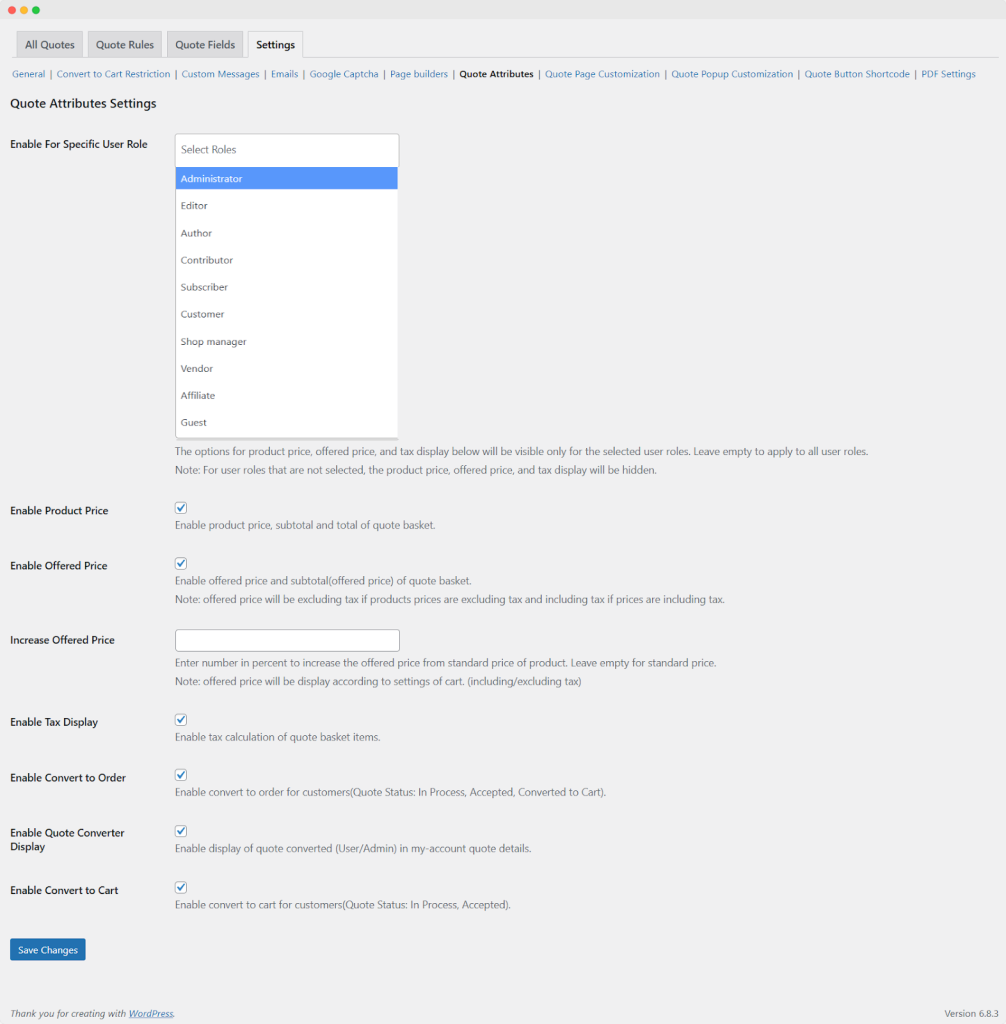
Quote Attributes Settings:
- Enable specific user role: Select a specific user role to restrict the quote attribute for those users. By default, it is enabled for all users. (NEW)
- Enable product price: Activate to display product price, subtotal, and the total of the quote basket (the price will always display on the quote basket and emails)
- Enable offered price: Activate the offered price and the subtotal (offered price) of the quote basket
- Increase offered price: Enter a number in percent to increase the offered price from the standard price of the product (Leave empty for standard price)
Note: Offered price will be displayed according to the settings of a cart (including/excluding tax)
- Enable tax Display: Display tax calculation based on the standard price
- Enable convert to order: Allow customers the convert to order at the frontend
- Enable quote converter display: Activate to show the quote converted (User/Admin) in My Account quote details
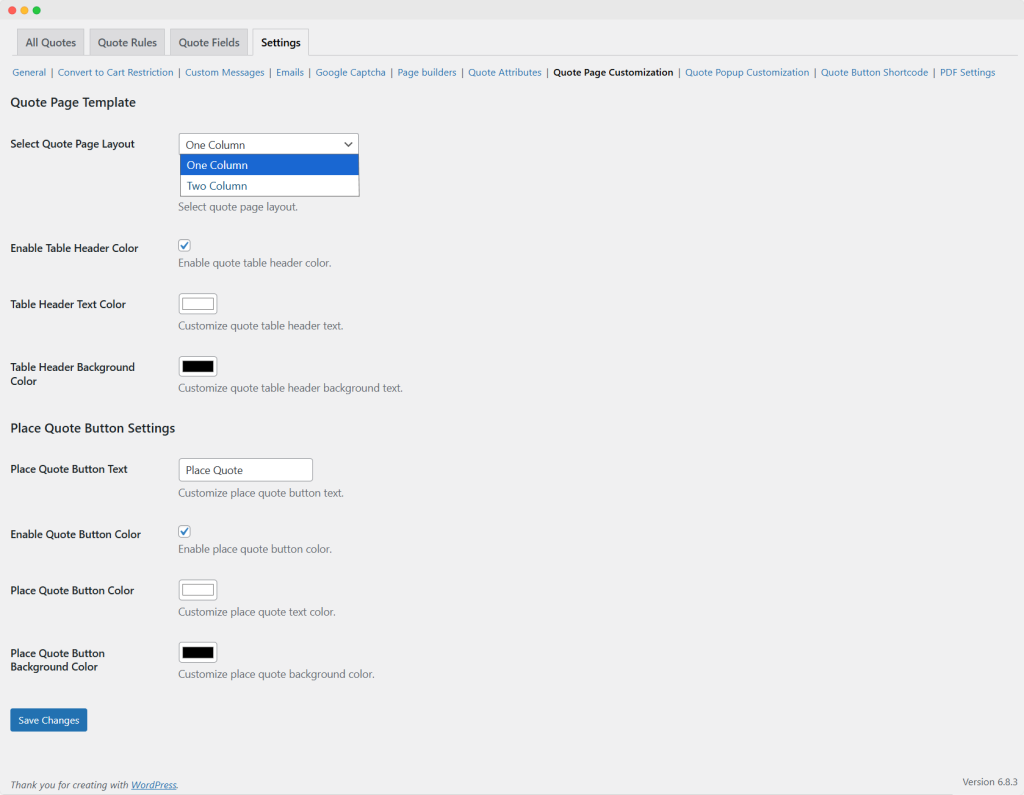
Quote Page Customization:
Quote page template: (NEW)
- Place quote page layout: Set the page layout to one column, two columns from the dropdown.
- Enable table header color: Enable or disable the table header color. If enabled:
- Table header text color: Choose the custom color for table header text.
- Table header background color: Choose the custom color for the table header background.
Place quote button setting:
- Place quote button text: Add a custom place quote button text
- Place quote button background color: Customize the background color of the place quote.
Quote Pop-Up Customization:
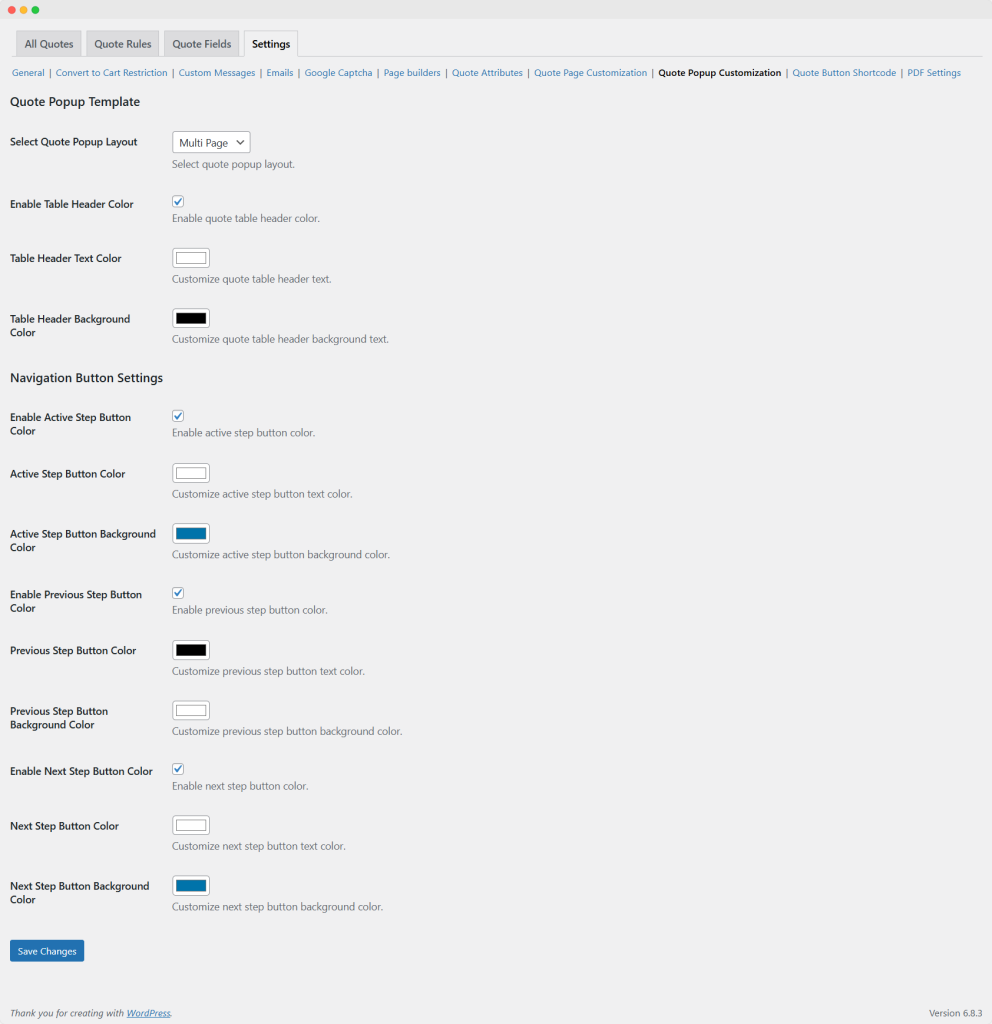
To customize the pop-up setting, you can:
Pop-up template setting:
- Select the quote layout: Select the quote layout, such as a single or multiple page form dropdown.
- Enable table header color: Enable or disable the table header color. If enabled:
- Table header text color: Choose the custom color for table header text.
- Table header background color: Choose the custom color for the table header background.
Navigation button setting:
- Enable active step button color: You can enable or disable the active step button. If enabled, you can:
- Active step button color: Set the custom color of the active button text.
- Active step button background color: Set the custom color for the active step button background.
- Enable preview step button color: Enable the preview step button and customize the following settings:
- Active preview step button color: Customize the color of the preview step button text.
- Active preview step button background color: Customize the background color of the preview step button.
- Enable Next Step Button Color: Enable the next step button and customize the following settings:
- Active next step button color: Add the custom color of the next step button text.
- Active next step button background color: Add the custom color for the background color of the next step button.
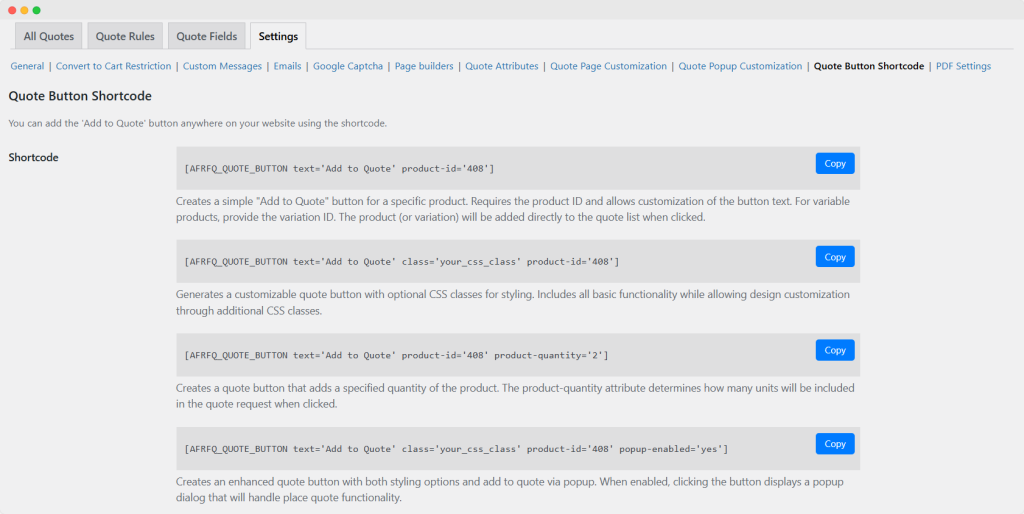
Quote Button Shortcode:
You can add the quote button anywhere on your store or website by using these shortcodes.
PDF Settings:
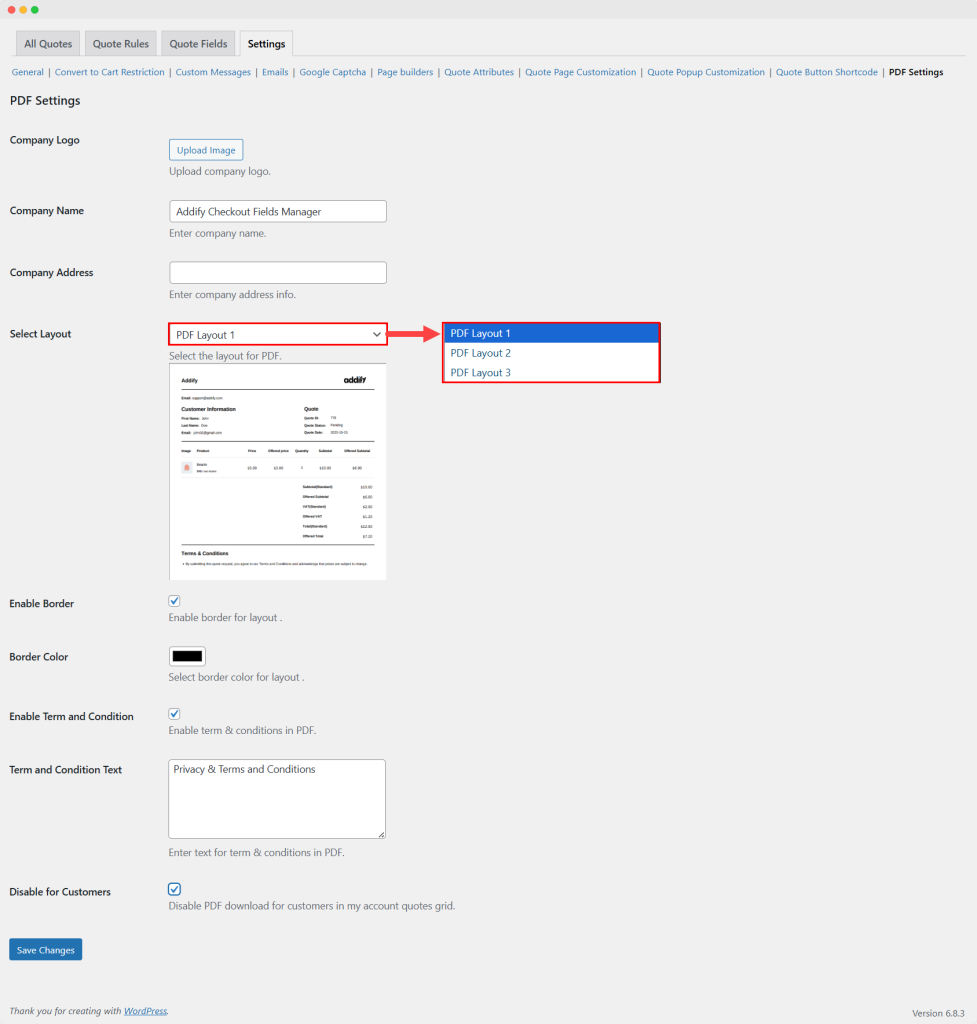
To customize the PDF setting, you can:
- Company logo: Add the custom company logo for PDF.
- Company name: Enter the name of the company.
- Company address: Add the company address.
- Select layout: Choose the PDF layout from the dropdown.
- Enable border: Enable the border for PDF layout.
- Border color: Add the custom border color.
- Enable terms and conditions: Enable the terms & conditions.
- Terms & Conditions text: Enter the custom text for terms & conditions in PDF.
- Disable for customer: Enable this option to restrict the customer from downloading the quotes PDF from the My account → Quotes page.
REST API Guide
Requirements:
To use the latest version of the REST API you must be using:
- WooCommerce 3.5+.
- WordPress 4.4+.
- Role-based pricing 2.0.0+
- Pretty permalinks in Settings > Permalinks so that the custom endpoints are supported. Default permalinks will not work.
- You may access the API over either HTTP or HTTPS, but HTTPS is recommended where possible.
Authentication
We have extended the v3 version of WooCommerce REST API. Read more about the WooCommerce authentication here. https://woocommerce.github.io/woocommerce-rest-api-docs/#authentication
List all rules of RFQ
This API helps you to get all rules of Request a quote. HTTP Request: GET /wp-json/wc/v3/af_rfq/ CURL: curl https://example.com/wp-json/wc/v3/af_rfq \-u consumer_key:consumer_secret
Retrieve a rule of RFQ by ID
This API helps you to get all rules of Request a quote. HTTP Request: GET /wp-json/wc/v3/af_rfq/{rule ID} CURL: curl https://example.com/wp-json/wc/v3/af_rfq//{rule ID} \-u consumer_key:consumer_secret
List all user submitted quotes
HTTP Request: GET /wp-json/wc/v3/af_quotes/ CURL: curl https://example.com/wp-json/wc/v3/af_quotes \-u consumer_key:consumer_secret
List all user submitted quotes
HTTP Request: GET /wp-json/wc/v3/af_quotes/ CURL: curl https://example.com/wp-json/wc/v3/af_quotes \-u consumer_key:consumer_secret
Retrieve a Quote by ID
HTTP Request: GET /wp-json/wc/v3/af_quotes/{Quote ID} CURL: curl https://example.com/wp-json/wc/v3/af_quotes/{Quote ID} \-u consumer_key:consumer_secret
Create new quote
HTTP Request: POST /wp-json/wc/v3/af_quotes CURL: Curl -X POST https://example.com/wp-json/wc/v3/af_quotes/{Quote ID} \ -u consumer_key:consumer_secret -H “Content-Type: application/json” \ -d ‘{your-data}’
Delete a quote by ID
HTTP Request: DELETE /wp-json/wc/v3/af_quotes/{Quote ID} CURL: curl -X DELETE https://example.com/wp-json/wc/v3/af_quotes/{Quote ID}?force=true \-u consumer_key:consumer_secret
Update a quote by ID
HTTP Request: PUT /wp-json/wc/v3/af_quotes/{Quote ID} CURL: curl -X PUT /wp-json/wc/v3/af_quotes/{Quote ID} \ -u consumer_key:consumer_secret \ -H “Content-Type: application/json” \ -d ‘{Your Data}’