Setting up the stock alert for products
General Settings
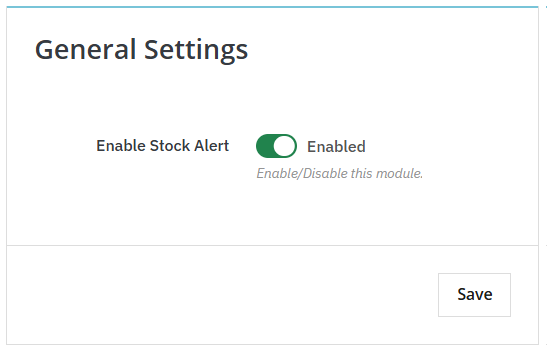
Once you have installed the module, go to Modules > Module Manager > Addify Advanced Stock Alert and click on Configure. Here you can:
- Enable Module: Activate the option to set automatic email notifications for restock alerts. Disable it if you don’t want to set restock alerts.
Configure Stock Alerts
After installing the module, go to Module Manager, navigate to Addify Advanced Stock Alert, and click on Configure. Now, from the side menu, click on Stock Alert Configuration and fill in the following details:
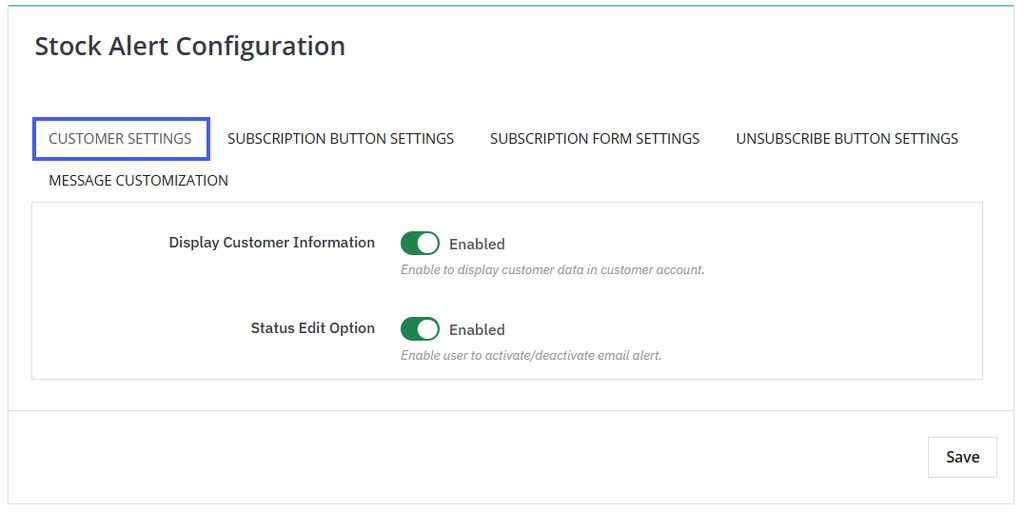
Customer Settings:
- Display Customer Information: Enable the button to display customer data in customers’ My Account Page. If you keep it disabled then users won’t be able to view stock alert records.
- Status Edit Option: Enable this option to allow customers to activate or deactivate restock email alerts anytime.
Subscription Button Settings
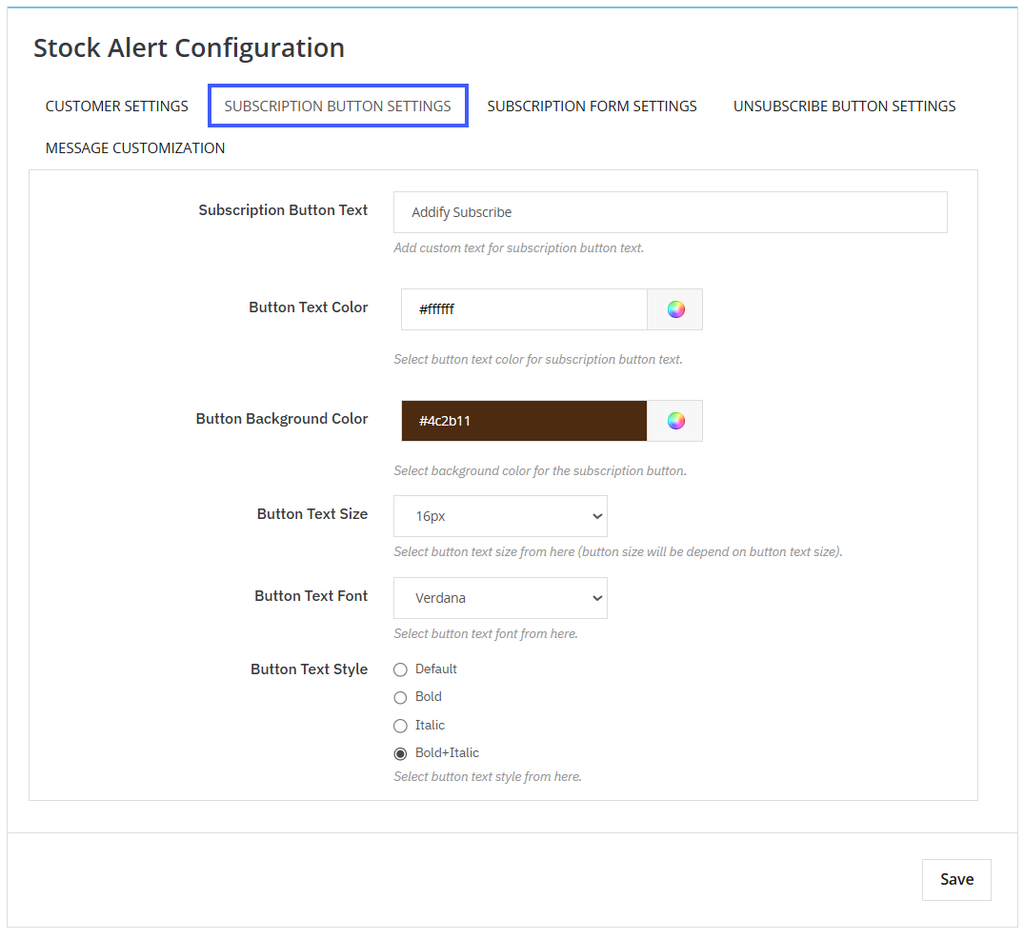
By remaining on the same page, go to the main menu and click Subscription Button Settings. Here you can fill in the following details:
- Subscription button text: Here you can add a custom text for the subscription button
- Button text color: Click the color icon to choose any desired color for the subscription button text
- Button background color: Select a custom color for the subscription button background
- Button text size: From the dropdown, select button text size. ( Button size is dependable on button text size)
- Button text font: from the dropdown, add desired button text font.
- Button text style: From the following, you can choose to style button text as:
- Default
- Bold
- Italic
- Bold + Italic
Subscription Form Settings
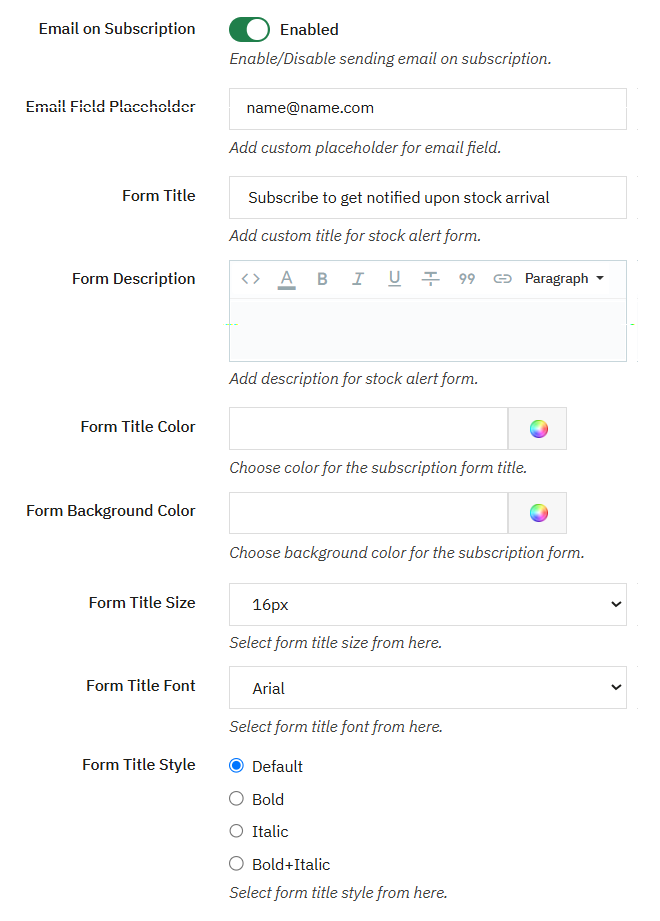
From the main menu, click Subscription Form Settings and fill in the following details:
- Email on Subscription: enable the option to send emails on subscription
- Email field placeholder: add custom placeholder for email field
- Form title: write custom title for stock alert form
- Form description: Write custom description for the subscription form
- Form title color: add any desired color for the subscription form title
- Form background color: choose background color for the subscription form
- Form title size: from the dropdown, select title size
- Form title font: from the dropdown select title font
- Form title style: style the subscription form title as:
- Default
- Bold
- Italic
- Bold + Italic
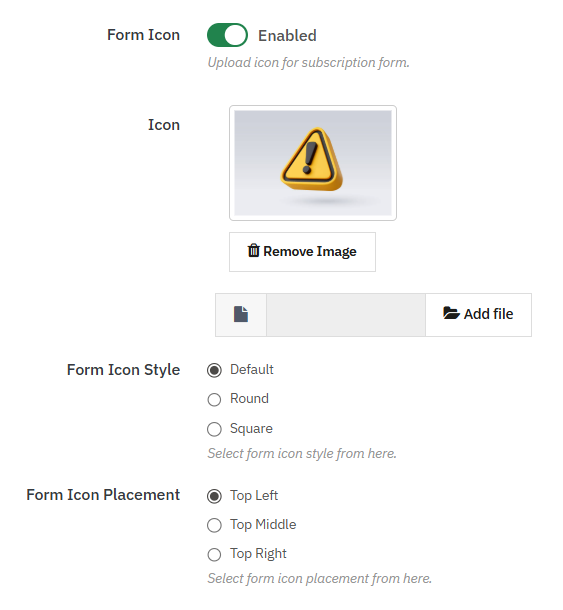
- Form icon: enable the option and upload an image to use it as a subscription form icon
- Form icon style: Customize the icon style as:
- Default
- Round
- Square
- Form icon placement: choose to place the subscription form icon on:
- Top left
- Top middle
- Top right
Unsubscribe Button Settings
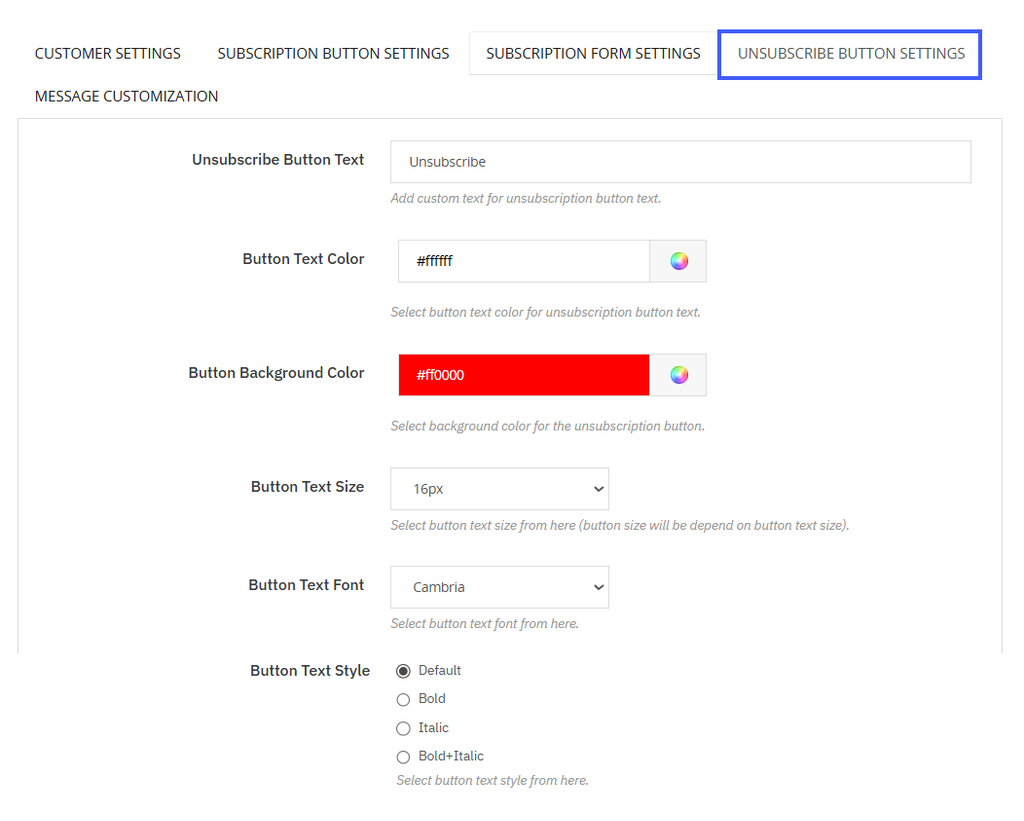
Remain on the same page and from the main menu, go to “Unsubscribe button settings”. Here you can fill in the following details:
- Unsubscribe button text: add custom title for the unsubscribe button
- Button text color: select desired color for unsubscribe button
- Button text size: from the dropdown select button text size. ( button size will be dependable on button text size)
- Button text style: Customize button text style by making it:
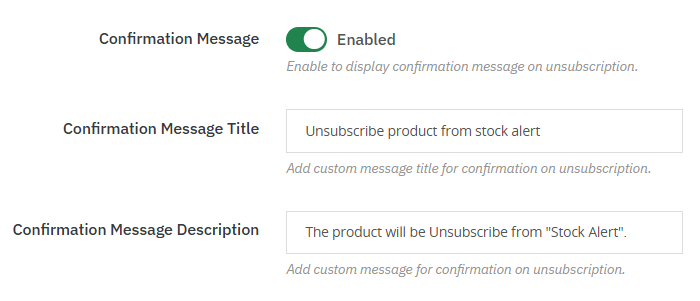
- Confirmation message: enable the button if you want to display a confirmation message when a user deactivates the alerts.
- Confirmation message title: set the title for the confirmation message
- Confirmation message description: set description for the confirmation message
Message Customization
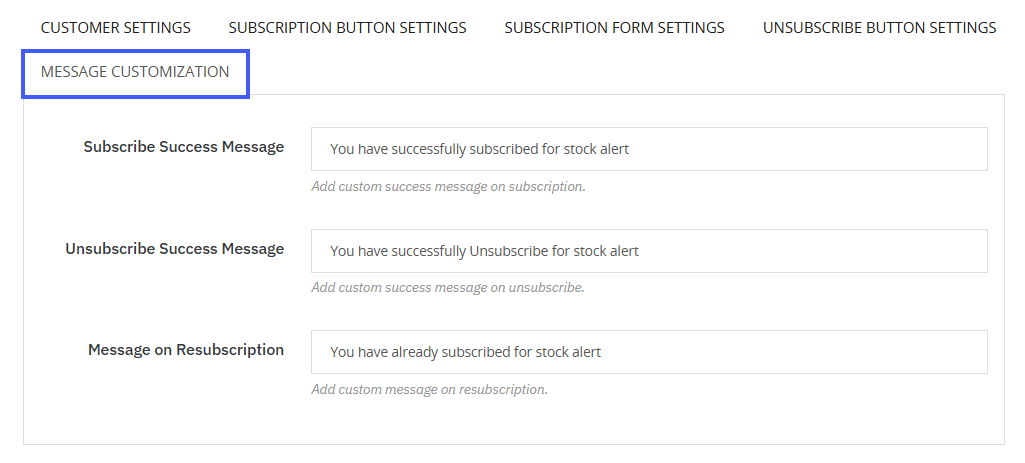
From the main menu, click “Message Customization” and fill in the following details:
- Subscribe success message: add a custom message to show when a customer successfully subscribes
- Unsubscribe success message: Add a custom message to display when a customer unsubscribes from restock alerts
- Message on resubscription: add a custom message for customers when they re-subscribe to alerts.
Manage Stock Alerts from a Separate Log
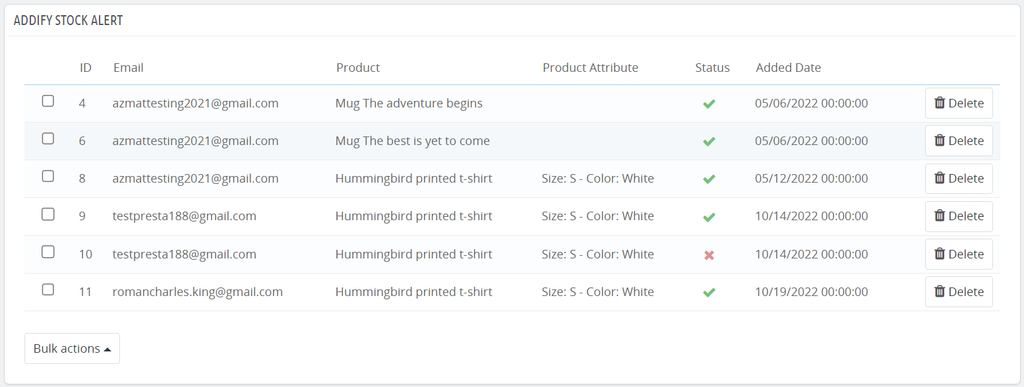
Go back to the main menu and click on “Stock Alert log”. Here you can manage and view the following details:
- Customer email
- Product name
- Product attributes
- Status
- Added date