Enabling Product Combinations Table Listing
Here you will have access to the following configurations.
General Settings
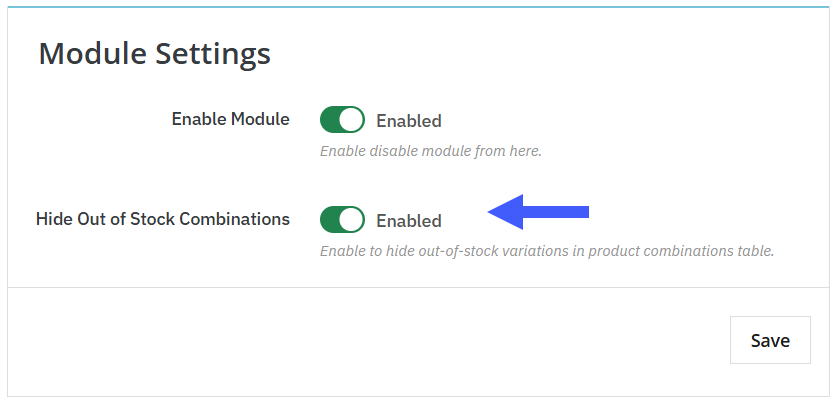
Once the activation is complete, go to module>module manager, navigate to addify product combinations table pro, and click configure. Here you can
- Enable Module: Enable the module to activate all its features. Disable if you don’t want it to be applied to your store.
- Hide Out-of-Stock Combinations: Toggle this option to exclude out-of-stock combinations in the product combination table.
Product Combination Tables
After clicking the (+) sign, a new production combination table menu will appear with the following options.
- Table Title: Enter the text you want to display as a heading above the product combination table on the product page.
- Table heading: Toggle this option to enable adding a heading to the product combination table.
- Display as: Show the combination table as a pop-up or default.
- Columns to display in table: Choose from the drop-down menu the columns you want to display in the product combination table.
- Display add to cart: Show the add to cart button as
- Text: Display add to cart button as text only in the combination table
- Icon: Display add to cart button as the default icon instead of text.
- Add to cart button color: Personalize the add to cart button color to match your store.
- Cart text or icon: Personalize the add to cart text color or icon to match your store.
- Table column title text color: Customize product combination table title text color.
- Combination table text color: Customize product combination table text color.
- Combination table position: Align the table position ( below price, below add to cart button, below product thumbnail, below product details.
- Bulk Added: Enable this option to allow bulk order options with the product combination table.
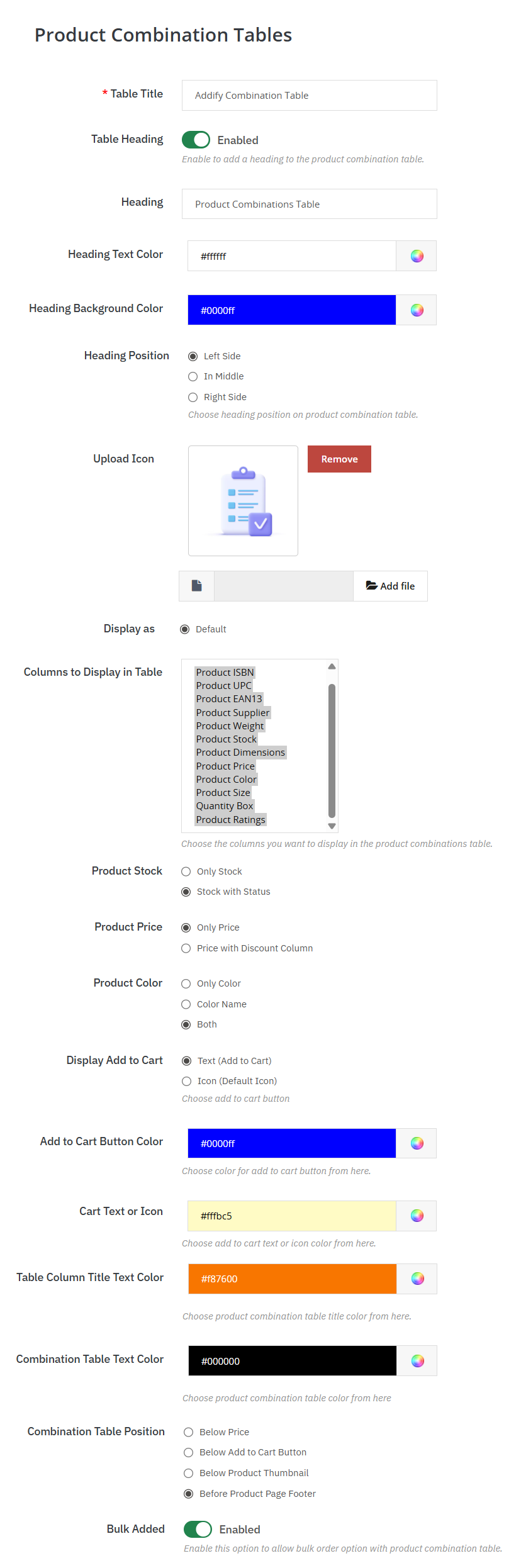
Table Filters
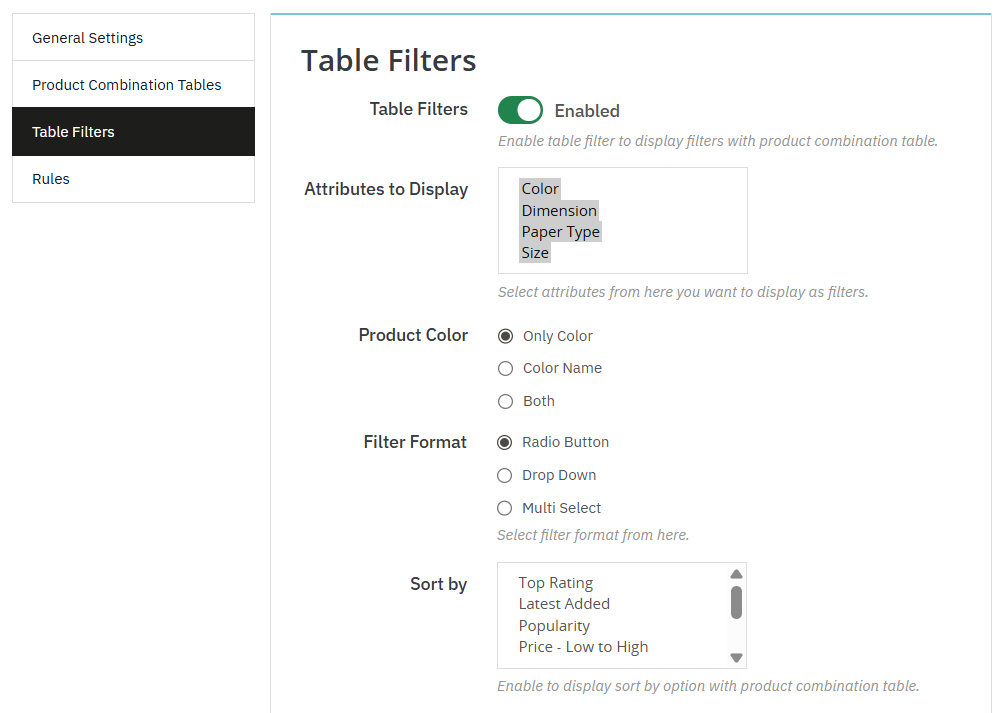
- Table Filters: Toggle this option to enable the table filter to display filters with the product combination table.
- Attributes to display: Select attributes from the drop-down menu that you want to display as filters
- Color: Display the color of the product
- Dimension: Show product dimensions ( length, width, height)
- Paper Type: Show the type of paper or material if applicable.
- Size: Display size variations ( S, M, L, XL)
- Test: Display any custom attribute you’ve added (e.g., special features, tags).
- Product Color: This option allows you to choose how the product color attributes are displayed in the combination table.
- Only Color: Displays only the color swatch without showing the color name.
- Color Name: Displays only the name of the color ( red, blue, green) without the color swatch.
- Both: Displays both the color swatch and the color name together in the table.
- Filter Format: This option allows you to choose how the product attribute filters will appear in the combination table.
- Radio Button: Displays filter options as radio buttons, allowing customers to select only one option at a time.
- Drop Down: Displays filter options in a dropdown menu, helping save space while keeping the table organized.
- Multi Select: Allow customers to select multiple filter options simultaneously to refine product combinations more precisely.
- Sort by: Choose which product attribute appears as columns or filters in the combinations table.
- Top Ratings: Display combinations with the highest customer rating first.
- Latest Added: Show the most recently added combination first.
- Popularity: Sorts combinations based on sales or customers’ interest.
- Price – low to high: Arranges combinations from the lowest price to the highest
- Price – high to low: Arranges combinations from the highest to the lowest price
- Quantity – low to high: Displays a combination with the lowest stock quality first
- Quality – high to low: Displays a combination with the highest stock quality first
- In Stock: Shows only combinations that are in stock.
Rules
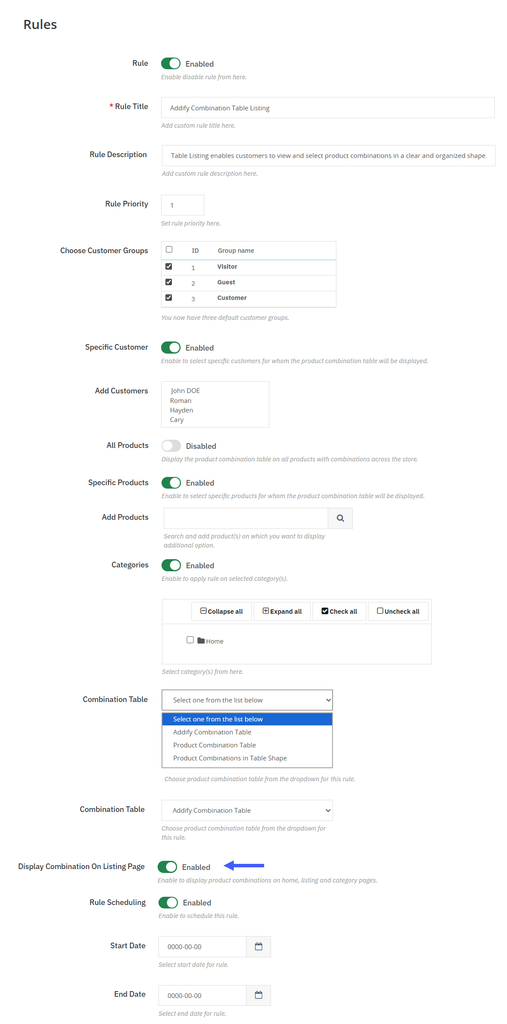
After clicking the (+) sign, a new rule is added, and the following options appear.
- Rule: Enable the rule to be applied to your store.
- Rule Title: Give the rule a title for easy identification.
- Rule Description: Enter a custom rule description to explain the purpose of the rule.
- Rule Priority: Set the priority level to determine which rule should be applied first when multiple rules match the same product or condition.
- Customer group: Enable the display of the product combinations table for the selected customer group. Remove the ability to ignore customer group restrictions.
- Specific Customer: Enable the combination table to only select customers. Disable to apply the rule to all customers.
- All products: Enable the display of the combination table on all products with combinations.
- Specific products: Enable to apply the rule only to selected products.
- Categories: Enable to apply the rule to selected categories.
- Combination Table: Select a product combination table from the dropdown to apply in this rule.
- Display combinations on Listing Page: Enable to show combinations on home, category, and listing pages.
- Rule Scheduling: Enable scheduling when the rule will be active.