
Creating Custom Rules for Invoice Payment Option
You can create custom rules for the invoice payment option in PrestaShop. This module allows businesses to define specific conditions under which the invoice payment method becomes available. Customize rules based on factors like customer groups, order value, or product categories.
1. Install the PrestaShop Invoice Payment Option Module
First, ensure that the invoice payment module is installed and activated.
2. Access the “Rules” Tab
Navigate to the module settings and click on the “Rules” tab. Here, you can add, edit, or delete rules that control the availability of the invoice payment option.
3. Add a New Rule
Click the “+” button to create a new rule. You will now be able to configure various settings to define when and to whom the invoice payment option is available.

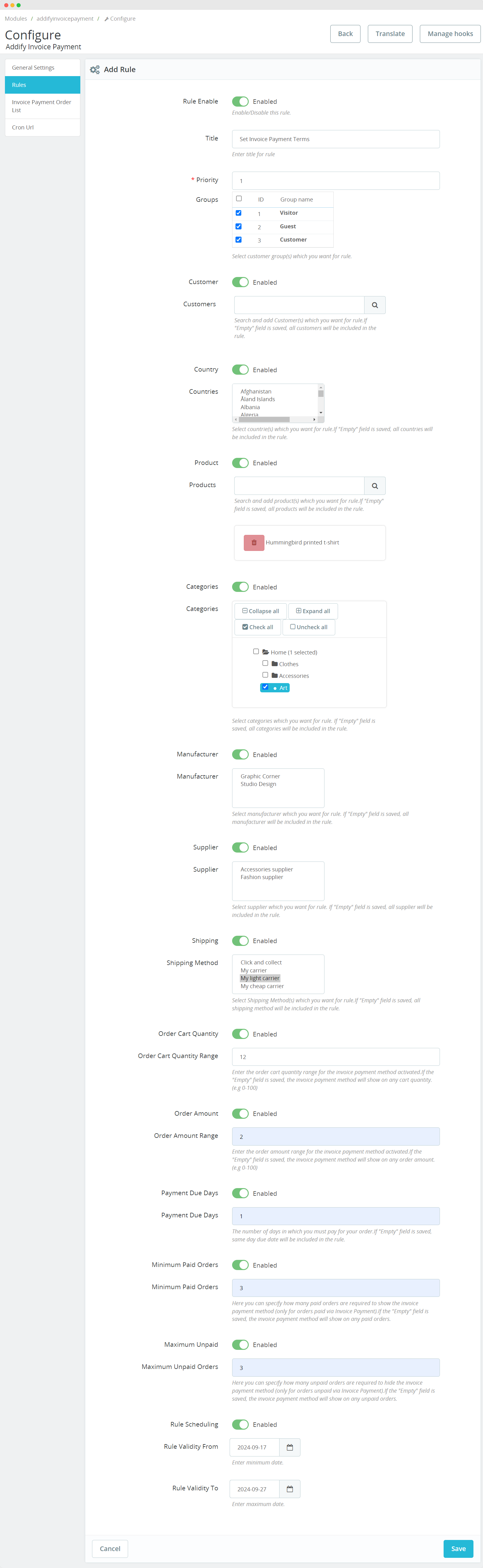
4. Configure the Rule Settings
Rule Enable: Toggle to enable or disable the rule.
Title: Enter a description to be shown during checkout when the “Pay by Invoice” option is selected.
Priority: Set the rule’s priority (1 being the highest). Higher-priority rules will take precedence over others.
5. Customize Rule Conditions
Customer Group: Select the customer group (e.g., wholesale, VIP) that the rule applies to.
Customer: Specify individual customers to whom the rule should apply.
Country: Define the countries where this rule is valid. Leave blank to apply globally.
Product: Limit the rule to specific products if needed.
Categories: Apply the rule to specific product categories.
Manufacturer and Supplier: Restrict the rule to products from certain manufacturers or suppliers.
Shipping Method: Select specific shipping methods that trigger this rule.
6. Set Order-Based Conditions
Order Cart Quantity Range: Define the cart quantity range that makes the invoice payment available.
Order Amount Range: Set a minimum and maximum order amount for which this rule applies.
Minimum Paid Orders: Restrict the invoice payment option to customers with a minimum number of paid orders.
Maximum Unpaid Orders: Hide the invoice option from customers who exceed a specified number of unpaid orders.
7. Payment Terms
Payment Due Days: Specify the number of days within which payment must be made, including automatic email reminders for overdue payments.
8. Set Rule Scheduling
Rule Scheduling: Define the start and end date for when this rule should be active.
9. Save the Rule
After configuring all the settings, click “Save” to activate the rule. The invoice payment option will now follow the custom conditions you’ve set.
9. Save the Rule
After configuring all the settings, click “Save” to activate the rule. The invoice payment option will now follow the custom conditions you’ve set.