API Settings
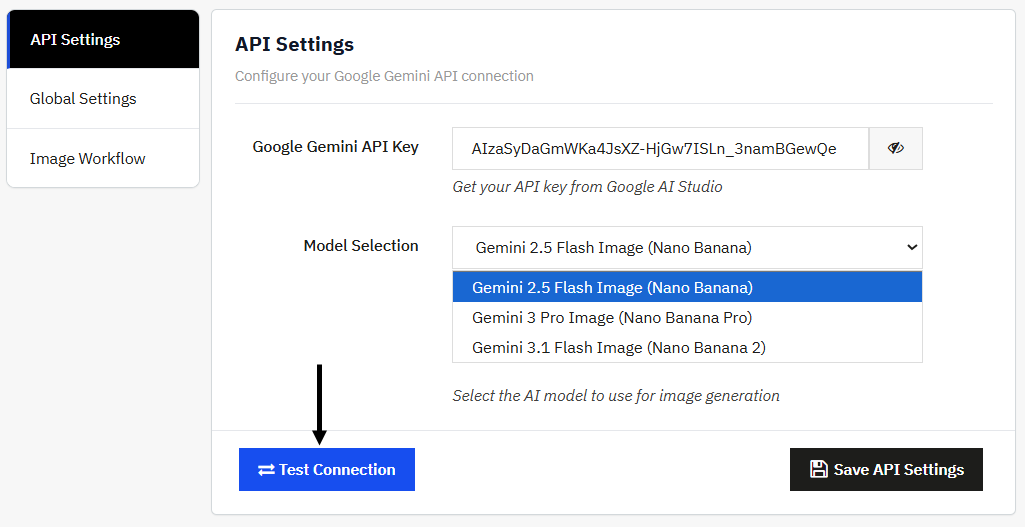
Once the module is installed Go to Modules > Module Manager > Addify AI product Image Generator and select Configure. Now fill in the following details:
- Google Gemini API Key: Enter the Gemini API key to connect the module with Google AI Studio.
- Model Selection: select from the following AI models to generate product images:
- Gemini 2.5 Flash Image ( Nano Banana)
- Gemini 3 Pro Image ( Nano Banana Pro)
- Gemini 3.1 Flash Image ( Nano Banana 2)
- Test Connection: Select this option to verify that your Gemini API key is valid or not.
Select “Save API Settings” to update the API configuration and apply your changes.
Global Settings
From the side menu bar, select “Global Settings” and fill in the following details:
- Enable Default Aspect Ratio: Select the default aspect ratio for AI-generated images as:
- 1.1 Square
- 4.3 Product
- 16.9 Banner
- 9.16 Story
- Enable Default Output Resolution: Choose a default image resolution from the provided options:
- Standard
- 1K
- 2K
- 4K
- Enable Default image Style: From the dropdown, select your preferred visual style and aesthetic:
- Cinematic
- Photographic
- Digital Art
- Enable Global Negative Prompt: Enable this option to add a global negative prompt and prevent unwanted text, objects, or visuals.
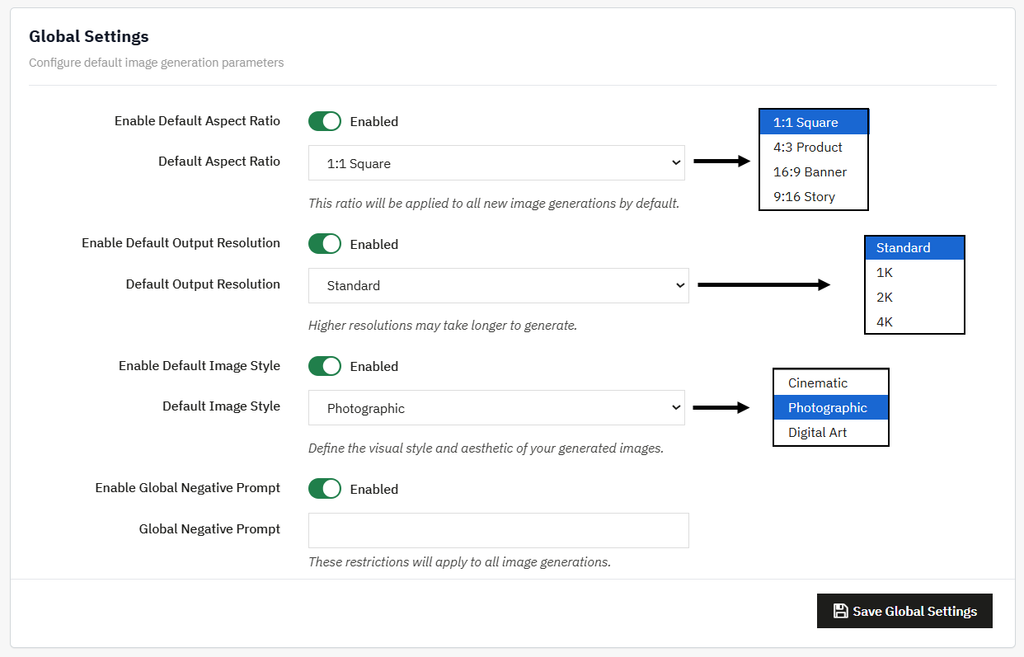
Image Workflow
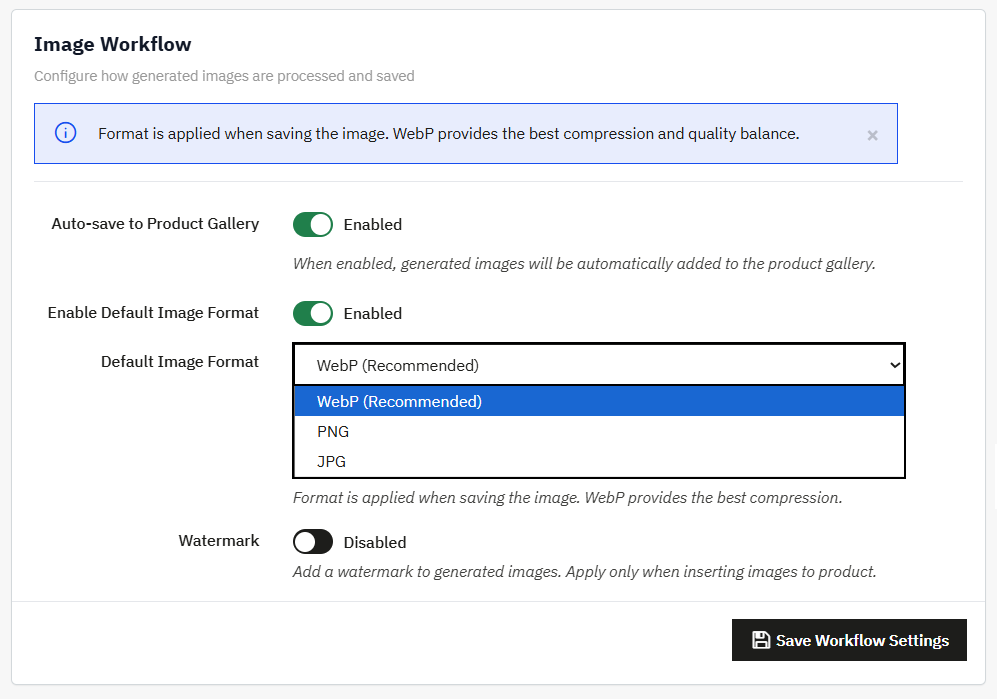
From the side menu bar, select “Image Workflow” and fill in the following details:
- Auto-save to Product Gallery: Enable this option to automatically add generated AI product images directly to the gallery.
- Enable Default Image Format: toggle the button and apply a specific default image format:
- WebP
- PNG
- JPG
- Watermark: Enable the option and upload a custom watermark for your generated product images
Generating AI Product Images
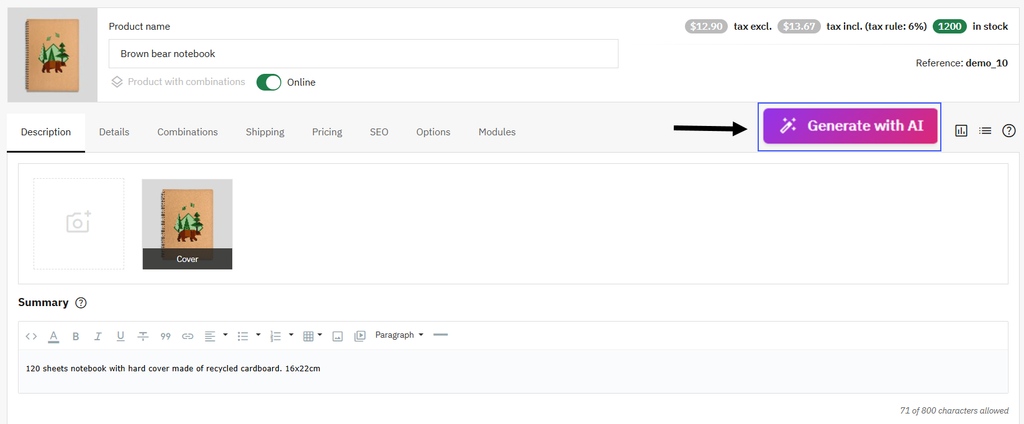
To generate AI product images, go to PrestaShop Admin Panel > Catalog > Products and select the desired item. From there, you can generate and add new AI-powered product images for the specific product.
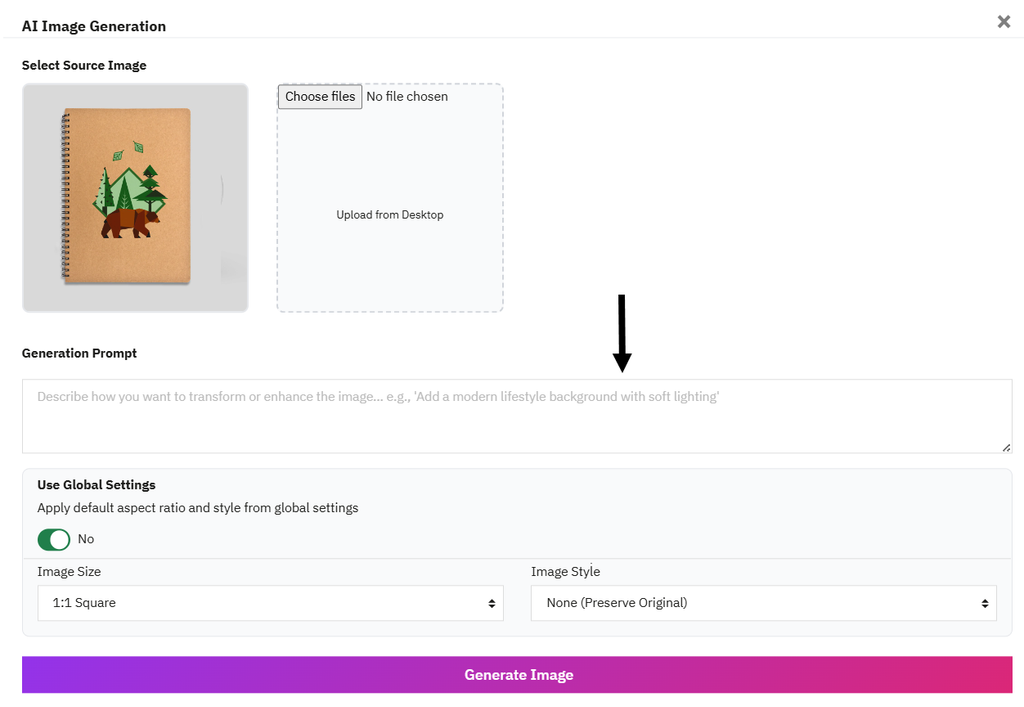
Once you have selected a product, click the “Generate with AI” button in the top-right corner and complete the following settings in the pop-up window:
- Select source image: Add a new image to use as a source for AI image generation.
- Generation Prompt: Enter specific instructions to generate the product image according to your requirements.
- Global Settings: Enable this option if you want to override the global settings for this product and apply a custom image aspect ratio and style. Leave it disabled to use the global settings configured in the module.