General Settings
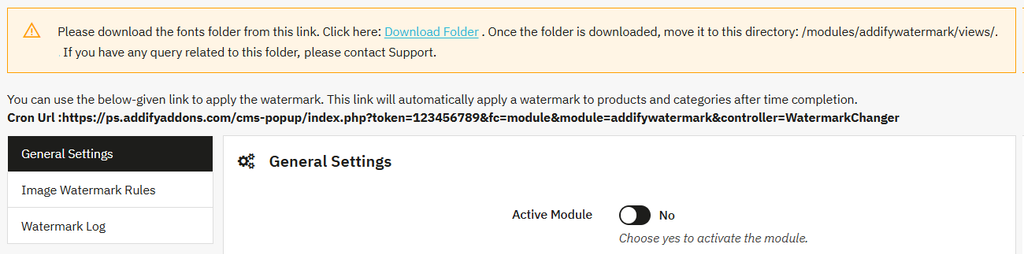
Once the module is activated and installed Go to Modules > Module Manager > Addify Image Watermark Pro and select Configure. Now, from the general settings, you can:
Restore Watermark Button: Click this button if you want to revert watermark images instantly. g the “+” .
Activate Module: Enable this option to activate the watermark pro module. You can disable it anytime whenever needed.
Create Image Watermark Rules
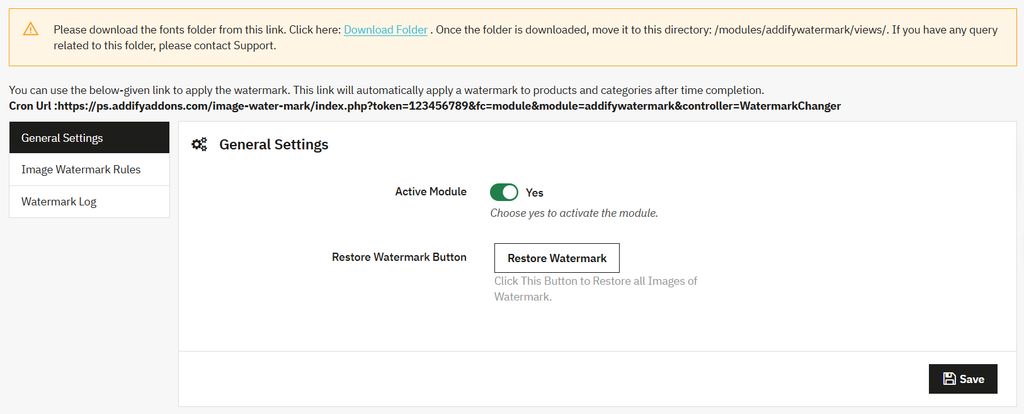
Go to Modules > Module Manager > Addify Image Watermark Pro and select Configure. From the main menu, select Image Watermark rules.
- This section allows you to create, manage, and organize multiple image watermark rules. You can also view the following details for each rule:
- ID
- Title
- Priority
- Status
- Added date
- Updated date
- From the table, locate any created rule and click Edit to update its configuration.
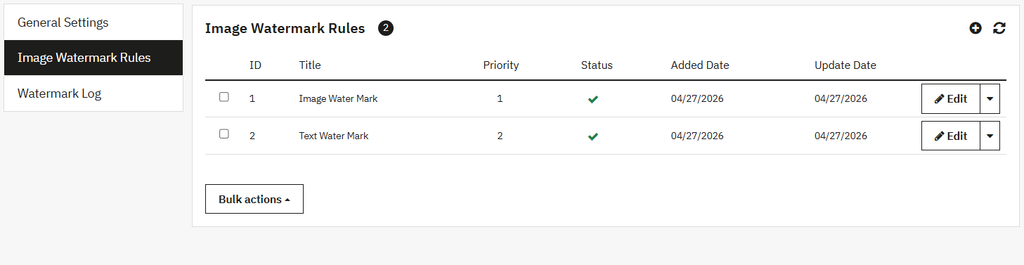
- To create a new rule, select “+” and fill in the following details:
Rule
- Rule title: Add custom rule title
- Priority: Set priority for the rule
- Active: Enable this option to activate the rule. Disable it at any time to prevent the rule from being applied
- All Products: Activate the option to apply watermark on all products. Disable it to add specifc items.
- Specific Products: Search and add products for which you want to apply the watermark
- Category: Enable the option to apply a watermark on a specific category
- Manufacturer: Select specific manufacturers to apply the watermark only to their products
- Supplier: Select specific suppliers to apply the watermark only to their products
- Price Range: enable the option to apply watermarks only to the product within a specified price range.
- Minimum Price: Add a minimum price for the selected item
- Maximum Price: Add a maximum price for the selected item
- Stock Value: enable the option to apply watermarks only to the product within a specified stock quantity
- Minimum Stock Value: Add a minimum stock value for the selected product
- Maximum Stock Value: Add a maximum stock value for the selected product
- Apply to Sale Products: Activate this option to apply watermark on products that are on sale
- Apply to Out of Stock Products: enable this to apply watermark to all out-of-stock products
- Watermark Schedule: Set a schedule to automatically apply watermarks to products within a specified date range:
- Starting Date
- End Date
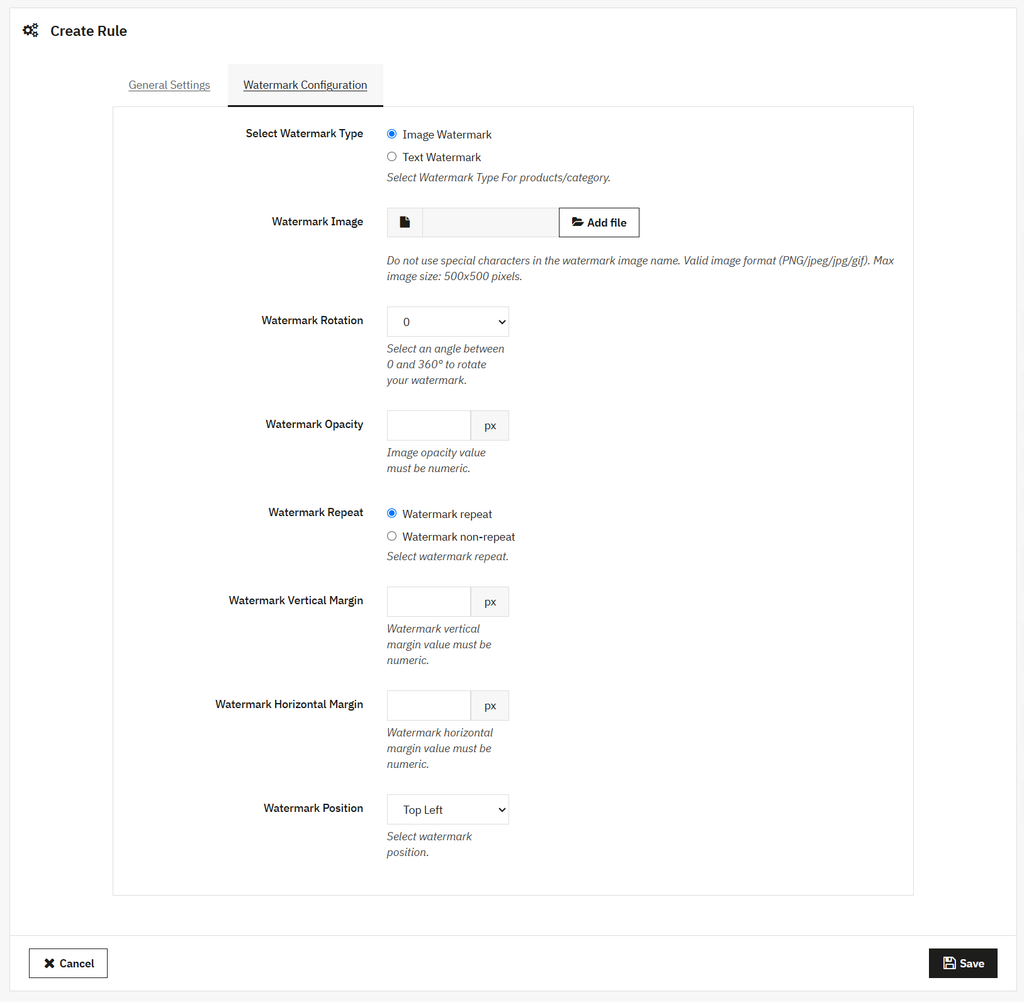
Watermark Configuration
- Select Watermark Type: from the following options, you can select the watermark type as:
- Image Watermark: Select this and upload a custom image for the watermark
- Text Watermark: Select this and add custom text for the watermark
- Watemark Font Size: select a custom font size for the watermark text
- Watermark Text Color: select a custom text color
Note: You can also add predefined variables like ({product_name}, {category}, {manufacturer}, {supplier}, {sku}, {product_price}, {store_name}, and {store_url}) to add product details with the text watermark.
- Watermark Rotation: Select an angle between 0 and 360 to rotate your watermark
- Watermark Opacity: add image opacity value (this field is only visible for image watermark)
- Watermark Repeat: choose how the watermark should be dispalyed
- Watermark Repeat: select this to repeat the watermark across the entire image
- Watermark non-Repeat: select this to display the watermark only once
- Watermark Vertical Margin: Add vertical margin value
- Watermark Horizontal Margin: add horizontal margin value
- Watermark Position: select watermark position as:
- Top Left
- Top Middle
- Top Right
- Middle Left
- Middle Middle
- Middle Right
- Bottom Left
- Bottom Middle
- Bottom Right
- Watermark Font Family: select a custom font family for text watermark
Watermark Log
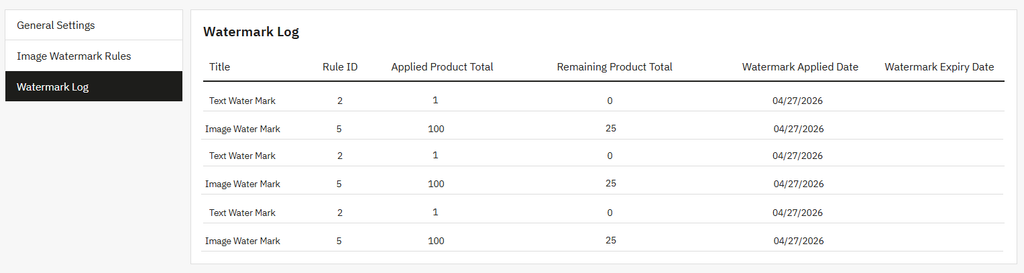
Go to Modules > Module Manager > Addify Image Watermark Pro and select Configure. From the main menu, select “Watermark Log”. Here you can view the following details for each created rule:
- Rule Title
- Rule ID
- Applied Product Total
- Remaining Product Total
- Watermark Applied Date
- Watermark Expiry Date
Cron Job URL
Go to Modules > Module Manager > Addify Image Watermark Pro and select Configure. Now, from the header, you can use the following link to automatically apply watermark to products and categories after time completion: