Configure General Settings
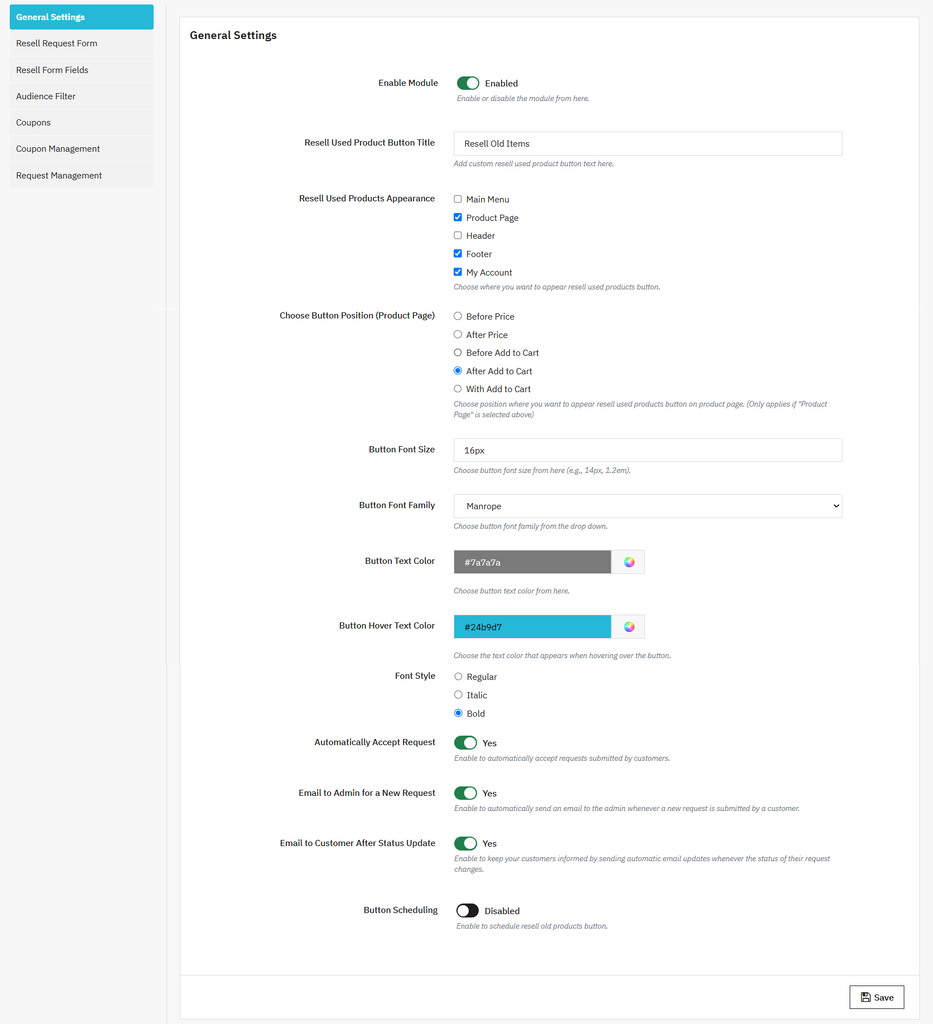
Once you have activated the module, go to Modules > Module Manager > Addify Resell Used Products and click on Configure. From this section, you can display the Resell Used Products button on product pages and customize it using custom colors. Follow the steps mentioned below:
- Enable Module
- Add Resell Used button title
- Select resell used products appearance: From the following, choose where you want to display resell used products button:
- Main menu
- Product page
- Header
- Footer
- My account
- Choose button position: Now select button position as:
- Before price
- After price
- After add-to-cart
- With add-to-cart
- Add button font size
- Select custom font family from the dropdown
- Add custom button text color
- Add button hover text color
- Select font style as:
- Regular
- Italic
- Bold
- Automatically accept requests: Enable the option if you want to accept resell requests from customers automatically.
- Email to admin for a new request: Enable the option if you want to send an email to admin whenever a new request is submitted
- Email to customers after status update: Activate the option if you want to keep your customers informed by sending automatic email updates
- Button Scheduling: Schedule the resell product button by adding custom start & end date
Adding Resell Request Form
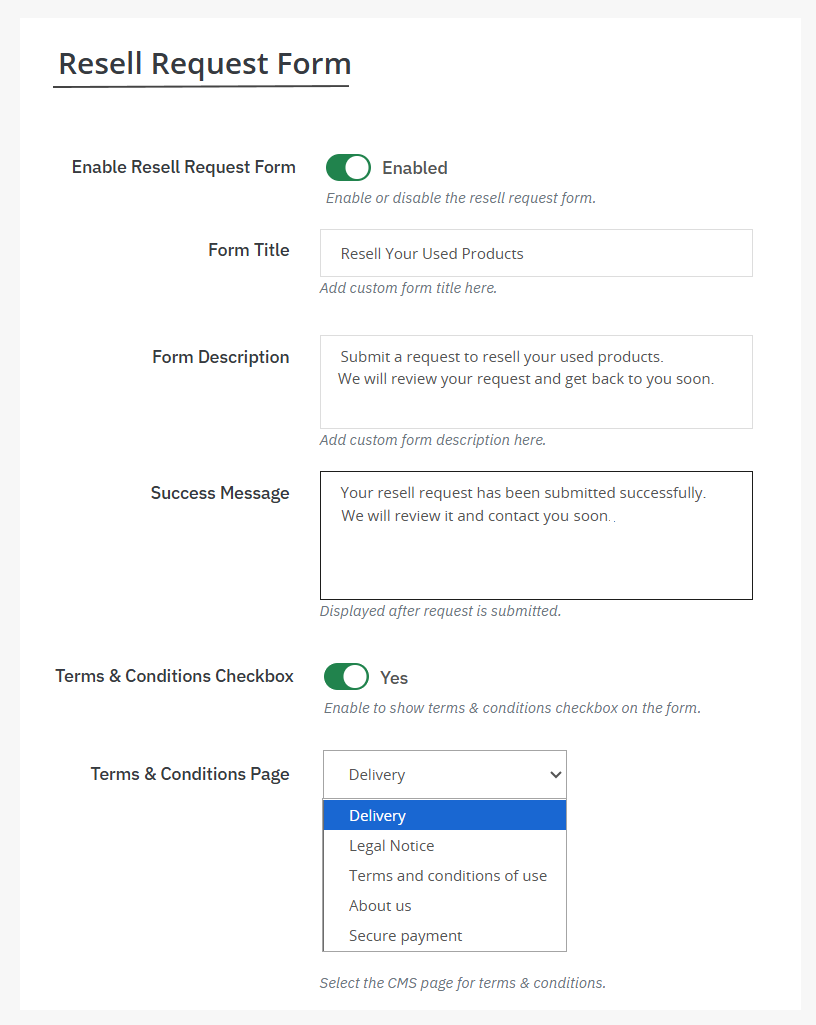
Now, from the main menu, select “Resell Request Form”. This setting allows you to customize request forms according to your needs. Follow the steps below:
- Enable resell request form
- Add custom title for the form
- Write a unique description about the form
- Add custom success message in the box and display it once the request is submitted
- Terms and Conditions: Enable the option to display terms and conditions checkbox on the form