Creating new custom fields for WooCommerce
Creating a New Field
In order to add new fields, go to WP-Admin > Custom Fields > Add New Field. Here, you can add new and unlimited custom fields with multiple customizing options. These fields will be displayed on the Registration, Checkout, and My Account page.
Fill out the fields to create a New Field.
1. Field Details
- Field Label: Enter the text in the “Add Title” section
- Field Type: Choose from 19 fields as listed below:
- Text
- Text area
- Select box
- Multi-select box
- Checkbox
- Multi-checkbox
- Radio button
- Number
- Password (accept secret input)
- File upload (limit file types and size)
- Color picker
- Date picker (calendar)
- Time picker
- Google ReCaptcha
- Heading
- Message
- VAT field
- Privacy text

2. Field Dependency
Scroll down the rule creation page and create a field dependency by applying the following settings:
- Select User-Role: You can select the specific user role, such as Administrator, Author, Editor, Contributor, Customer, or Shop Manager etc, from the dropdown.
- Is the field Dependable: Make the Field dependable by selecting the following option, like
- Yes: If yes, you can:
- Select Field: Add the name of the dependable field.
- No: If no, you can:
- Select pages: Select the page where you can show the field, such as:
- Registration page
- My Account page
- Checkout: In case of checkout you can:
- Checkout position: Set the field position on the checkout page.
- Select pages: Select the page where you can show the field, such as:
- Yes: If yes, you can:

3. Field Formatting
Select from the following format settings:
- Required Field: Enable this if the field is required
- Read Only Field (Customer can not update this from My Account page): Enable this to mark the field as read-only
- Show in admin order detail page and order email: Enable this to show in the admin order detail page and order email
- Field Width: Choose from these two options: Full Width, Half-Width
- Field Placeholder Text: Add Field Placeholder Text
- Field Description: Add Field description
- Field Custom Css Class: Add Field Custom Css Class

4. Field Status
Select from the following field status settings:
- Field Sort Order: Choose the field sort order
- Field Status: Choose to keep it Active or Inactive
Click “Update” once you are done.

5. Field Pricing
In the field pricing section, you can:
- Field Price: Add the price of the field.
- Price Type: Set the price type, such as fixed or percentage.
- Taxable Price: Select the Yes/No option to make the field taxable.

6. Field Product and Category
In the field product and category section, you can:
- Field Product: Choose the specific product where the field will be visible.
- Field Category: Choose the specific category where the field will be visible.
- Fields Tags: Select specific tags where the fields will be visible.

Viewing All Fields
Go to WP-Admin > Custom Fields > Add Fields. View all the fields and their details from this section.
- Search custom fields: Search a field you want to view
- Field type: Know the field types of all fields
- Display location: View display location
- Status: View field status
- Priority: View priority order
- Bulk Actions: Apply bulk actions to all fields: Edit, Move to trash, Active, Inactive

General Setting
In the General setting, you can:
- Additional Fields Section Title: Add the custom title or label of the additional field that is displayed on the registration form.
Google reCAPTCHA Settings
- Site Key: Add the site key, which is generated through the Google reCAPTCHA account.
- Secret Key: Add the secret key for Google reCAPTCHA.

User-Role Setting
In the user-role setting, you can:
- Enable User Role Selection: Enable/Disable the user role selection option on the registration form.
- User Role Field Label: Add the custom label or title for the user role field.
- Select User Role: Select the user role that shows in a dropdown on the registration page.

Approval New User Setting
Implement the following settings for the approval of new user settings:
Approve New User Settings
- Enable Approval of new user: Enable/Disable the approval of new users.
- Enable approve of new users at the Checkout Page: Enable this to add the approval of new users at the checkout page.
- Exclude user Role: Select the specific user role from the dropdown that you want to exclude for manual approval.
Approve New User Message Settings
- Message for user when account is created: Add custom message which is send to the customers when their account is created.
- Message for user when account is pending for approval: Add custom message which is send to the customer when their account is pending for approval.
- Message for user when Account is Disapproved: Add custom message that is send to the customer when their account is disapproved.
- Save Setting: After apply all modification click on save button to implement.

Email Setting
Open the email settings option to customize the following emails:
- Admin Email Text: Add the custom email text that is sent to the admin when a new user submits a registration request.
- Welcome Pending Email Body: Add the custom email body that is automatically sent to the customer when their request is submitted.
- Approval Email Text: Add the custom email text that is sent to the user when their registration request is approved.
- Disapproval Email Text: Add the custom email text that is sent to the user when their request is rejected or disapproved.

Checkout Fields
In the checkout fields setting, you can:
Checkout billing fields labels
You can add the label of the following billing fields:
- First name: You can add a custom label for this billing field.
- Last name: Add the custom label for this billing field.
- Country/Region: Change the label of the Country/Region field.
- Street address: Add label for street address.
- Apartment, suite, unit, etc.: Change the label of this field.
- Postol/zip code: Add the custom label for postol/zip code.
- Phone: Add the custom name for the phon field.
- Email address: Change the label of the email address field.

Checkout the shipping fields labels
You can add the label of the following shipping fields:
- First name: You can add a custom label for this shipping field.
- Last name: Add the custom label for this shipping field.
- Country/Region: Change the label of the Country/Region field.
- Street address: Add label for street address.
- Apartment, suite, unit, etc.: Change the label of this field.
- Postol/zip code: Add the custom label for postol/zip code.
- Town/City: Add the custom label for the town/city field.
- State/Country: Change the label of country/state.
- Save Setting: Click on the save button to implement.

Billing Fields
In this tab, you can assign billing fields to specific user roles. You can enable or disable any field as needed to control which users can access it.

Shipping Fields
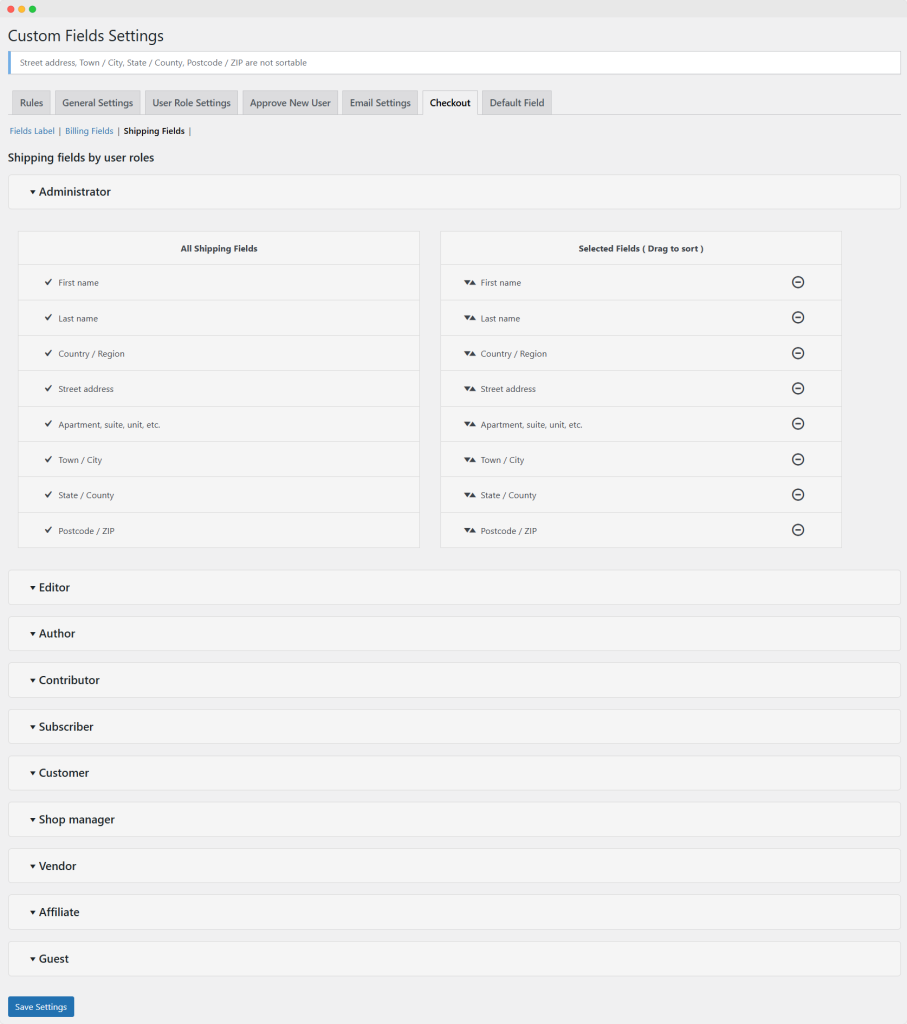
In this tab, you can assign shipping fields to specific user roles. You can enable or disable any field as needed to control which users can access it.
Managing Default Registration Fields for WooCommerce
You can also manage default registration fields by changing their titles, placeholders, and order on the registration page.
Enabling and Editing Default Fields
Go to WP-Admin > Custom Fields > Enable Default Fields.
Enable default WooCommerce registration fields on the registration page. When the user enters these fields, data will be populated on billing fields automatically.
Field Customization Options
There are 10 default fields that you can customize and publish. Below are the settings for each field that you can adjust as per your requirement:
- Label: Add a field label
- Placeholder: Add placeholder text
- Message: Add a message
- Required: Mark field is required or not.
- Sort Order: Add sort order for the field
- Field Width: Add field width
- Full width
- Half width
- Status: Choose the field status
- Publish
- Unpublish
Customize and activate as many fields as you like, and click “Save Fields” to save changes.