


Multi Inventory Management for WooCommerce
Manage your store inventory across different locations to efficiently plan stock, minimize wastage, and maximize cash flows. The Multi Locations Inventory for WooCommerce offers seamless inventory visualization through a dashboard. It lets you create & manage multiple warehouses & inventories and display store locations on both shop and product pages. Create multiple inventories for different types of products and conveniently import/export detailed stock data from CSV files.
Key Features
- View inventory changes across all store locations from a dashboard
- Manage complete stock in one place with customizable settings
- Display store locations for each product on shop & product pages
- Add and manage multiple warehouse locations

Compatible with WooCommerce Version 3.5.0 or Higher | WordPress Version 4.0.0 or Higher
-
Marketplace Verified
-
Extension Partner
-
-
1k+ Downloads
$10.75/month
Billed annually at $129 / year
- 1 year free support
- 1 year extension updates
30 DAYS MONEY BACK GUARANTEE
Your money is secure with our buyer protection. Claim a full refund for any reason.
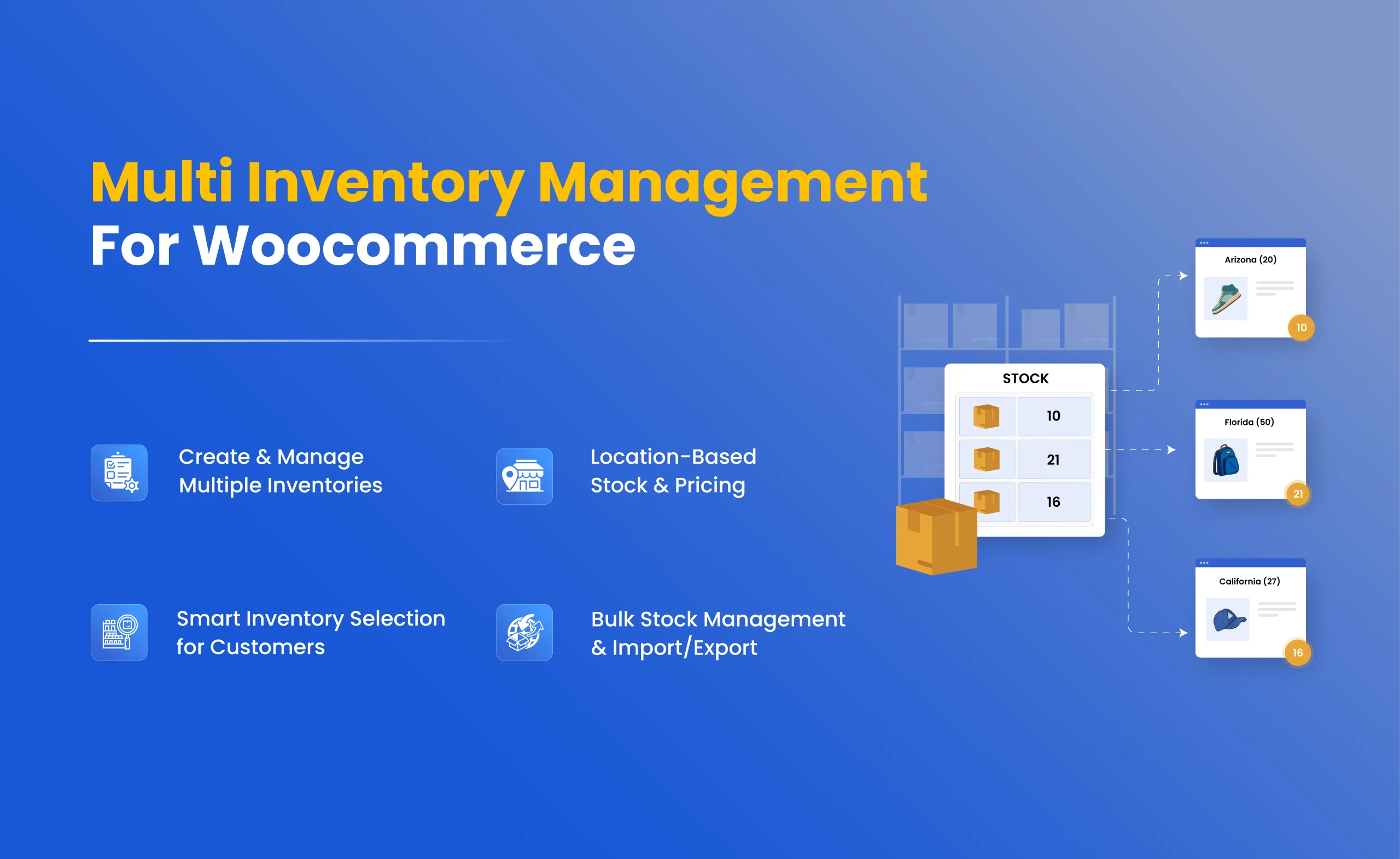
Features of Multi Locations Inventory Management for WooCommerce
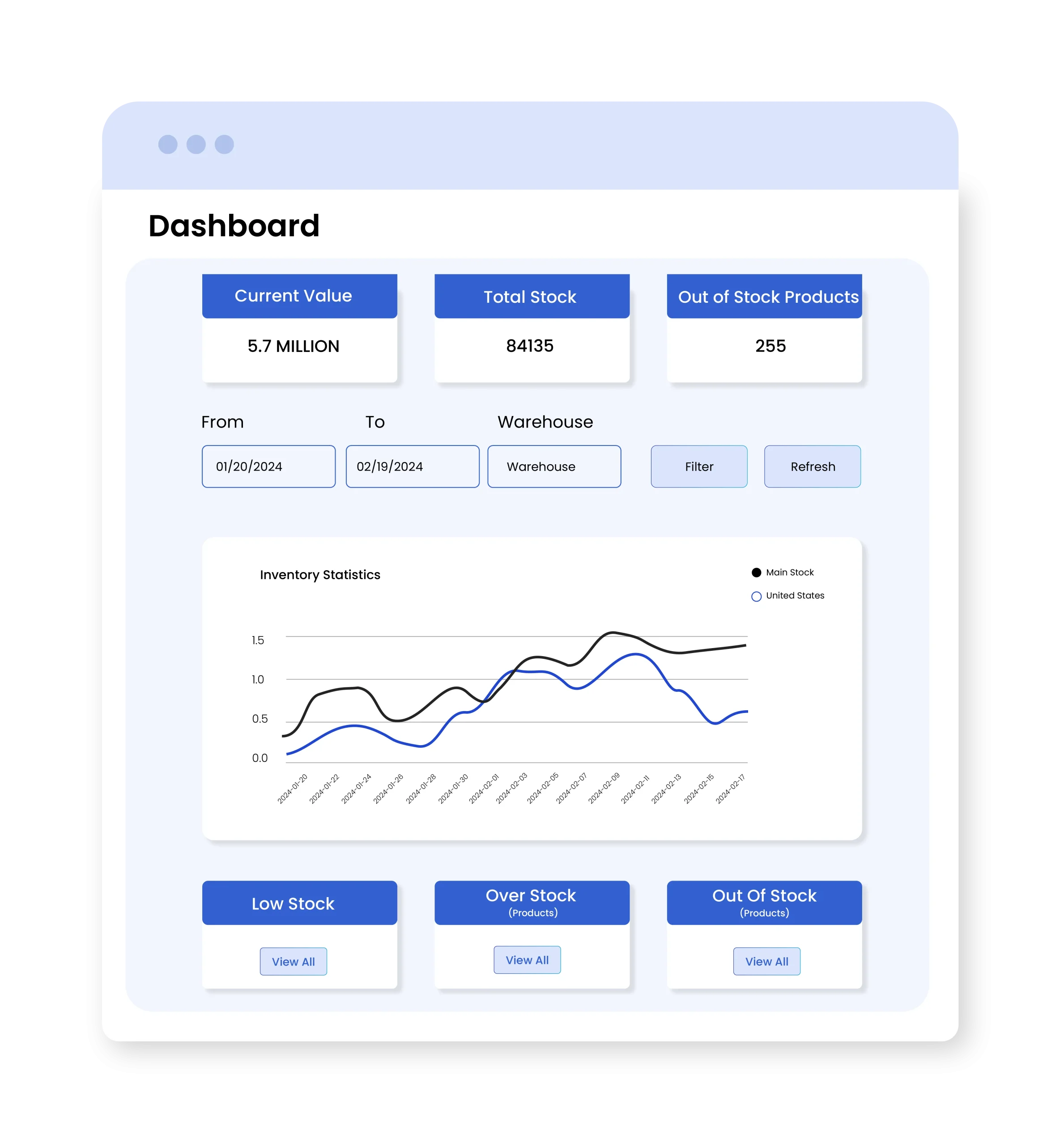
View Inventory Stats Across All Locations (Intuitive Dashboard)
With the WooCommerce multi location Inventory management plugin, you can effortlessly manage your entire inventory across different warehouses. The interactive dashboard lets you view the current stock value, the total stock, and the number of out-of-stock products.
You can view stock changes over time by applying filters for different warehouses through different time periods. To keep your inventory well stocked, you can also explore the complete list of low-stock, overstock, and out-of-stock products.
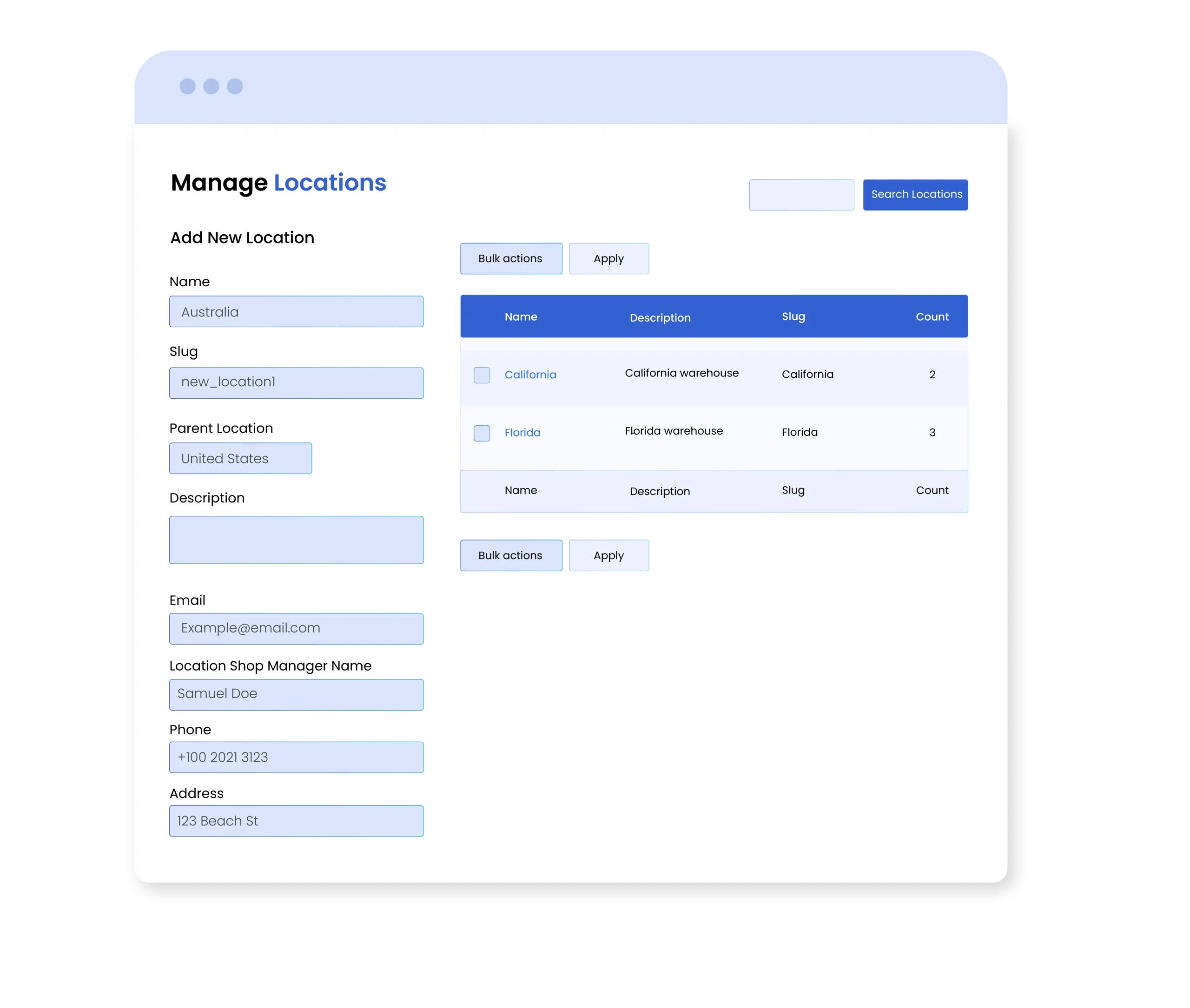
Add & Manage Multiple Warehouse Locations
In case your ecommerce business has multiple stores and warehouses, you need a way to manage them all in one place. With the WooCommerce multi site inventory support, you can easily add new warehouse locations and manage them all from a user-friendly log.
As you add new warehouse locations, you can insert custom descriptions for each, along with the following:
- Add warehouse address & contact information
- Insert store manager details
- Enter parent location for each warehouse
- Restrict order timing, after which orders will not be taken
For each location, you can choose which shipping zones, payment, and shipping methods are applicable (enable shipping and payment options from general settings).
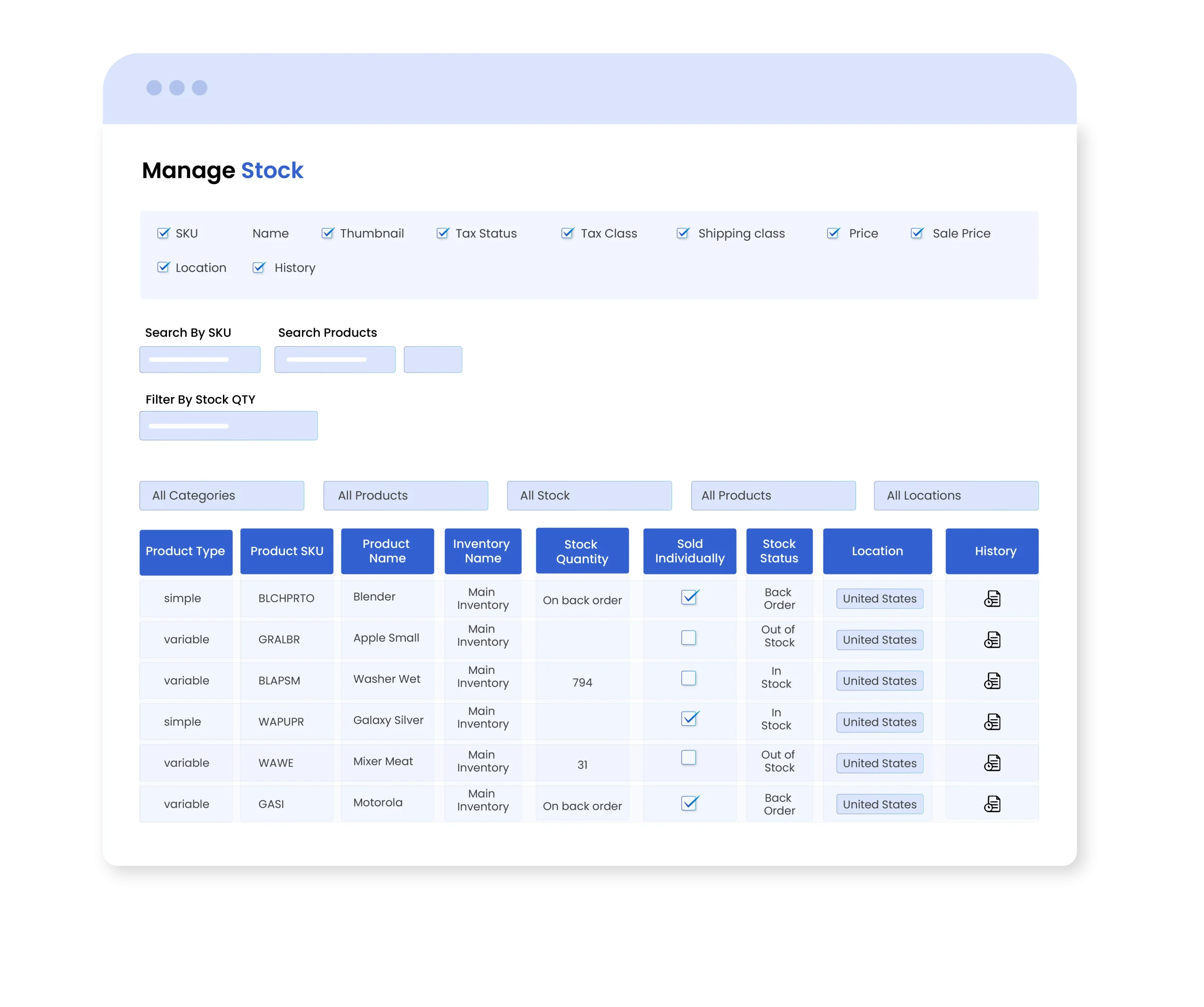
View Complete Store Inventory In One Place
With WooCommerce multi warehouse inventory plugin, you can view your entire inventory in one place. The complete stock information is displayed in a table format, with product prices, tax info, stock quantities, warehouse locations, and more information.
To view the stock of your choice, you can apply filters based on product SKU, name, category, and quantity. You can further explore store inventory from all or chosen categories, product types, stock statuses, and locations. Once you have a table with your entire inventory listed down, you can choose to edit the following options for each product:
- Adjust original and sale price
- Choose to manage stock and edit stock quantity
- Set a low stock threshold
- Choose to allow back orders with/without notifying customers
- Enable product to be sold individually and edit location
You can color code various stock statuses by choosing custom colors for each. This step allows you to differentiate and identify stock statuses within your massive inventory easily. Furthermore, you can set the Over Stock Threshold value, beyond which inventory will be marked as overstocked.
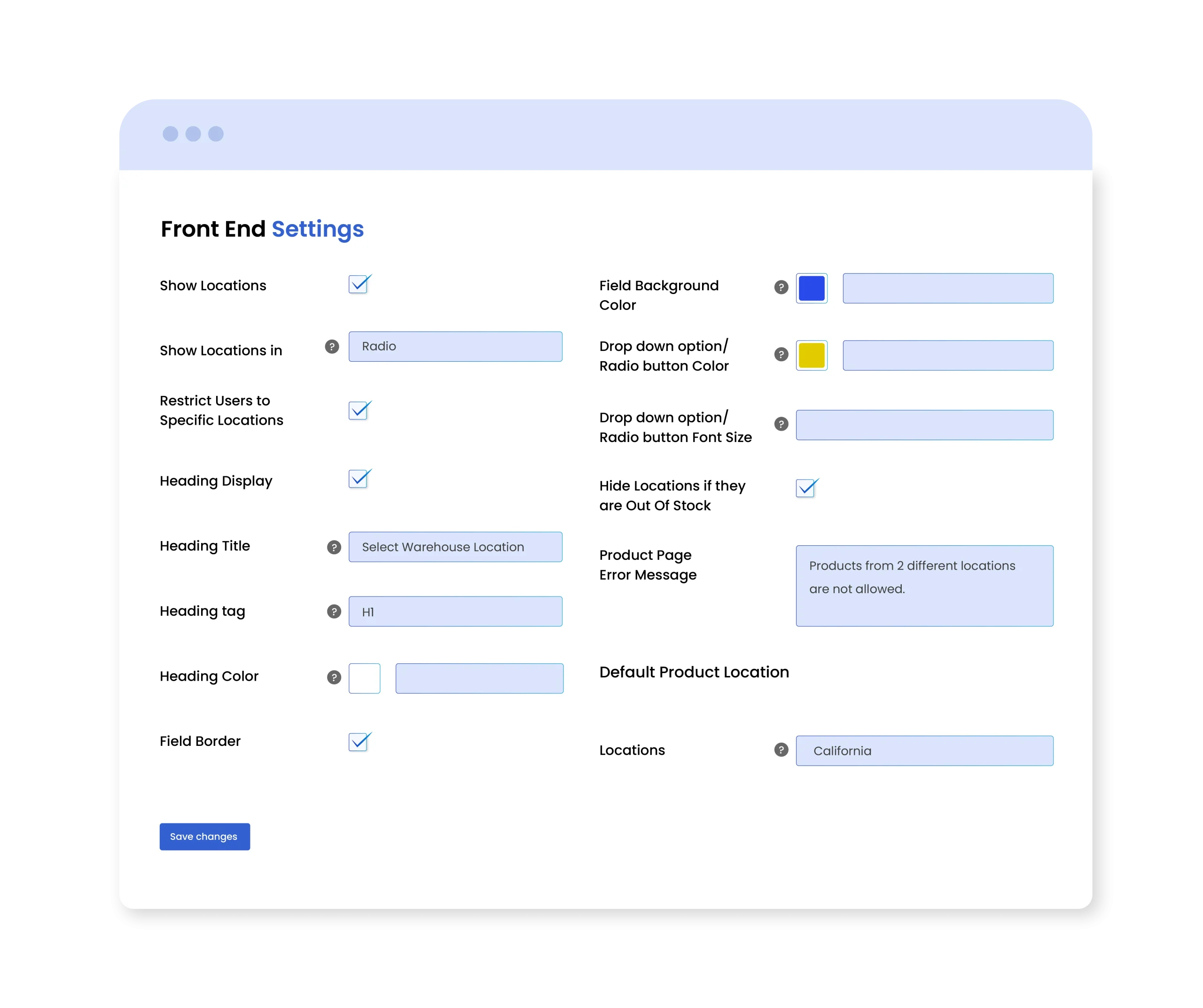
Display Product Locations on Single Product Page
The WooCommerce multiple stock locations plugin lets you display locations on product pages to inform the user about where a particular product is available. The locations for each product can be displayed in the following formats:
- Dropdown
- Radio buttons
Additionally, you can implement location-based restrictions. Set limitations for locations only to display desired product locations to customers.
Furthermore, you can customize the visuals of the displayed locations by adjusting the title, border, field background color, etc. In case a product is out of stock, you can choose to hide those locations. Hiding unavailable products helps avoid inconvenience during shopping.
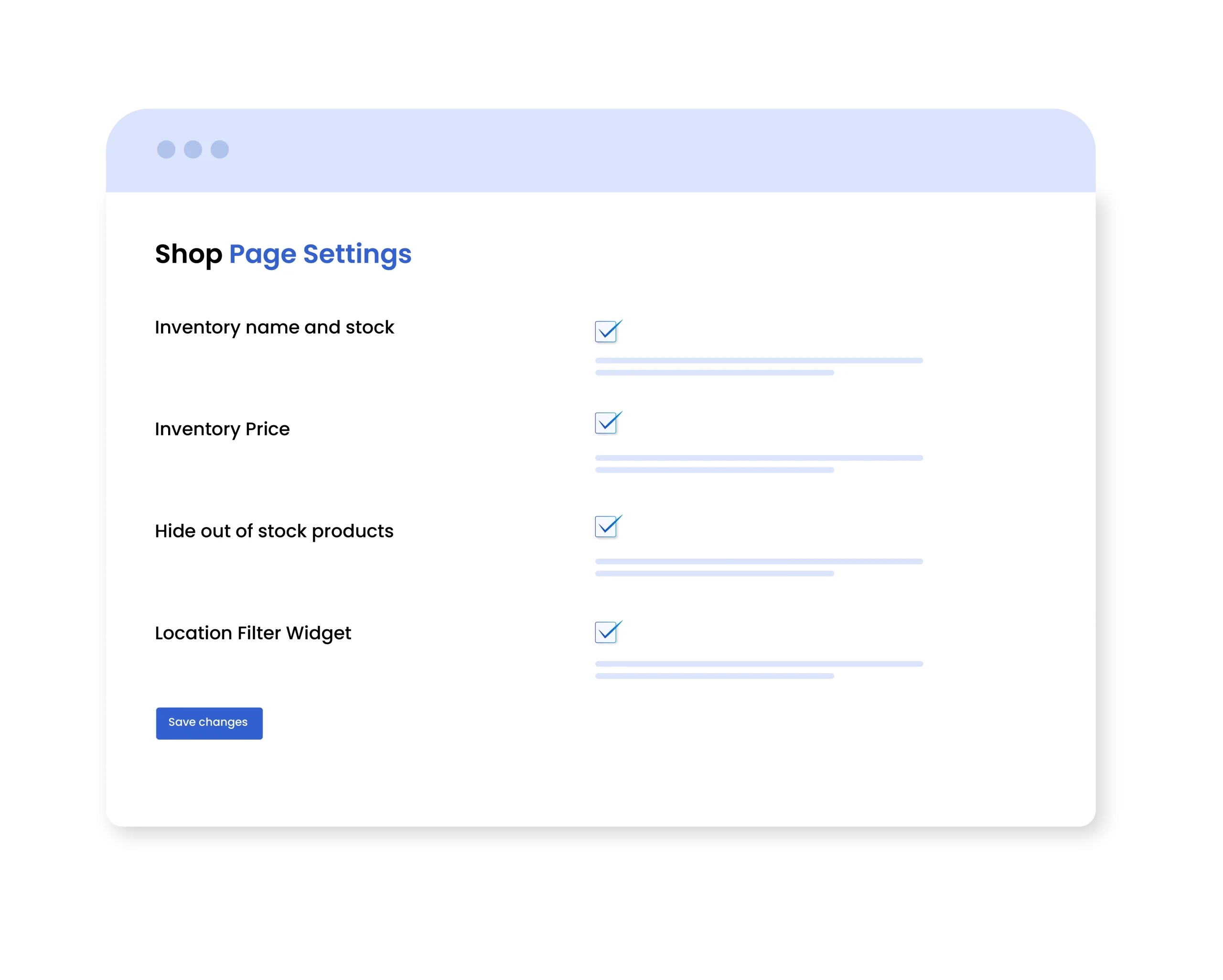
Display Store Locations on the Shop Page With Available Stock
As potential customers land on your shop page, you can display locations where each product is available, along with the stock and prices. Note that only by enabling the inventory prices you can show the prices for each child product, otherwise, the default parent product prices will be shown.
Additionally, you can choose to hide out-of-stock products to minimize orders of unavailable products. To offer maximum convenience to your customers, you can enable the location search bar on the shop page so customers can enter the location and view available products at selected venues.
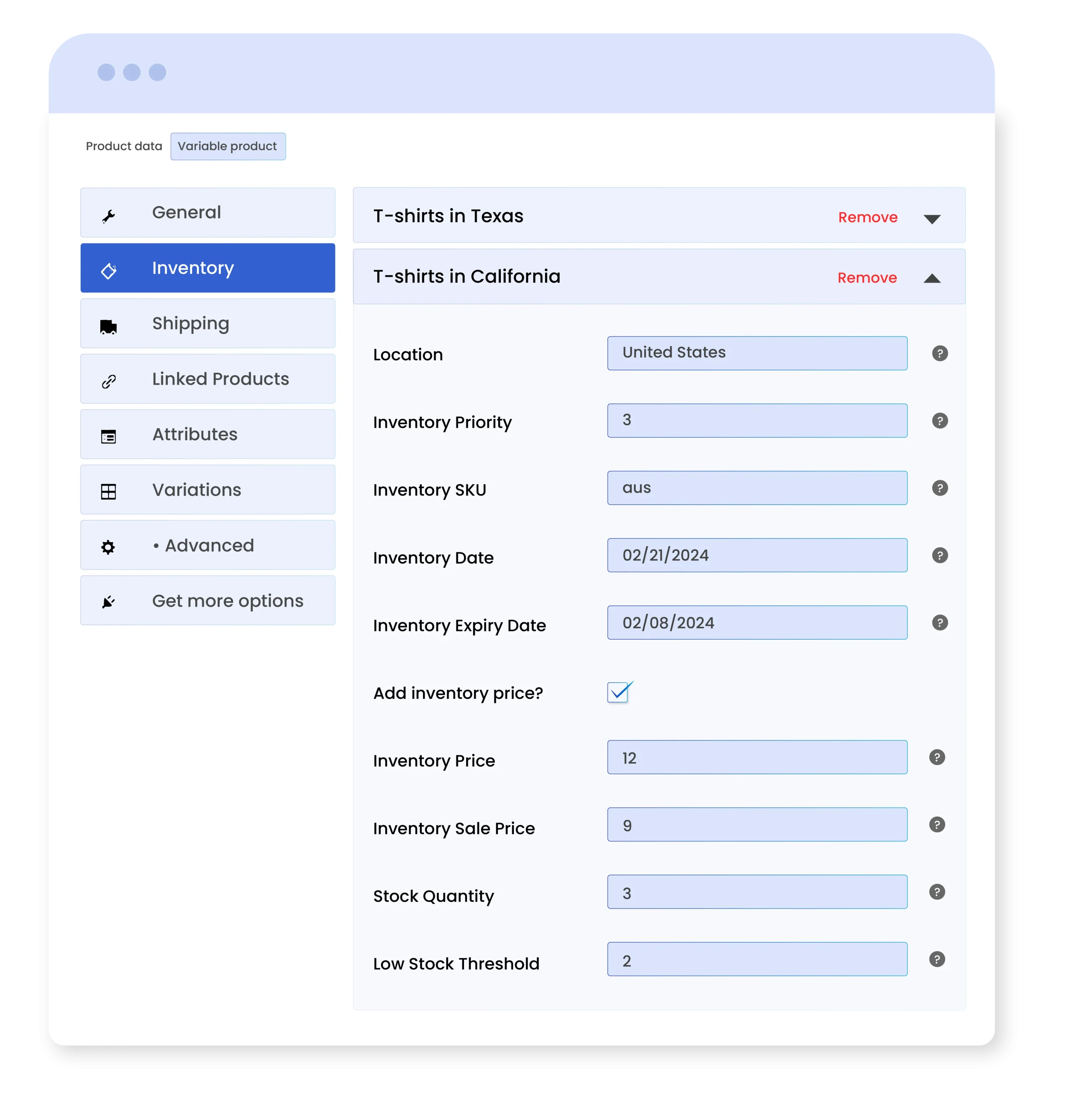
Create Multiple Inventories for Simple & Variable Products
The plugin allows you to create multiple WooCommerce warehouse inventory across various locations. Whether you sell simple or variable products (products with multiple variants), you can manage inventories for both. For each product in your inventory, you can adjust the following settings:
- Add the date of manufacturing
- Enter expiry date, after which the product won’t be displayed (even if in stock)
- Add original and sale price
- Choose warehouse Location
Additionally, you can add multiple inventories for a product by adjusting the following:
- Add inventory location
- Insert inventory priority order
- Enter inventory SKU & name
- Add manufacturing and expiry date
- Choose to add separate prices for each inventory
- Enter stock quantity
- Insert low stock threshold
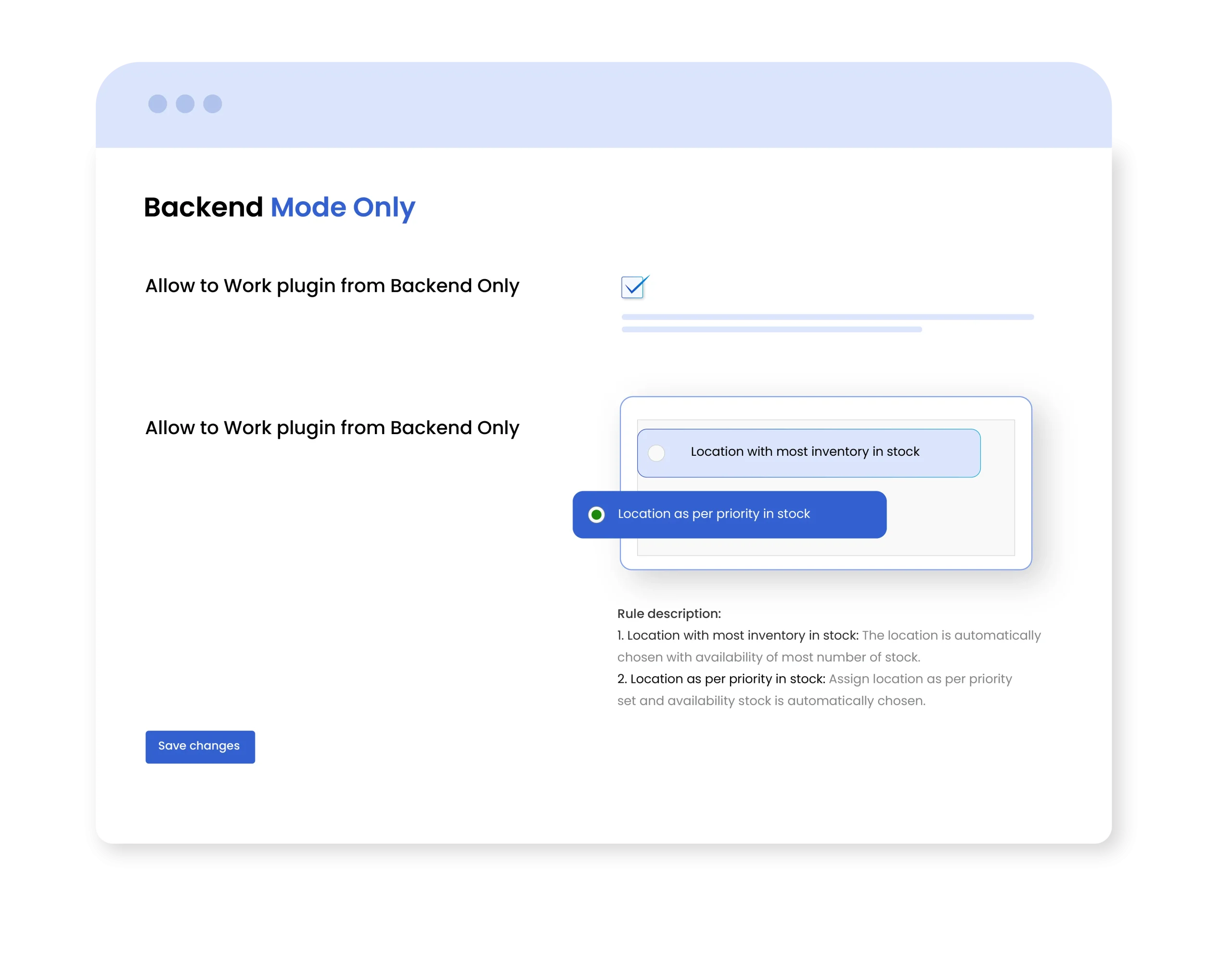
Assign Orders to Warehouses Based on Priority or Maximum Stock
You can choose to automatically assign orders to warehouse locations based on the set priority or the stock quantity. If you choose to assign orders based on the most inventory in stock, the warehouses with the most amount of inventory available will automatically be assigned the orders.
On the other hand, if you choose the warehouse as per the priority order, the warehouse with the highest priority at the product level will be assigned the order automatically. You can carry out the above actions by enabling the backend settings. Note that enabling the backend settings will disable all the front-end settings.
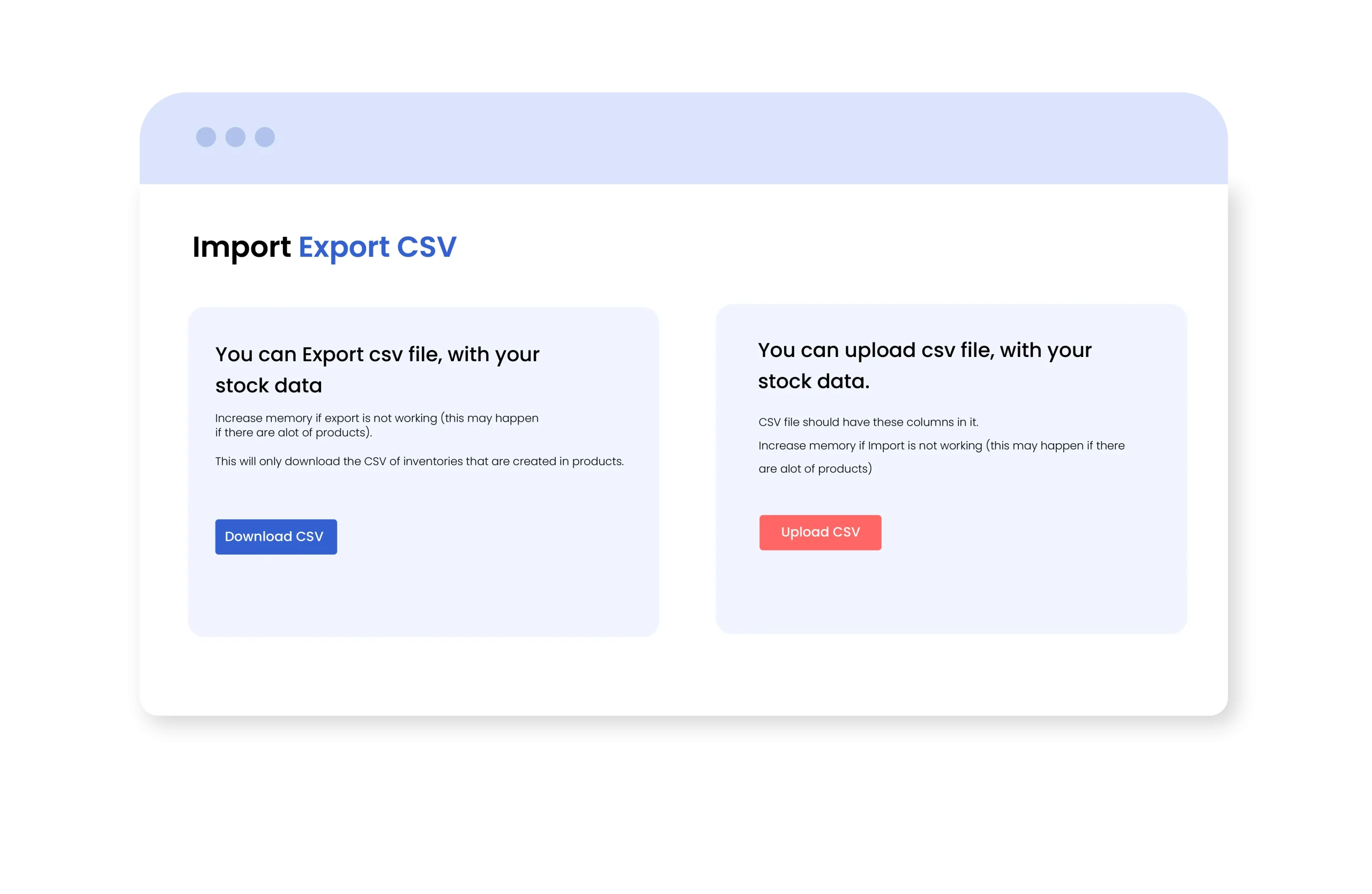
Conveniently Import/Export Child Inventory Stock Info from a CSV File
To load inventory data in bulk, you can import/export data from CSV files. The plugin lets you import inventory information of the child inventories (created using this plugin). If the imported product data matches any existing product ID, then the existing inventory will be updated.
Using the WooCommerce multi inventory locations, you can import/export data with detailed product and inventory information, including product and inventory ID, location, expiry date, stock quantity, low stock threshold, etc.
Technical Compatibility
- Version2.1.1 View changelog
- WordPress Version Required4.0.0 or Higher
- WooCommerce Version Required3.5.0 or Higher
- Multi-Site SupportYes
- Multi-Site SupportEnglish
- Multi-Site SupportWPML Supported
- TranslatableYes, Translation Ready
- CountriesWorldwide
More Features
- View complete inventory stats from dashboard & explore:
- Current stock value
- Total stock
- Out-of-stock products
- Create multiple inventories for simple & variable products
- Import/export detailed stock data from CSV files
- Apply filters based on date and location
- View the complete list of products that are:
- Low Stock
- Overstock
- Out Of Stock
- Add new warehouse locations and customize:
- Warehouse description
- Parent location
- Contact & store manager details
- Shipping and payment method
- Shipping zones
- Restrict warehouse order timings
- View detailed stock data with complete product info
- View inventory changes over time for each location
- Bulk import/export inventory data from CSV files
- Display store locations on shop pages and choose to enable:
- Location names & available stock
- Inventory price
- Hide out-of-stock products
- Location search bar
- Display store locations on single product pages as
- Dropdown
- Radio buttons
- Enable backend editing only (frontend settings will be disabled)
- Adjust over stock and low stock thresholds
- Create multiple inventories across locations for:
- Simple products
- Variable products
Customer reviews
- Multi Locaions Inventory Management plugin is a lifesaver. I run an eCommerce business with multiple warehouses, and it has helped me keep inventory in sync across all locations seamlessly.
- The integration was smooth, and the interface is intuitive. I can now manage stock levels efficiently across all my store locations without any confusion.
- This plugin has completely transformed the way I handle inventory. Now, I can assign stock to different warehouses without confusion, improving fulfillment speed.
- The installation was smooth, and it works exactly as described. My business relies on accurate stock distribution, and this plugin delivers flawlessly
- Managing inventory across multiple locations has never been this easy. I can now make smarter restocking decisions and optimize fulfillment better
- We have hundreds of SKUs across multiple locations, and this plugin makes managing them effortless. No more stock discrepancies or order delays
Be the first to get an exclusive offer and the latest news.
Logan Turner –
I like how easy it is to assign stock to different locations. A little more flexibility in bulk editing would make it even better. Overall, a solid choice
Isabella Carter –
multi locations inventory management plugin helps me keep my stock updated across different warehouses without confusion. Would love an option to integrate with third-party logistics systems in the future
Victoria King –
Great Experience!
Savannah Cooper –
We have hundreds of SKUs across multiple locations, and this plugin makes managing them effortless. No more stock discrepancies or order delays
Daniel Miller –
Managing inventory across multiple locations has never been this easy. I can now make smarter restocking decisions and optimize fulfillment better
Ryan Carter –
The installation was smooth, and it works exactly as described. My business relies on accurate stock distribution, and this plugin delivers flawlessly
Emma Carter –
This plugin has completely transformed the way I handle inventory. Now, I can assign stock to different warehouses without confusion, improving fulfillment speed.
Evelyn Johnson –
The integration was smooth, and the interface is intuitive. I can now manage stock levels efficiently across all my store locations without any confusion.
Caleb Collins –
Multi Locaions Inventory Management plugin is a lifesaver. I run an eCommerce business with multiple warehouses, and it has helped me keep inventory in sync across all locations seamlessly.