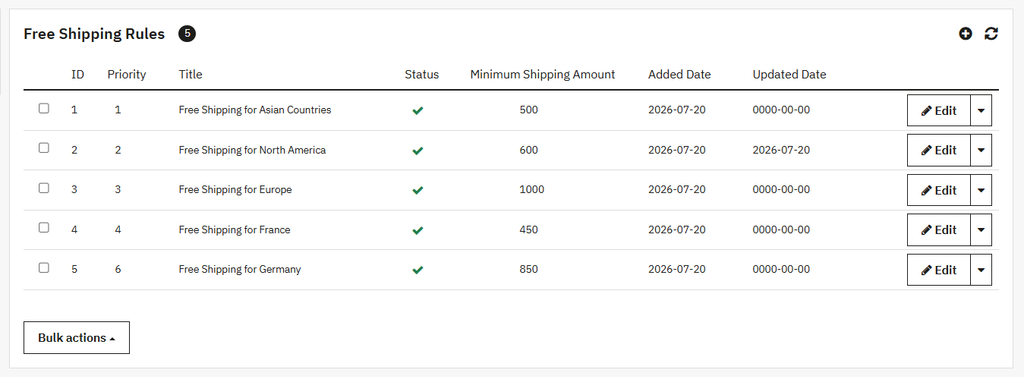
Free Shipping Rules
Click on the Free Shipping Rules option. By default, the Rule screen will be open where you can view the details of all created rules in a grid view. You can also create a new rule here.
Grid Details:
- ID: Displays the ID of the rule.
- Priority: Displays the rule priority.
- Title: Shows the title of the rule.
- Status: Shows the rule status.
- Minimum Shipping Amount: Displays the minimum shipping amount.
- Added Date: Shows the added date of the rule.
- Update Date: Shows the updated date of the rule.
- Edit: Use this to edit the rule at any time.
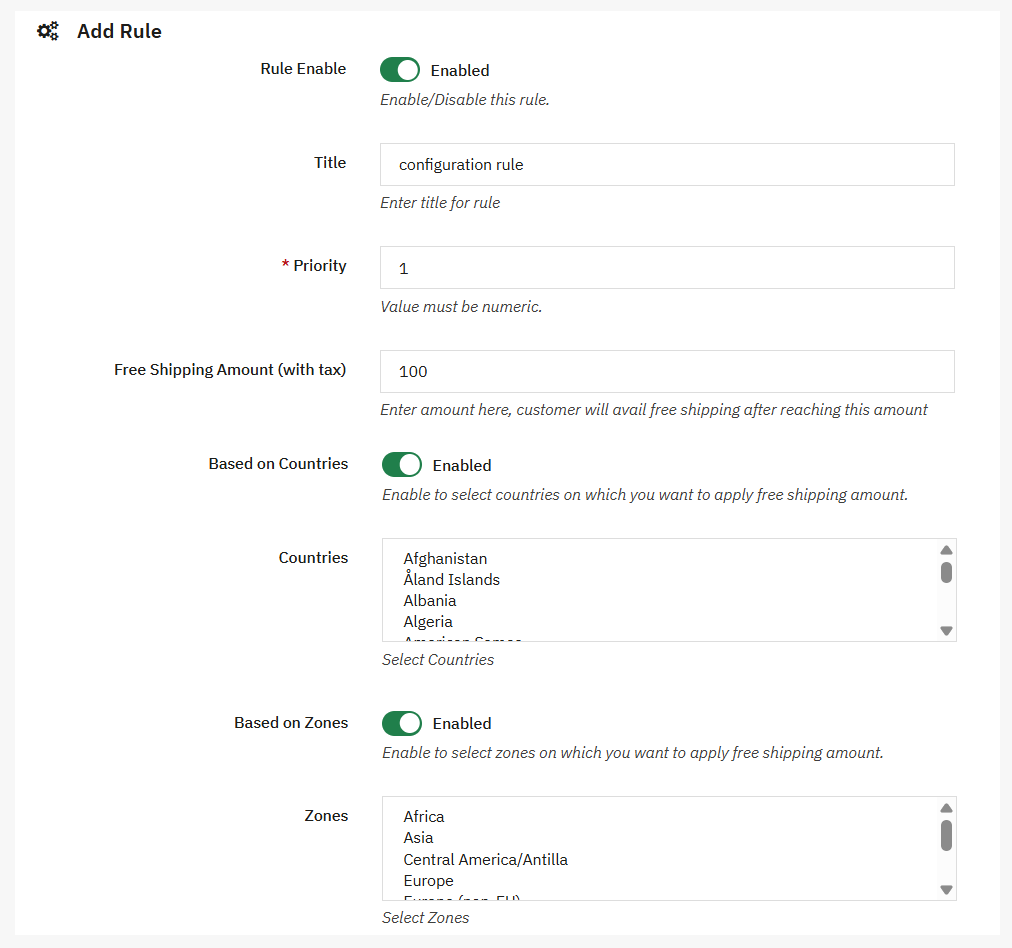
Creating New Free Shipping Amount Counter Rule
To create a new rule, click on the (+) icon to open the new rule view, where you can add the following details:
- Rule Enable: Enable/disable the rule at any time.
- Title: Add the custom title for the rule.
- Priority: Add the rule priority.
- Free Shipping Amount (with tax): Enter the amount that the customer will receive free shipping after reaching this amount.
- Based on countries: Enable or disable this to apply free shipping to the selected countries. Once you enable this, you can:
- Countries: Select specific countries from the list.
- Based on Zone: Enable/disable this to apply free shipping to the selected zones. Once you enable this, you can:
- Zones: Select specific zones from the list.
- Save: Click on the save button to save and implement all changes.