For Shipping counter customization, you can configure the following:
Amount Counter Customization on Home Page
You can:
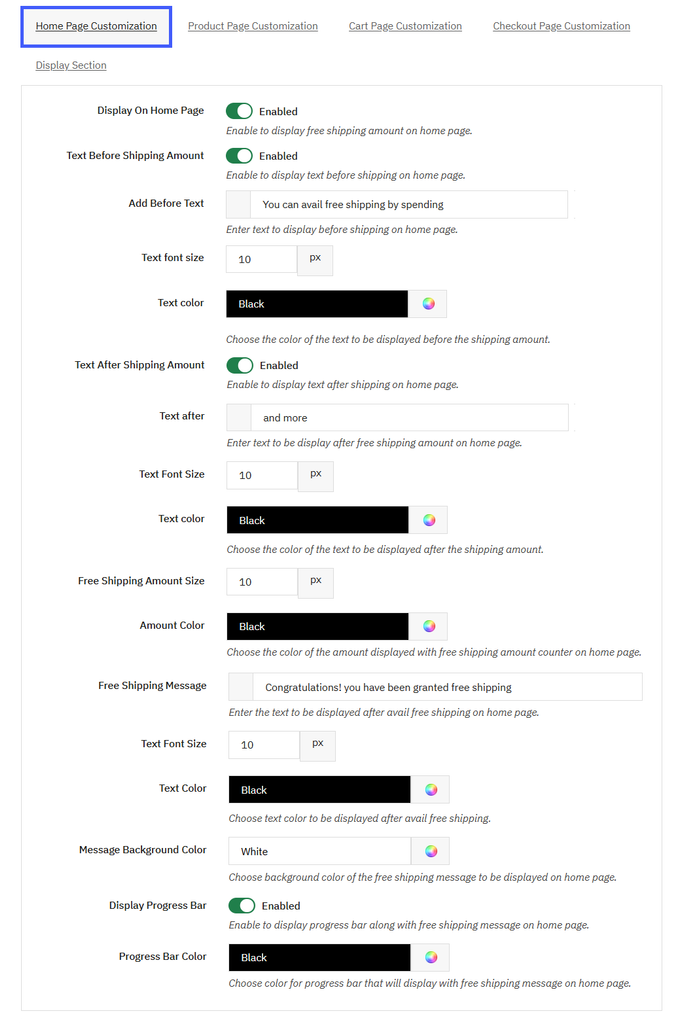
- Display on Home page: Enable or disable this customization at any time. Once you enable this, you can:
- Text Before Shipping Amount: Enable/disable this to display the shipping amount on the home page. If enabled, you can:
- Add Before Text: Add the custom text that is displayed before shipping on the home page.
- Text Font Size: Adjust the font size of this text.
- Text Color: Add a custom color for this text.
- Text After Shipping Amount: Enable/disable this to display text after shipping amount. Once you enable this:
- Text After: Enter the custom text that is displayed after the free shipping amount on the home page.
- Text Font Size: Enter the custom font size of text.
- Text Color: Enter the custom color for text.
- Free Shipping Amount Size: Add the custom size for the shipping amount.
- Amount Color: Choose the custom color of the amount that is displayed after free shipping.
- Free Shipping Message: Enter the custom text that is displayed on the home page after availing free shipping.
- Text Font Size: Set the font size of text.
- Text Color: Set the custom text color.
- Message Background Color: Choose the custom background color of the free shipping message that is displayed on the home page.
- Display Progress Bar: Enable/disable the progress bar along with the free shipping message that is displayed on the home page.
- Progress Bar Color: Choose the custom color for the progress bar.
- Text Before Shipping Amount: Enable/disable this to display the shipping amount on the home page. If enabled, you can:
Amount Counter Customization on Product Page
To customize the product page, you can:
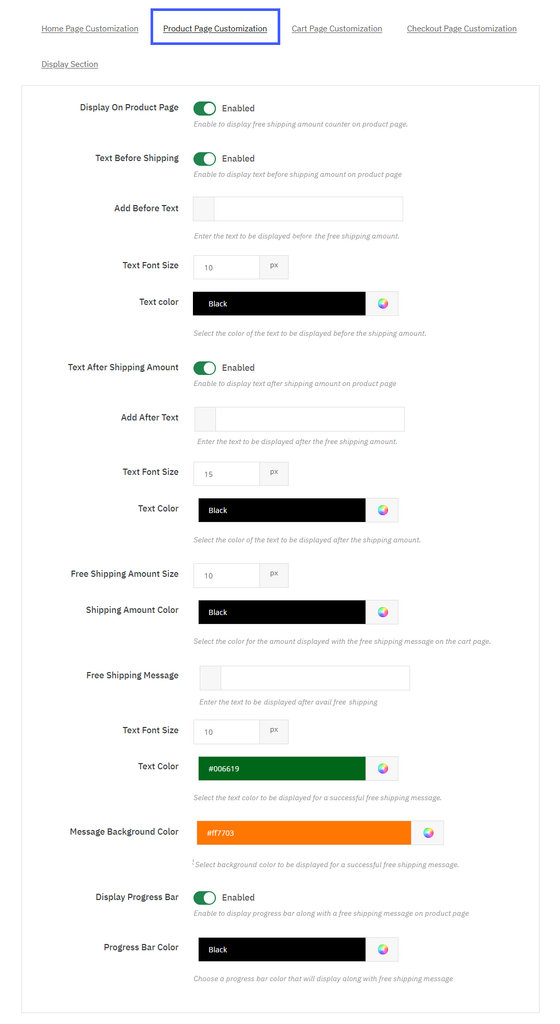
- Display on the Product page: Enable or disable this to display the free shipping amount on the product page. Once you enable this, you can:
- Text before shipping amount: Enable/disable the text that is displayed before the shipping amount on the product page. Once you enable this, you can:
- Add Before text: Add the custom text that is displayed before the shipping amount on the product page.
- Text font size: Add the custom font size for text.
- Text Color: Add the custom color for text.
- Text After Shipping Amount: Enable or disable the text that is displayed after the shipping amount. Once you enable this, you can:
- Add After text: Enter custom text color that is displayed after the shipping amount on the product page.
- Text Font Size: Add the custom font size of text.
- Text Color: Add the custom color for text.
- Free Shipping Amount Size: Add the font size of the shipping amount that is displayed on the product page.
- Amount Color: Choose the custom color for the amount counter.
- Free Shipping Message: Enter the custom message that is displayed on the product page after availing the free shipping.
- Text Font Size: Add the custom font size of text.
- Text Color: Select the custom color for shipping message text.
- Message Background Color: Add a custom background color for the message that is displayed on the product page.
- Display Progress bar: You can enable/disable the progress bar that is displayed along with the free shipping message on the product page.
- Progress bar color: Select a custom color for the progress bar.
- Save: Click on the save button to implement these changes
- Text before shipping amount: Enable/disable the text that is displayed before the shipping amount on the product page. Once you enable this, you can:
Amount Counter Customization on Cart Page
To customize the cart page, you can:
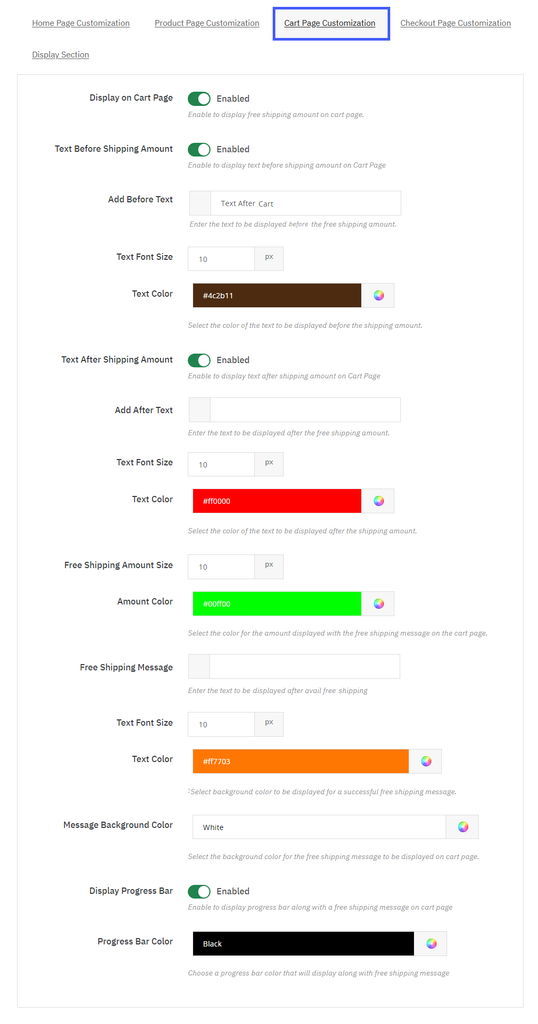
- Display on the Cart page: Enable or disable this to display the free shipping amount on the cart page. Once you enable this, you can:
- Text before shipping amount: Enable/disable the text that is displayed before the shipping amount on the cart page. Once you enable this, you can:
- Add Before text: Add the custom text that is displayed before the shipping amount on the cart page.
- Text font size: Add the custom font size for text.
- Text Color: Add the custom color for text.
- Text After Shipping Amount: Enable or disable the text that is displayed after the shipping amount on the cart page. Once you enable this, you can:
- Add After text: Enter custom text color that is displayed after the shipping amount on the cart page.
- Text Font Size: Add the custom font size of text.
- Text Color: Add the custom color for text.
- Free Shipping Amount Size: Add the font size of the shipping amount that is displayed on the cart page.
- Amount Color: Choose the custom color for the amount counter.
- Free Shipping Message: Enter the custom message that is displayed on the cart page after availing the free shipping.
- Text Font Size: Add the custom font size of text.
- Text Color: Select the custom color for shipping message text.
- Message Background Color: Add a custom background color for the message that is displayed on the cart page.
- Display Progress bar: You can enable/disable the progress bar that is displayed along with the free shipping message on the cart page.
- Progress bar color: Select a custom color for the progress bar.
- Save: Click on the save button to save and implement these changes
- Text before shipping amount: Enable/disable the text that is displayed before the shipping amount on the cart page. Once you enable this, you can:
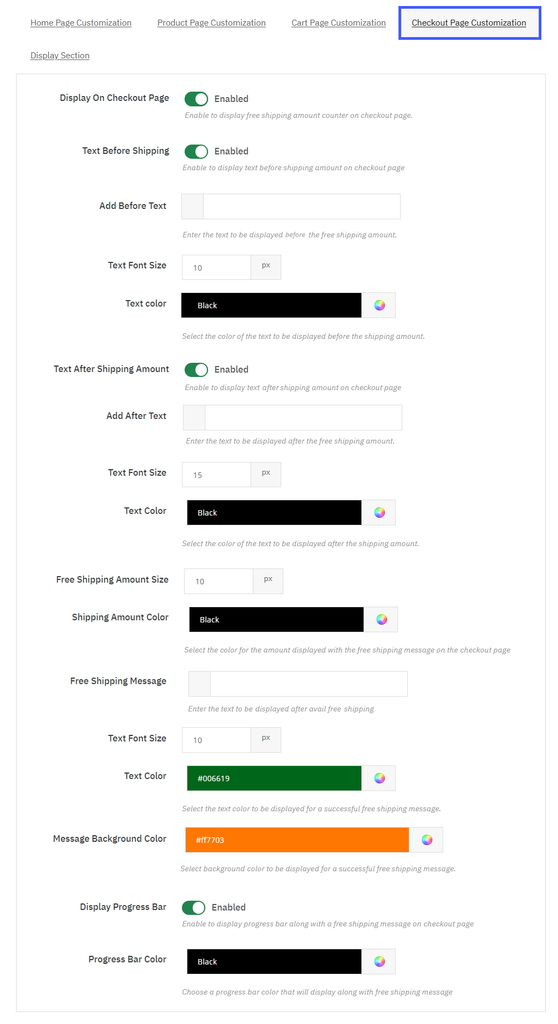
Amount Counter Customization on Checkout Page
To customize the checkout page, you can:
- Display on the Checkout page: Enable or disable this to display the free shipping amount on the checkout page. Once you enable this, you can:
- Text before shipping amount: Enable/disable the text that is displayed before the shipping amount on the checkout page. Once you enable this, you can:
- Text Before shipping amount: Add the custom text that is displayed before the shipping amount on the checkout page.
- Text font size: Add the custom font size for text.
- Text Color: Add the custom color for text.
- Text After Shipping Amount: Enable or disable the text after shipping amount. Once you enable this, you can:
- Text After shipping amount: Enter the custom text that is displayed after the shipping amount on the checkout page.
- Text Font Size: Add the custom font size of text.
- Text Color: Add the custom color for text.
- Free Shipping Amount Size: Add the font size of the shipping amount that is displayed on the checkout page.
- Amount Color: Choose the custom color for the amount counter on the checkout page.
- Free Shipping Message: Enter the custom message that is displayed on the checkout page after availing the free shipping.
- Text Font Size: Add the custom font size of the text.
- Text Color: Select the custom color for shipping message text.
- Message Background Color: Add a custom background color for the message that is displayed on the checkout page.
- Display Progress bar: You can enable/disable the progress bar that is displayed along with the free shipping message on the checkout page.
- Progress bar color: Select a custom color for the progress bar.
- Save: Click on the save button to save and implement these changes.
- Text before shipping amount: Enable/disable the text that is displayed before the shipping amount on the checkout page. Once you enable this, you can:
Shipping Amount Counter Display Configuration
In the display section, we can:
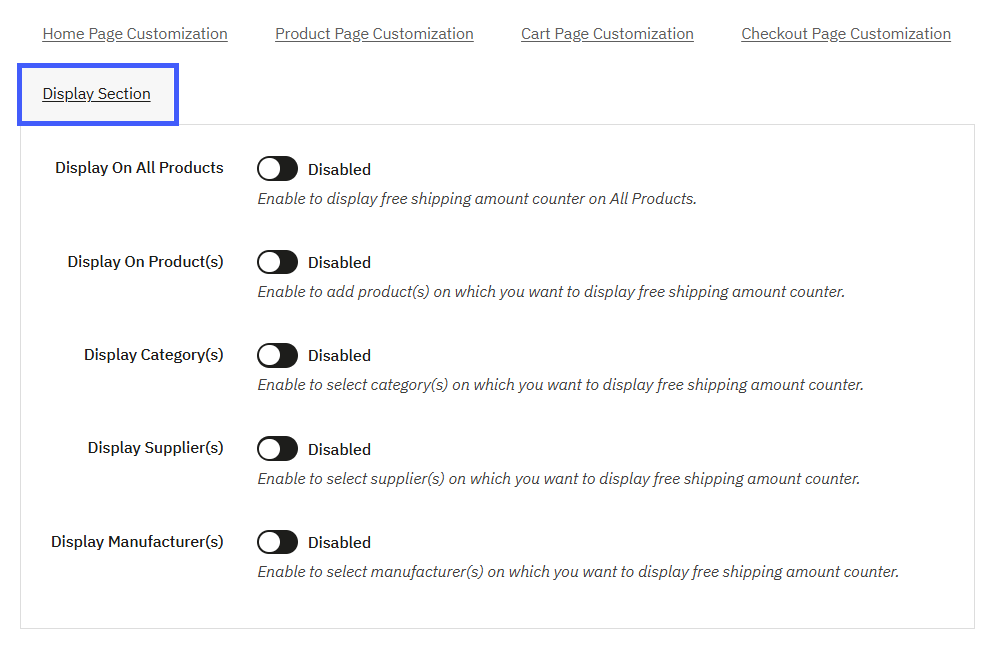
- Display on all products: Enable this to apply the free shipping counter on all products. If you disable this, you can:
- Display on product: Enable/disable this to display the free shipping amount counter on specific products. Once you enable this, you can:
- Search Product(s): Search and add the specific products from the list where the shipping counter will be available.
- Display Category(s): Enable this to display the counter on specific categories. If you enable this, you can:
- Category(s): Select specific categories from the list.
- Display Supplier: Enable/disable the shipping amount counter on the specific supplier. If you enable this, you can:
- Supplier(s): Add the specific name of the supplier from the list.
- Display Manufacturer: Enable/Disable the free shipping amount counter on the specific manufacturer. If you enable this, you can:
- Manufacturer: Add a specific manufacturer from the list where the shipping amount counter will be displayed.
- Display on product: Enable/disable this to display the free shipping amount counter on specific products. Once you enable this, you can:
- Save: Click the Save button to implement all changes.