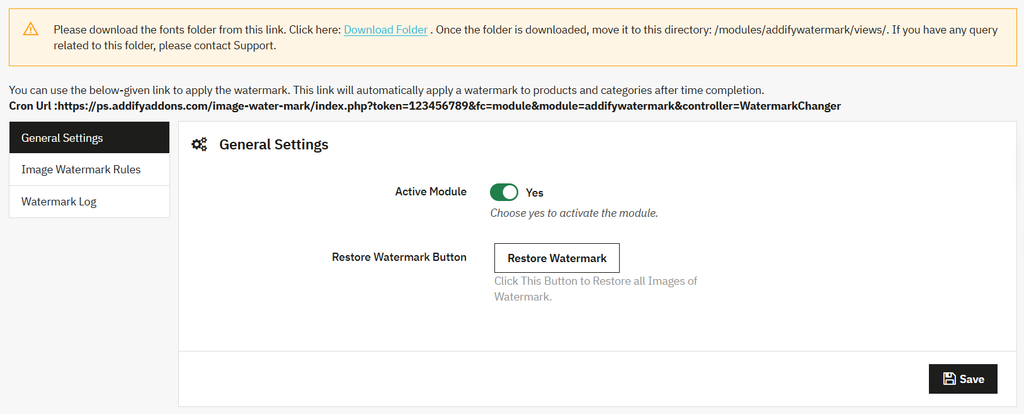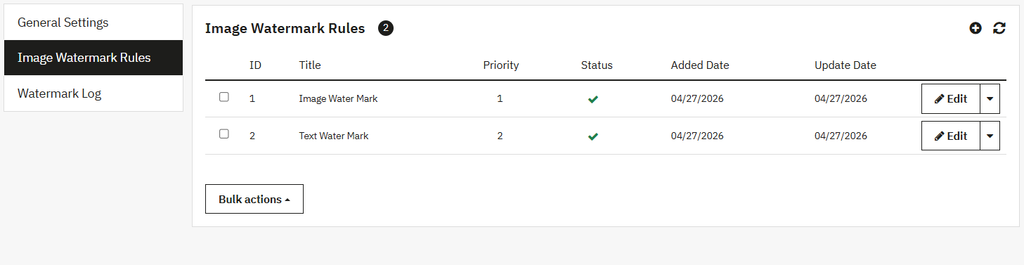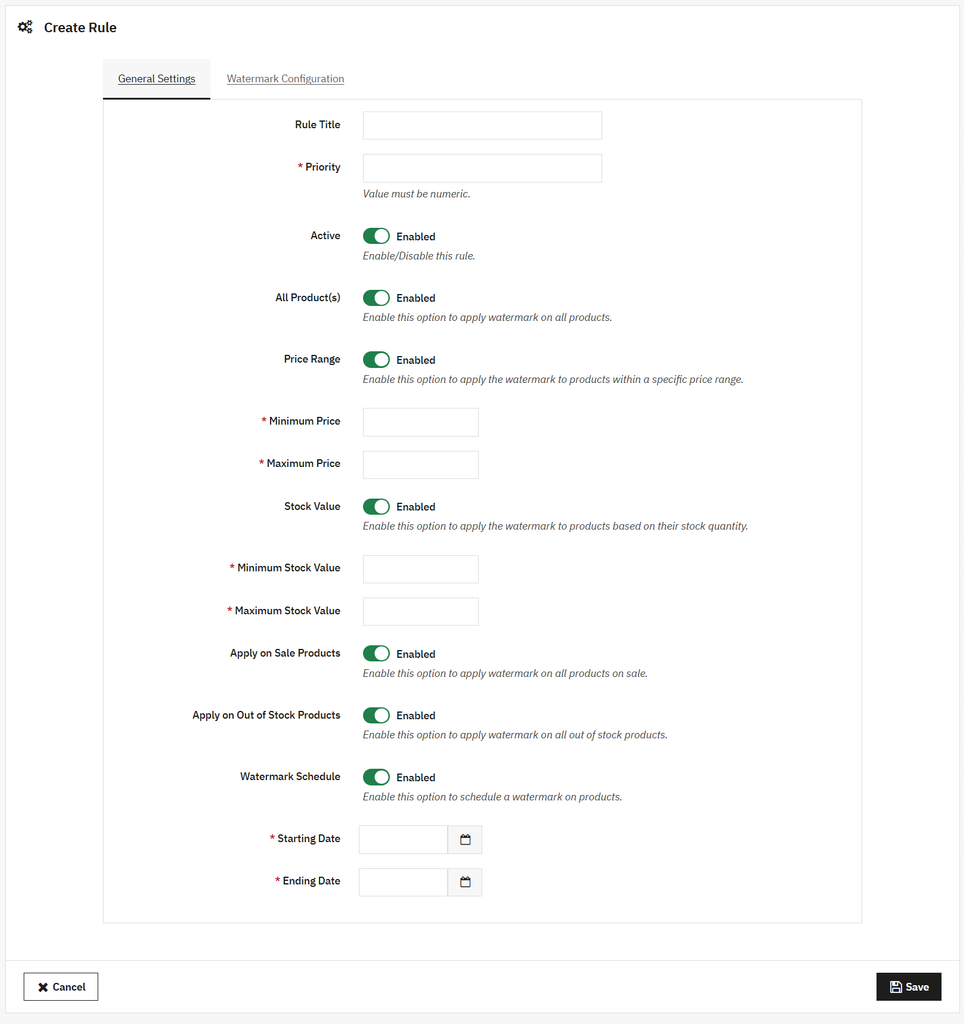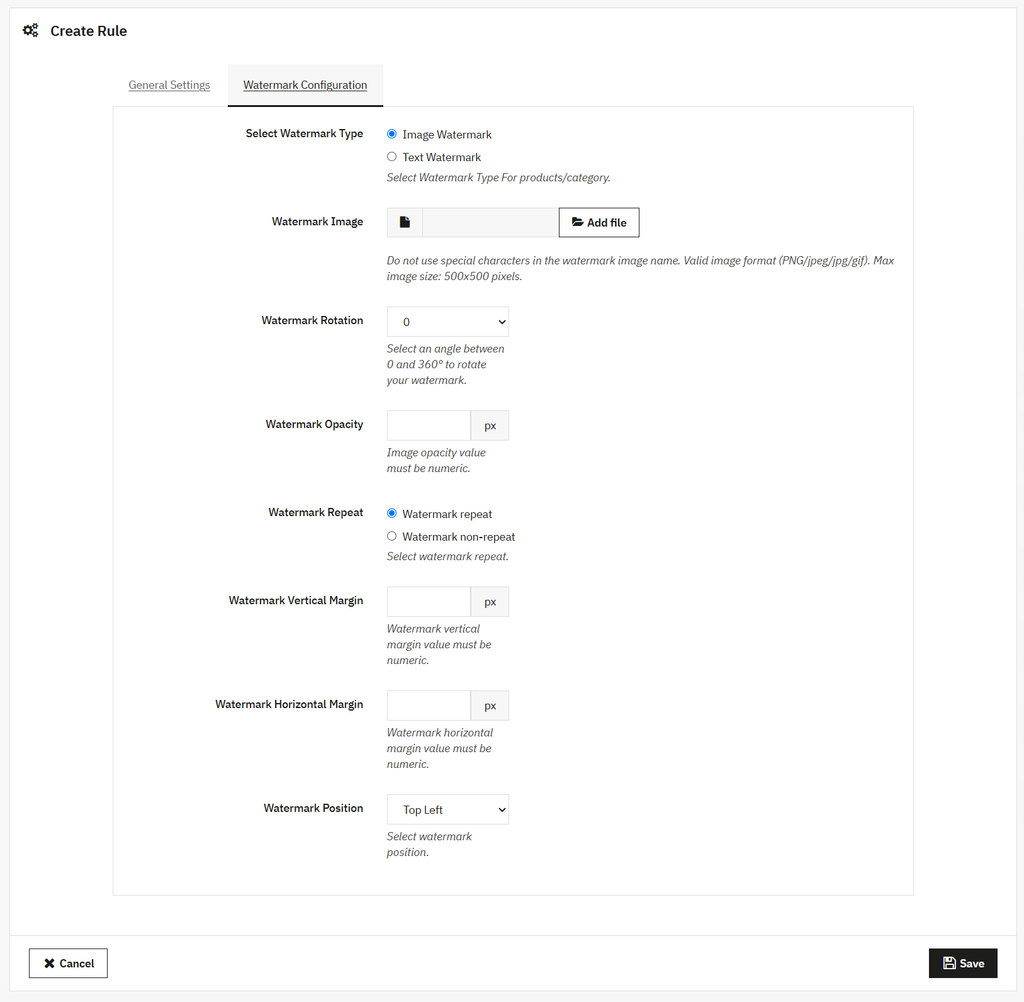
To add an image watermark, you can use PrestaShop Watermark Pro module. It can be setup within minutes. Once installed, go to its general settings and activate the module. Now, from the main menu, select Create Watermark Rules. Add rule title, priority, and restrict it to specific products or categories. Then select Watermark configuration and add a custom image. For a detailed overview, follow these steps:
- Install the module, then go to Modules > Module Manager > Addify Image Watermark Pro and select Configure. Now, from the general settings, activate the module.
- Once activated, select Create Watermark Rules. Now, click + to add a new rule. Set custom rule title, priority, and restrict it to specifc products, categories, manufacturers, and suppliers.
- Now, from the top menu bar, select Watermark Configuration and select its type as Image Watermark.
- Upload the image, select image rotation, and add its opacity value.
- You can also choose from nine predefined positions to accurately place the watermark on your product images.
- Click save, and you have successfully added an image watermark to your product images.