
Setting Global Pricing Rules
To set global pricing rules by selecting countries using the WooCommerce Price by Country plugin, follow these steps:
Install and Activate the Plugin: Begin by installing and activating the WooCommerce Price by Country plugin on your WordPress website.
Access Price by Country Settings: After activation, navigate to your WordPress dashboard and click on “WooCommerce”. From the dropdown menu, select “Price by Country”. This will take you to the plugin’s settings page.
Creating a New Pricing Rule:
Click on the “Add New Rule” button to create a new pricing rule.
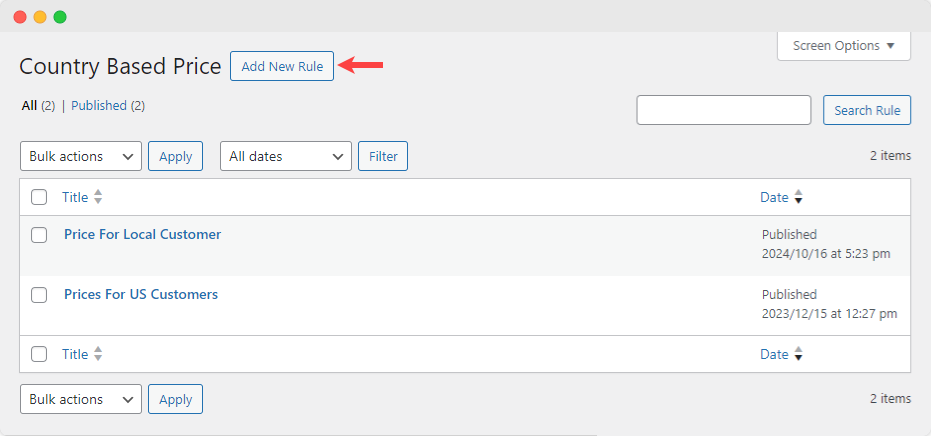
Title: Provide a descriptive title for your rule to easily identify it later.
Specifying Products, Categories, Tags, & Attributes for the Rule:
Choose the products, categories, tags, and attributes on which you want the price change to be applied. This allows you to target specific items for pricing adjustments.
Applying Restrictions to the Pricing Rule:
To create restrictions, click on “Add New Restriction”.
- Countries: Select the countries where you want the pricing rule to be applied. You can choose one or multiple countries.
- Schedule Rule: Choose to enable the rule for a desired period by adding the start and end times.
- Quantity Limit: Limit product quantity by adding min and max quantity of product.
- Rate Type: Choose the type of rate adjustment you want to apply:
- Increase by Fixed Amount: Add a specific amount to the product’s price.
- Decrease by Fixed Amount: Subtract a specific amount from the product’s price.
- Increase by Percentage: Increase the product’s price by a certain percentage.
- Decrease by Percentage: Decrease the product’s price by a certain percentage.
- Fixed Price: Set a fixed price for the product, regardless of its original price.
- Amount: Enter the respective amount based on the selected rate type.
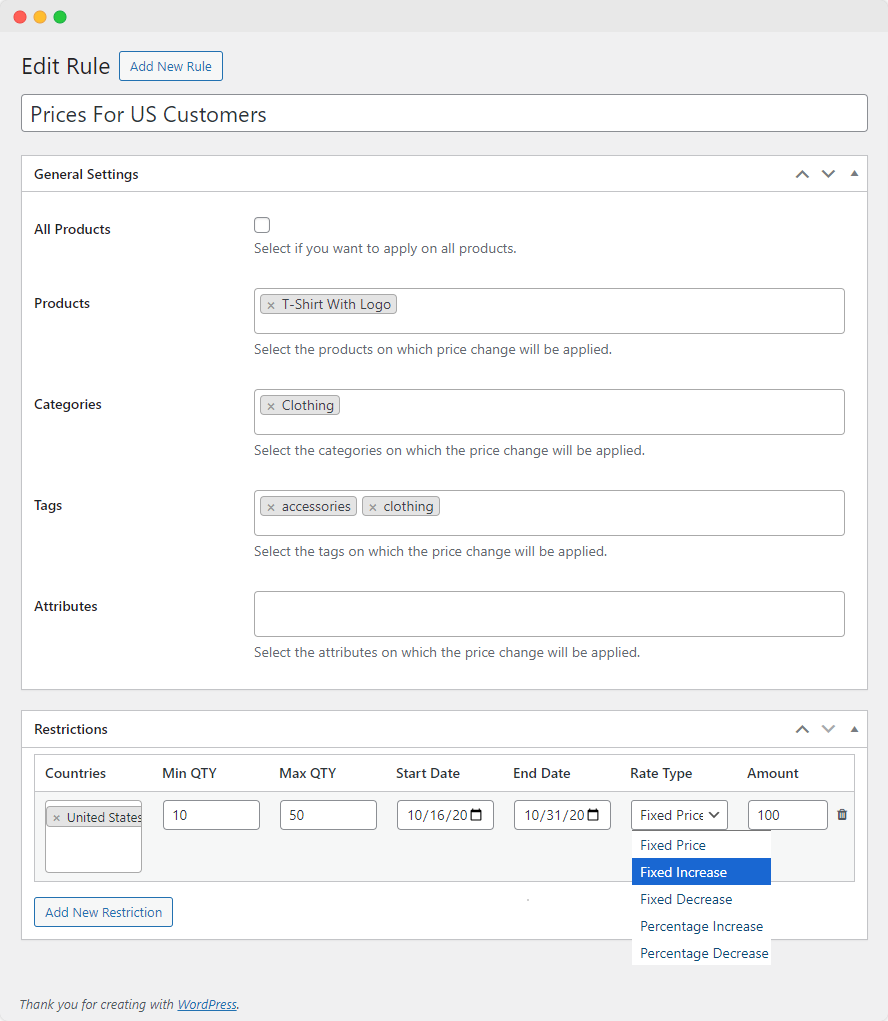
Publish the Rule: Once you’ve configured all the details for your pricing rule and added restrictions, click the “Publish” button to save and activate the rule.
By following these steps, you can set global pricing rules by selecting countries using the WooCommerce Price by Country plugin. This allows you to apply customized pricing adjustments to products based on the customer’s location, helping you tailor your pricing strategy to different markets.