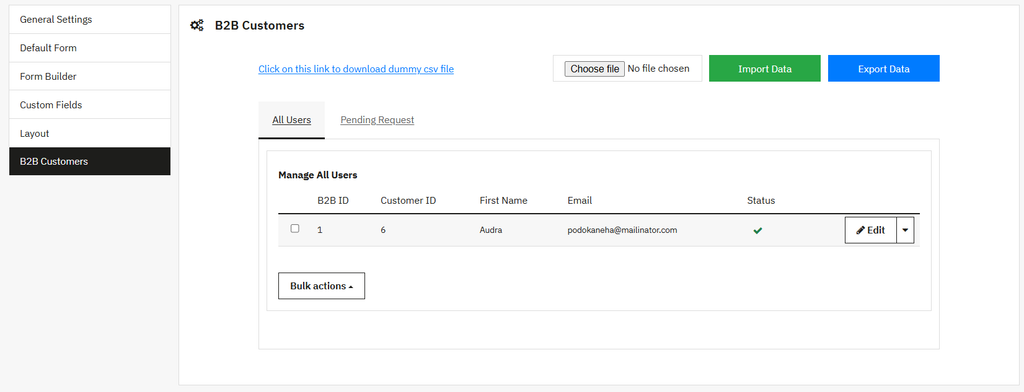
Manage All B2B Customers
Go to the side menu > Click on the B2B option, where you can view the logs and download or upload the CSV files.
- If you want to download the dummy CSV file, you can click on the given link and download it.
- Choose file: Click on this option to choose the file and upload the required CSV file, and upload the user data to the system.
- Import data (Button): Click on this button to upload the user data into the system.
- Export data (Button): Click on this button to download the user record in CSV format.
To view the logs of all users, click on all user options and view the user record in a grid view.
Grid:
- B2B ID: Display the unique ID of the B2B Customer.
- Customer ID: Display the ID of all registered B2B and B2C users.
- First name: Show the name of the user.
- Email: Display the email address of the user.
- Status: Indicate the user status, such as active, inactive, pending, or approved, etc.
- Edit: Edit the user detail based on your needs.
Pending Requests
To view the logs of all pending requests, click on pending request options and view the pending request in grid view.
Grid:
- B2B ID: Display the unique ID of the B2B Customer.
- Customer ID: Display the ID of all registered B2B and B2C users.
- First name: Show the name of the user.
- Email: Display the email address of the user.
- Status: Show the status of the request, such as pending or canceled, etc.