Create Multiple B2B Registration Forms
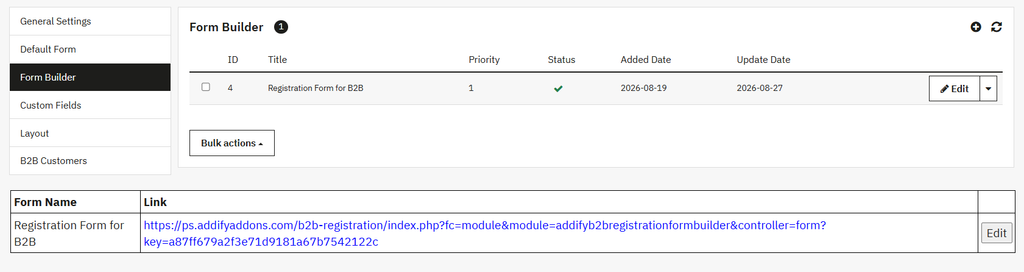
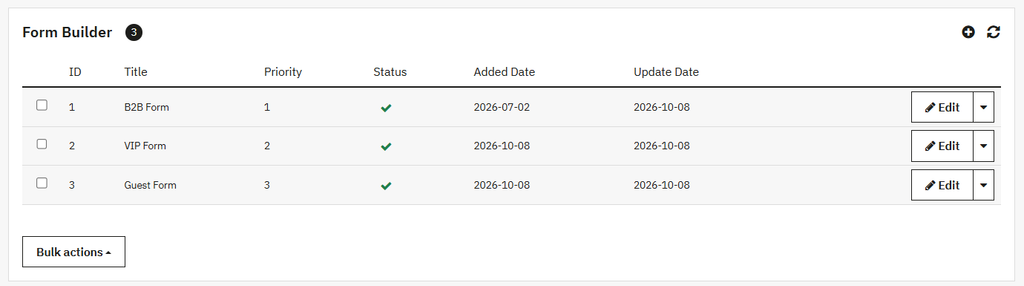
Go to the side menu > click on the Form Builder option. Where you can view the:
- Log of all created forms
- Add new (+) icon
- Bulk action
Creating New B2B Registration Form
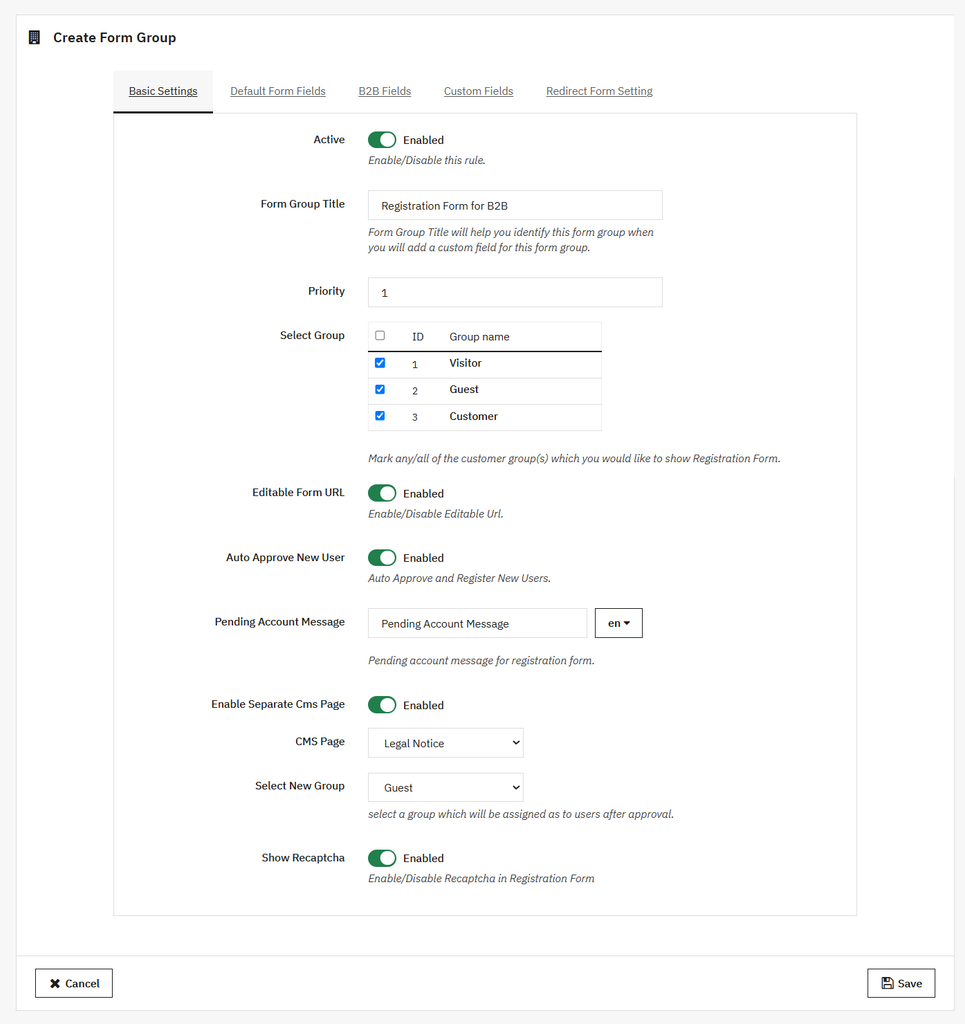
If you want to create a new form and click on the (+) icon
Basic Settings
- Active: You can active or disable a rule.
- Form group title: Add the custom form title or label for the form group.
- Editable Form URL: Enable the form URL of this rule.
- Priority: Set the priority of the rule.
- Auto approve new user: Enable/disable this for the automatic approval of new users based on your preference.
- Pending account message: Add a custom text message that will display to those users whose registration is pending for approval.
- Enable Separate CMS page: You can enable/disable the CMS pages that are displayed instead of the registration form. In case of enabled, you can:
- CMS page: Select the CMS page, such as the Delivery page or Privacy policy page, from the dropdown and display it instead of the registration page.
- Select user group: Select the user group from the dropdown menu, which will be assigned to the user after approval.
- Select Group: If you want to show the user group on the registration form, select the required user name by using the checkbox.
- Show reCAPTCHA: Show the Google reCAPTCHA to secure your form to prevent bots or unauthorized users.
- Save: Click on the save button to apply them.
Default Form Fields
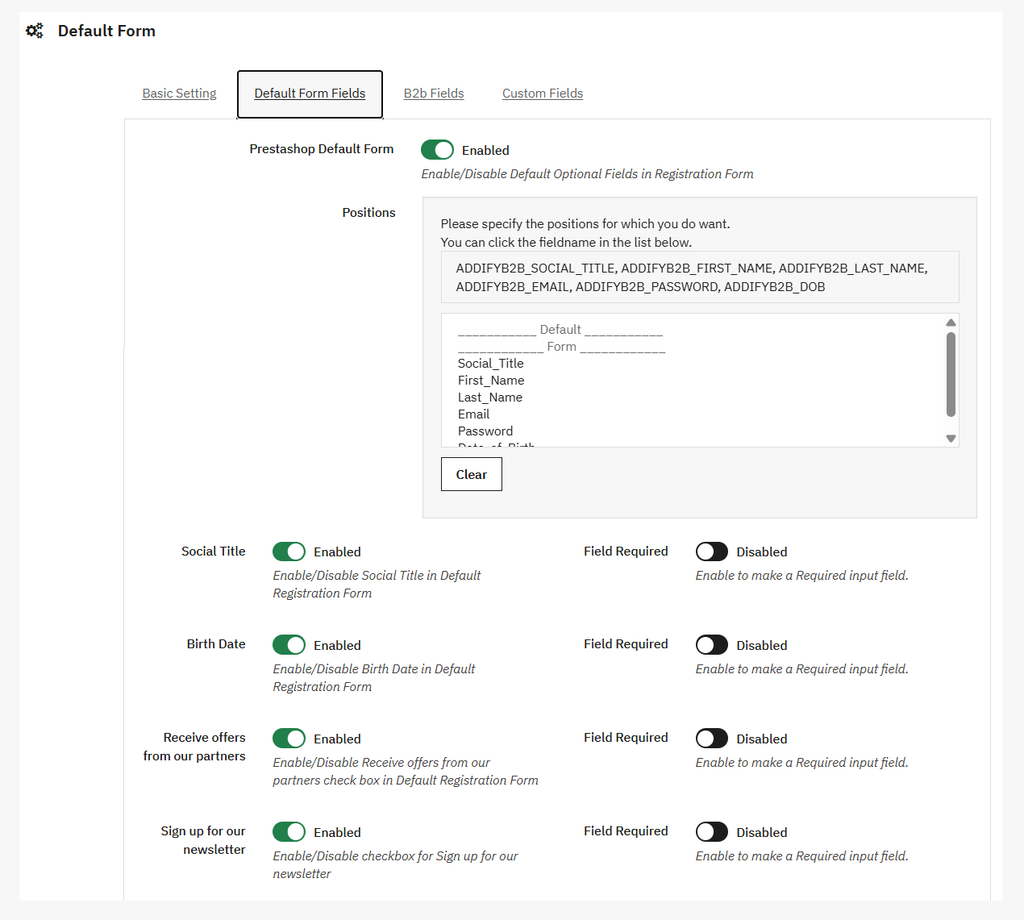
Go to the default form setting views, where you can:
- Default form: Enable/disable the default form.
- Default form title: Add a custom title for the default form, which is displayed at the top of the form.
- Position: Set the position of the default field on the registration form, and also enable/disable these fields based on your needs. You can:
- Enable/disable the Social title field.
- Enable/disable the birth date field.
- Enable/disable the Receive from our partner field.
- Enable/disable the field for Sign up for newsletter.
- Enable the field required option to make the field mandatory.
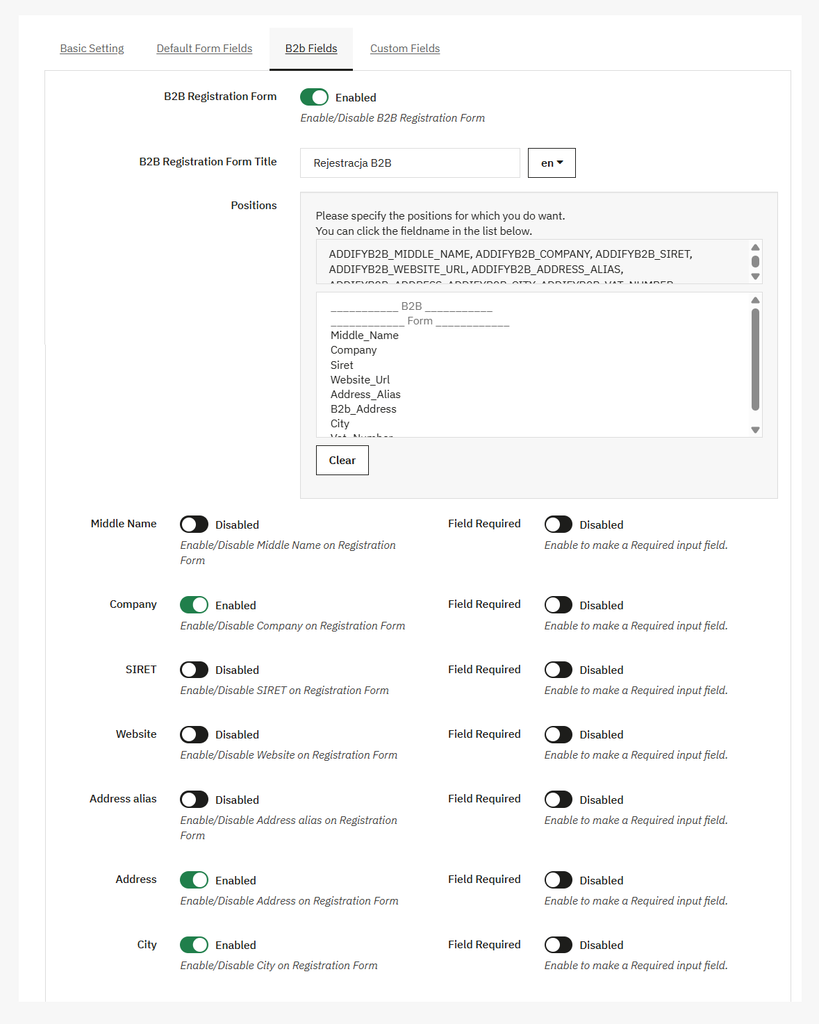
B2B Fields
Open the B2B field view and perform the following settings:
- B2B Registration form: Turn enable or disable the default registration form.
- B2B form title: Add the custom form title or label that is displayed at the top of the form page.
- Positions: Set the position of fields on the registration form, and you can also enable or disable the default fields on the registration form, such as:
- Enable/disable the middle name field.
- Enable/disable the Company name field.
- Enable/disable the SIRET field.
- Enable/disable the Address alias field.
- Enable/disable the address field.
- Enable/disable the City field.
- Enable/disable the VAT number field.
- Enable the field required option to make the field mandatory.
Custom Fields
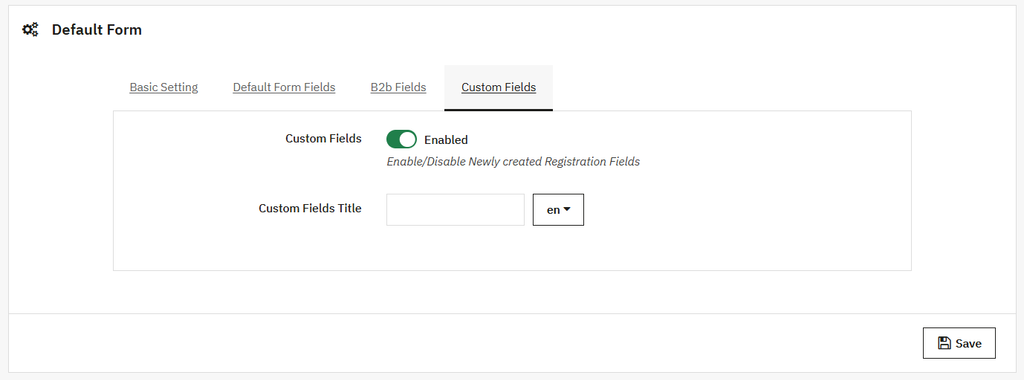
Click on the custom fields option and open the custom field view, where you can:
- Custom fields: You can enable or disable the custom fields based on your preference. In case of enabling, you can:
- Custom field title: Add the title or label of this field.
Redirect Form Settings
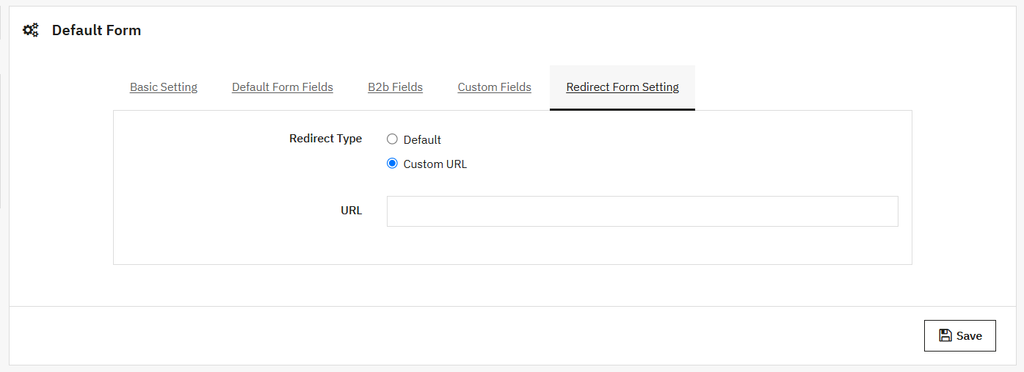
Click on the redirect form settings to redirect customers using this form,here you can:
- Redirect Type: From here you can choose the redirect type when a customer will register through this form.
- Default
- Custom URL
B2B Registration Forms URL’s
Here you can see all custom created B2B registration forms with URL’s.
Edit: You can edit URL link.