
Request for Quote Settings
Click on the “Request for Quote Settings” option and configure the following settings:
Configure Quote General Settings
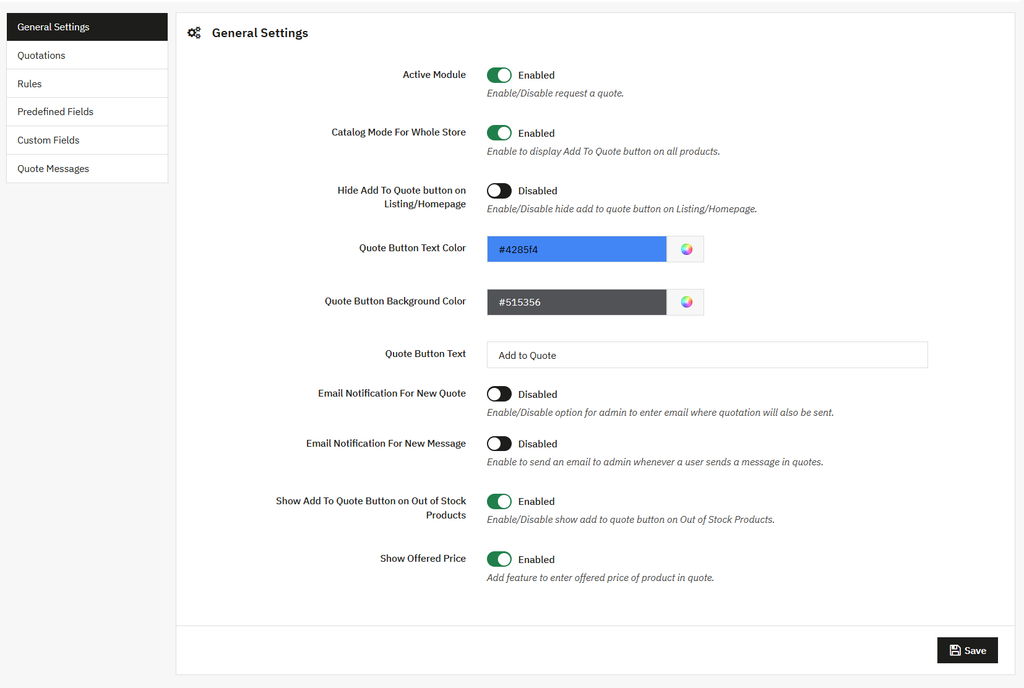
Click on general settings on the side menu and perform the following settings:
- Active Module: Easily enable/disable the quote module.
- Catalog module for the Whole store: Enable/Disable the quote button on the product page.
- Hide Add to cart button on the listing/Home page: Enable/Disable the quote button on the home page or listing page.
- Quote button text color: Add the custom color for button text.
- Quote button background color: Add the custom color for the button background.
- Quote button text: Add the custom text for the quote button.
- Email notification for New Quotes: Enable/disable the email notification. If enabled:
- Shop/Manager Email: Add the email address of the shop/manager.
- Email notification for New Message: Enable this to send the email notification to the admin when a new quote is submitted.
- Show the Add to quote button on out-of-stock products: Enable this to display the quote button on out-of-stock products.
- Show offered price: Enable this to show the offered price of products.
Quotation Log
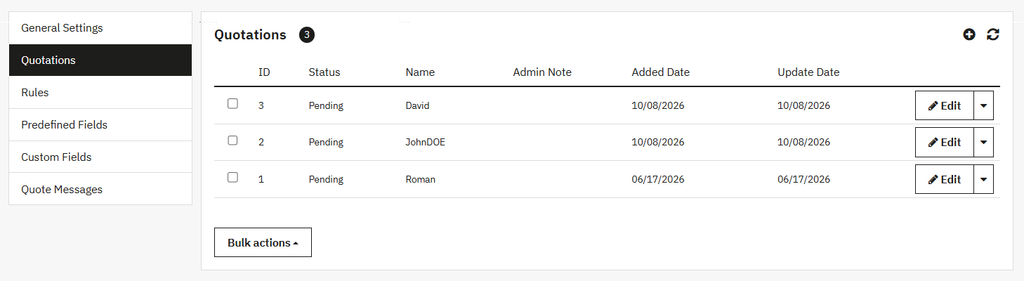
Click on the quotation option to open the quote view, where you can see all existing quotes in a grid layout and also add a new quote.
Grid Detail:
- ID: Display the ID of quotes.
- Status: Display the status of the quote.
- Name: Display the name of the quote.
- Admin Note: Display the admin note about the quote.
- Added Date: Display the added date of quotes.
- Update Date: Display the update date of quotes.
- Edit: Edit the quotes if needed.
Creating New Quote
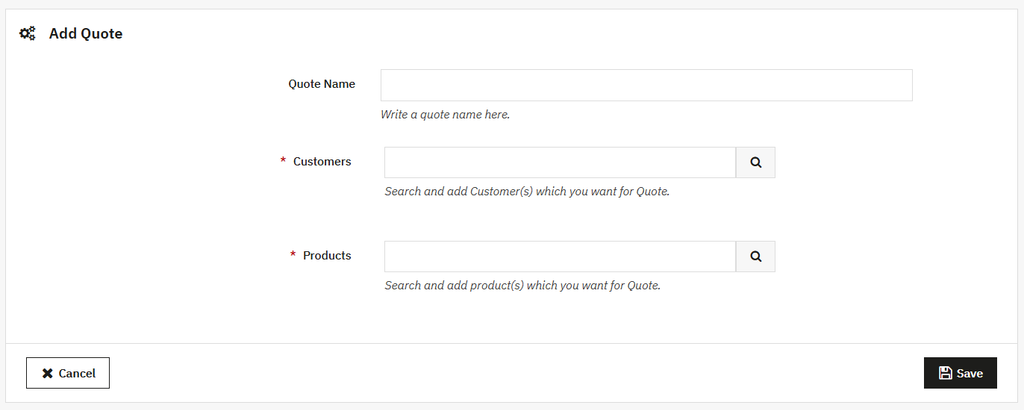
To add the new quote, you can:
- Quote Name: Enter the name of the quote.
- Customers: Add the customer who can view the quotes.
- Products: Add the products you want to include in the quote.
- Save: Save the quotes after modifications.
- Cancel: Close the page without saving anything.
Request a Quote Rules
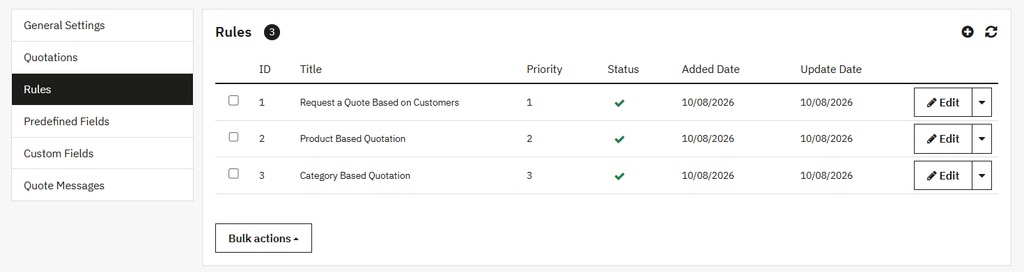
Click on the Rules option to open the Rules view, where you can see all existing rules in a grid layout and also add a new rule.
Grid Detail:
- ID: Display the ID of rules.
- Title: Display the title of the rule.
- Priority: Show the rule priority.
- Status: Display the status of the rule.
- Added Date: Display the added date of the rule.
- Update Date: Display the update date of the rule.
Create Request a Quote Rule
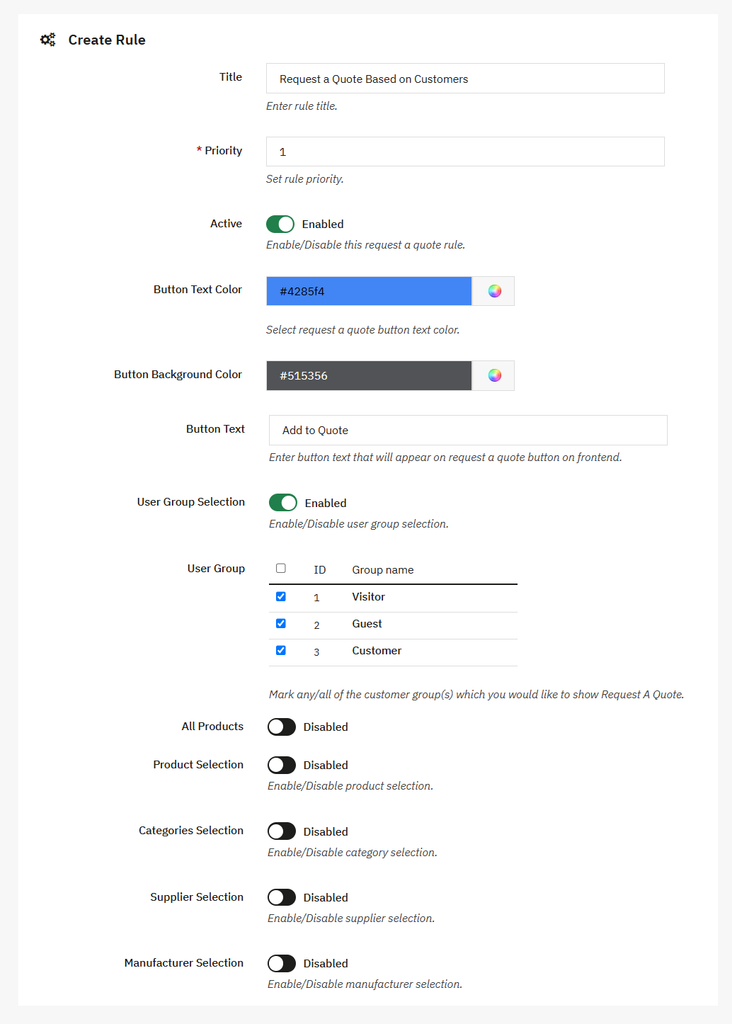
To create a new Rule, you can:
- Title: Enter the label/title of the rule.
- Priority: Set the priority of the rule to handle multiple rules simultaneously.
- Active: You can easily activate or deactivate the rule.
- Button text color: Add custom color for button.
- Button Background color: Add the custom color for the button background.
- Button text: Enter text for button.
- User group section: Enable/disable the user group selection. If enabled
- User Group: Select a specific user who can view the quotes.
- All products: Enable this to add the quotes button to the entire product/stock.
- Product selection: Enable/disable the product selection option. If enabled
- Search Product: Search and add the specific product.
- Categories selection: Enable/Disable the category selection option. Once enabled:
- Search Category: Search the specific category and restrict it.
- Supplier selection: Enable/Disable the Supplier section option. If enabled:
- Supplier: Choose a specific supplier who can view the quote option.
- Manufacturer Selection: Enable the manufacturer option. Once enabled:
- Manufacturer: You can add the specific manufacturer who can view the quote button.
- Save: Click on the save button to apply them.
Predefine Fields for Quotation Field
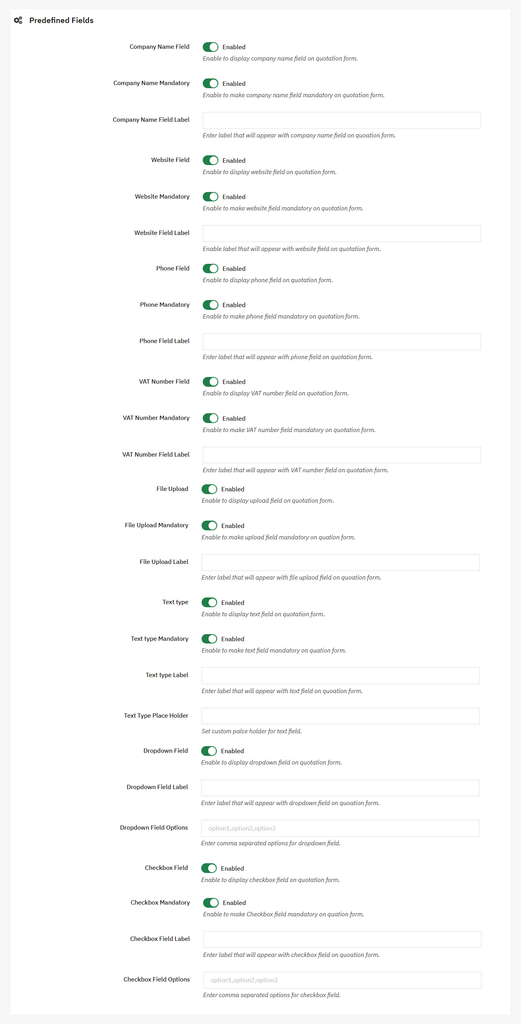
Click on the predefined fields to open the default fields view, where you can configure the following fields:
- Company name field: Enable/Disable the field of the company name. If enabled:
- Company name mandatory: Make this field mandatory by enabling this option.
- Company name field label: Enter the name and label of the field.
- Website Field: Enable/Disable the website field. If enabled:
- Website mandatory: Make this field mandatory by enabling this option.
- Website field label: Enter the name and label of the field.
- Phone Field: Enable/Disable the phone field. If enabled:
- Phone mandatory: Make this field mandatory by enabling this option.
- Phone field label: Enter the name and label of the field.
- VAT Number Field: Enable/Disable this option to display the VAT number field on the form. If enabled:
- VAT Number mandatory: Make this field mandatory by enabling this option.
- VAT Number field label: Enter the name and label of the field.
- File upload Field: Enable/Disable this option to add the file upload option to the form. If enabled:
- File upload mandatory: Make this field mandatory by enabling this option.
- File upload label: Enter the name and label of the field.
- Text type: Enable/Disable the text type on the quotation form. If enabled:
- Text type mandatory: Make this field mandatory by enabling this option.
- Text type label: Enter the name and label of the field.
- Text-type placeholder: Add the placeholder for the text field for better understanding.
- Dropdown field: Enable/Disable the dropdown field on the quote form. If enabled:
- Dropdown field label: Enter the custom label for the dropdown field.
- Dropdown field option: Add the option for the dropdown.
- Checkbox field: Enable/Disable the checkbox field on the quote form. If enabled:
- Checkbox Mandatory: Make the checkbox field mandatory by enabling this option.
- Checkbox field label: Enter the custom label for the checkbox field.
- Checkbox field option: Add the option for the checkbox.
- Save: Click on the save button to implement this.
Custom Fields for Quotation Form
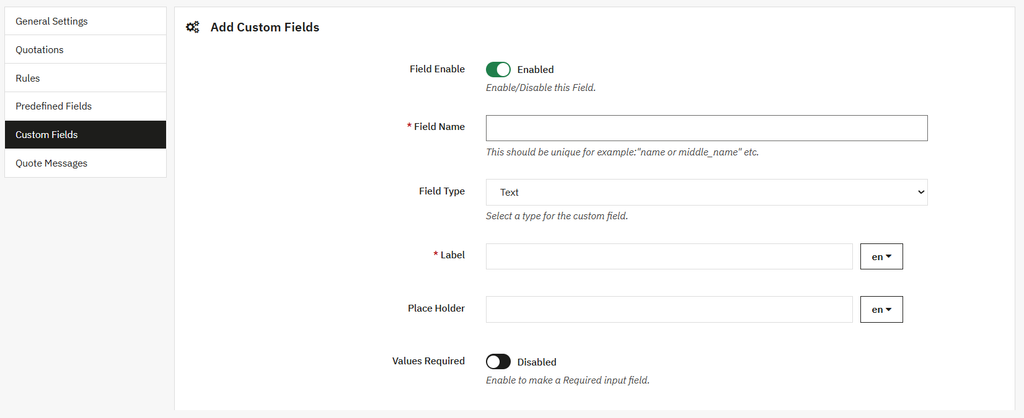
Click on the custom fields option to add the following custom fields to the form:
- Field Enable: Enable/Disable the field on the form.
- Field Name: Enter the field name.
- Field type: Select the field type from the dropdown based on your preference.
- Label: Add the custom label of the field.
- Placeholder text: You can add the custom text for the placeholder for better understanding.
- Required: Make the field mandatory or optional by enabling this option.
Quote Messages
Click on this option to view the details of the quote message in a grid view.
Grid Detail:
- ID: Display the message ID.
- Quote ID: Display quote ID.
- Customer Name: Show the name of the customer.
- Email: Show the name of the email.
- Added Date: Show the message added date.