Click on the “Restrict Catalog” option to configure the following settings:
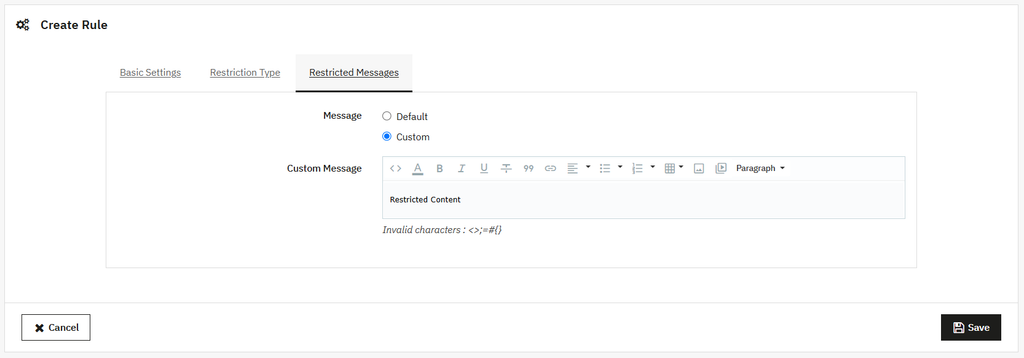
General Setting
You can:
- Active Module: Enable/Disable the module easily.
Catalog Restriction Rules
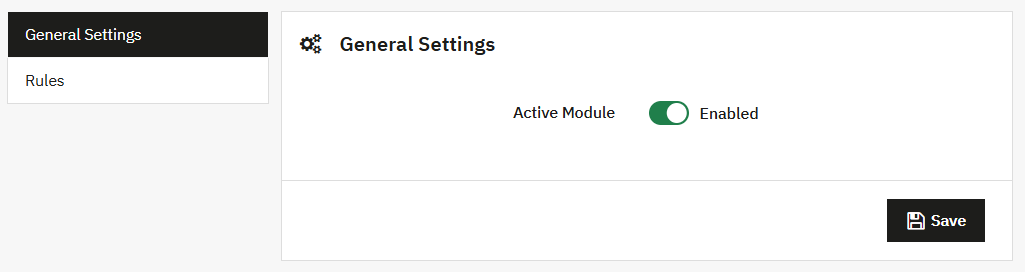
Click to open the rule tab, where you can view the list of all existing rules in a grid and also create a new rule.
Grid View:
- ID: Display the rule ID.
- Title: Show the title of the rule.
- Priority: Show the rule priority.
- Status: Display the status of the rule.
- Added Date: Display the added date of the Rule.
- Update Date: Display the updated date of the Rule.
Creating New Catalog Restriction Rule
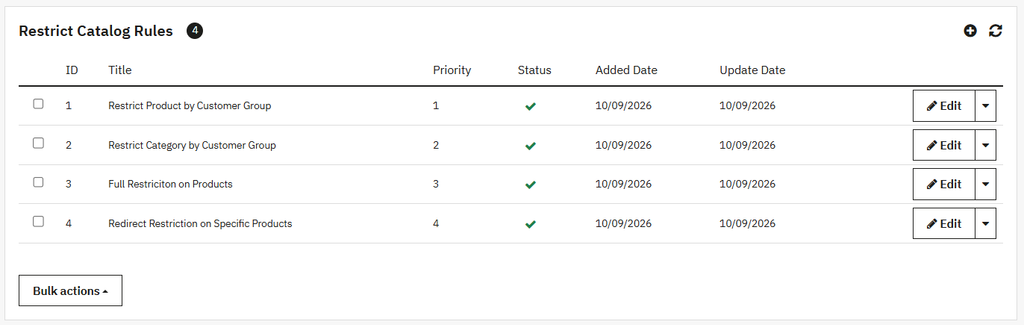
Click on Add new button to create a new rule. To create a new rule, you can:
Basic Settings
- Rule Active: Active/inactive the rule as needed.
- Title: Enter the custom title of the rule.
- Priority: Set the priority of the rule.
- Private By Groups: Enable this to restrict the product catalog for specific customers. To specify the user, you can:
- Group: Choose the specific customer from the list.
- Private Products: Enable this to restrict the specific product. To hide the product, you can:
- Search Product: Search specific product to privatize.
- Private Categories: Restrict the specific categories for a specific customer. You can:
- Category: Select the specific categories from the list.
- Private CMS pages: Restrict the CMS page for a specific user. Once you enable this module:
- CMS Pages: Select specific pages from the list.
- Private By Supplier: Enable/Disable this option as needed. If enabled:
- Supplier: Select the supplier you want to make private.
- Private By Manufacturer: Enable/Disable this option as needed. If enabled:
- Manufacturer: Select the manufacturer you want to make private.
- Rule Scheduling: Enable this to schedule the rule. To schedule the rule, you can:
- Rule Validity form: Add the ending date or form date of rule validity.
- Rule Validity To: Add the start or To date of rule validity.
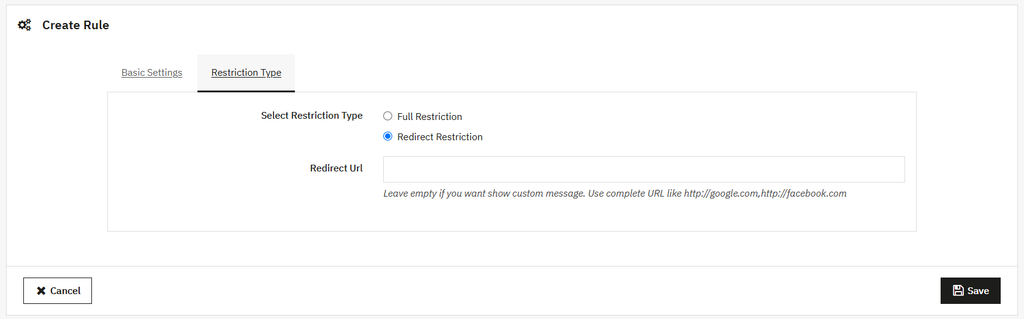
Restriction Type
You can:
- Select Restriction Type: Select the type of restriction, such as:
- Full Restriction: Apply restriction on the complete catalog.
- Redirect Restriction: Redirect the customer to the other product.
- Redirect URL: Add the URL for redirection.
Restricted Messages
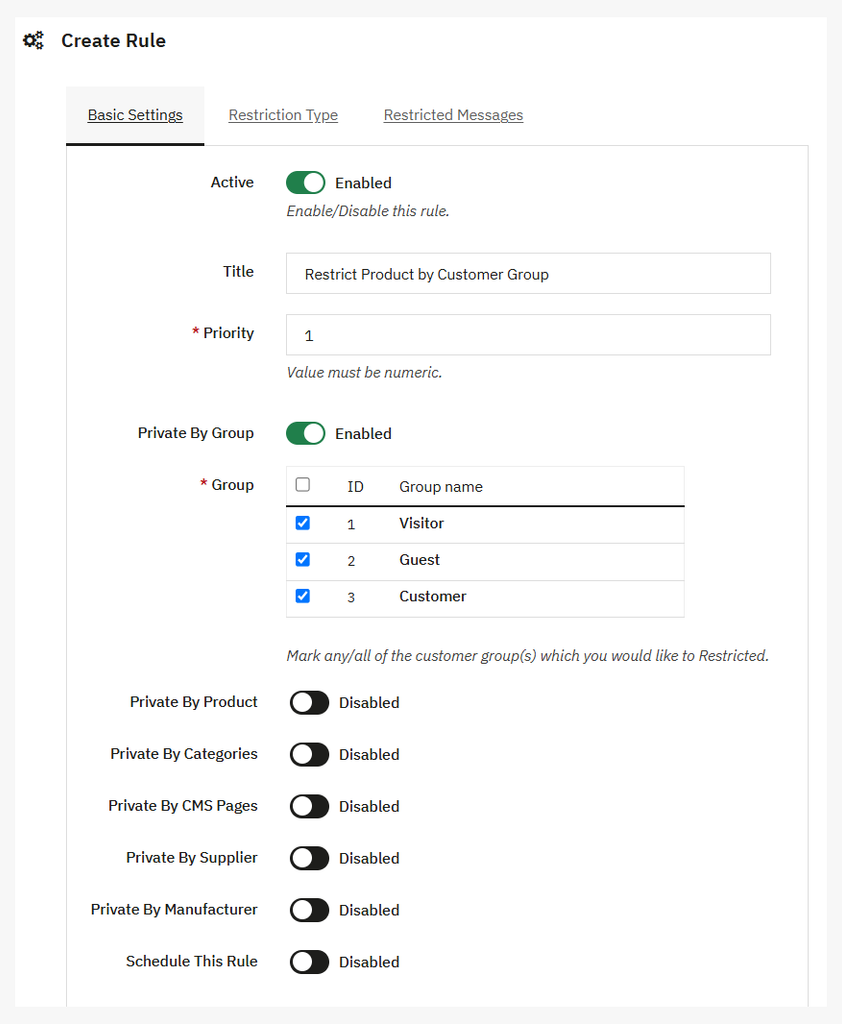
When a user applies a complete restriction on the entire stock, they may need to inform customers through custom messages. To display these messages, you can:
- Default: Select this option to show the default message on the screen.
- Custom: Select this option if you want to display your own message. To add a custom message:
- Custom Message: Enter the desired message that you want to display on the store.