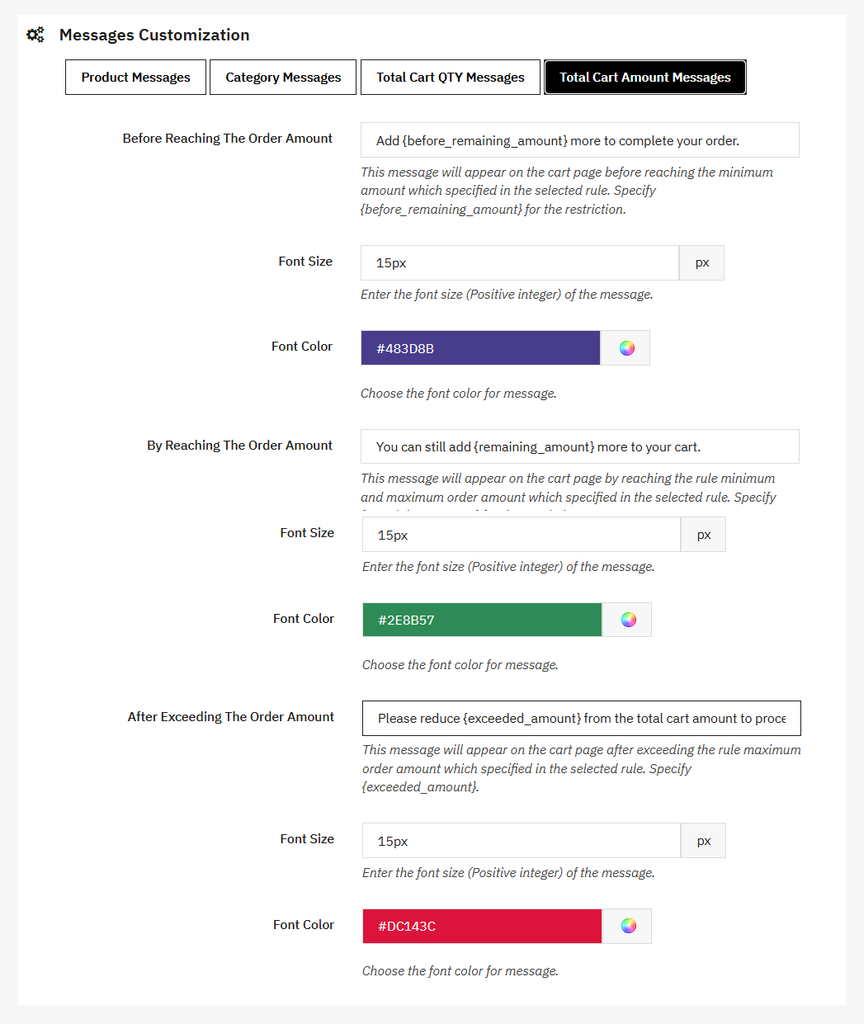
Click on the “Order Restriction Settings” option and configure the following settings:
General Setting
In the General setting, you can:
- Active Module: Active/Inactive this module as needed.
Order Restriction Rules
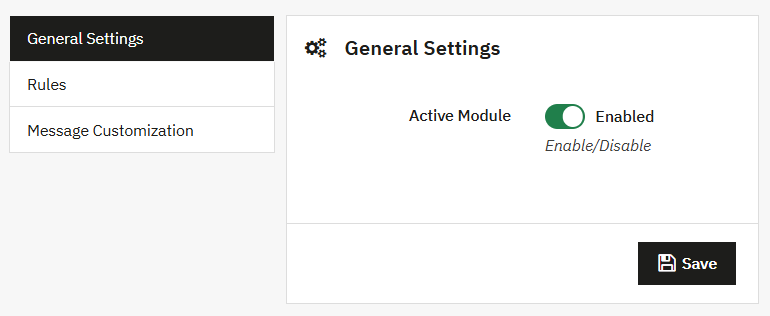
Click to open the rule tab, where you can view the list of all existing rules in a grid and also create a new rule.
Grid View:
- ID: Display the ruke ID.
- Title: Show the title of the rule.
- Priority: Show the rule priority.
- Status: Display the status of the rule.
- Created at: Display the created date of the Rule.
- Last modification: Display the last updated date of the Rule.
Creating New Order Restriction Rule
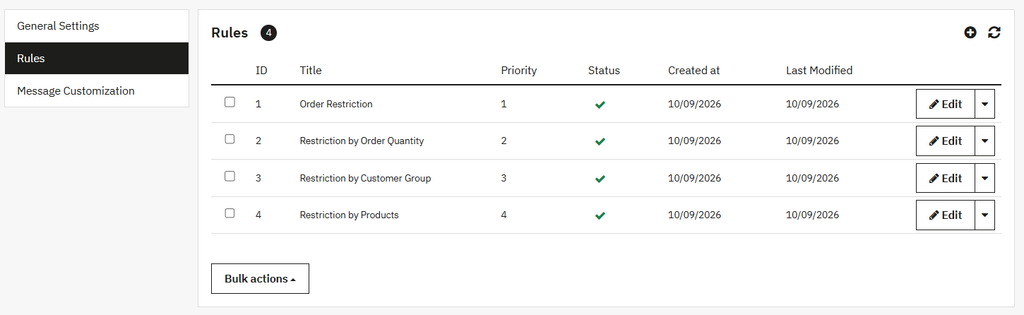
Click on Add new button to create a new rule. To create a new rule, you can:
- Active Rule: Active/inactive the rule as needed.
- Rule Name: Enter the name of the rule.
- Rule Priority: Set the priority of the rule.
- Customer Group: Enable/disable the customer group selection. If enabled
- User Group: Select a specific user who can view the orders.
- All products: Enable this to add the quotes button to the entire product/stock.
- Select Product Restriction: Enable/disable the product selection option. If enabled
- Search Product: Search and add the specific product from the list.
- Minimum product Quantity: Enter the minimum quantity of the product.
- Maximum Product Quantity: Enter the maximum quantity of the product.
- Previous Order Quantity Day limit: Enter the day limit for the previous order of the current customer to apply the restriction.
- Select Category Restriction: Enable this option to restrict the specific categories. Once enabled:
- Search Category: Add the specific category and restrict it.
- Minimum product Quantity: Enter the minimum quantity of the product.
- Maximum Product Quantity: Enter the maximum quantity of the product.
- Previous Order Quantity Day limit: Enter the day limit for the previous order of the current customer to apply the restriction.
- Rule Scheduler: Enable/Disable the rule scheduler as needed. If you enabled this:
- Rule Starting Date: Add the starting date of the rule scheduling.
- Rule Ending Date: Add the ending date of the rule scheduling.
Order Restriciton Message Customization
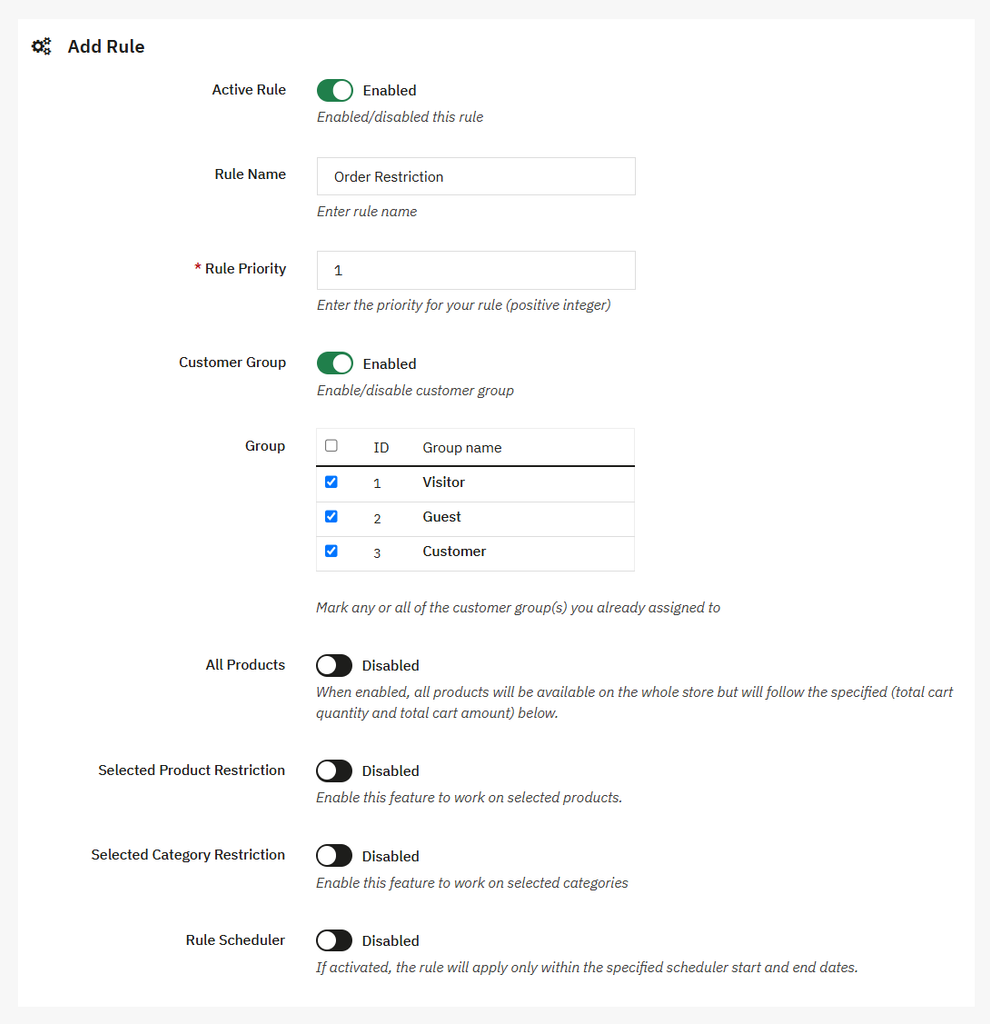
You can customize the message here to update the customer.
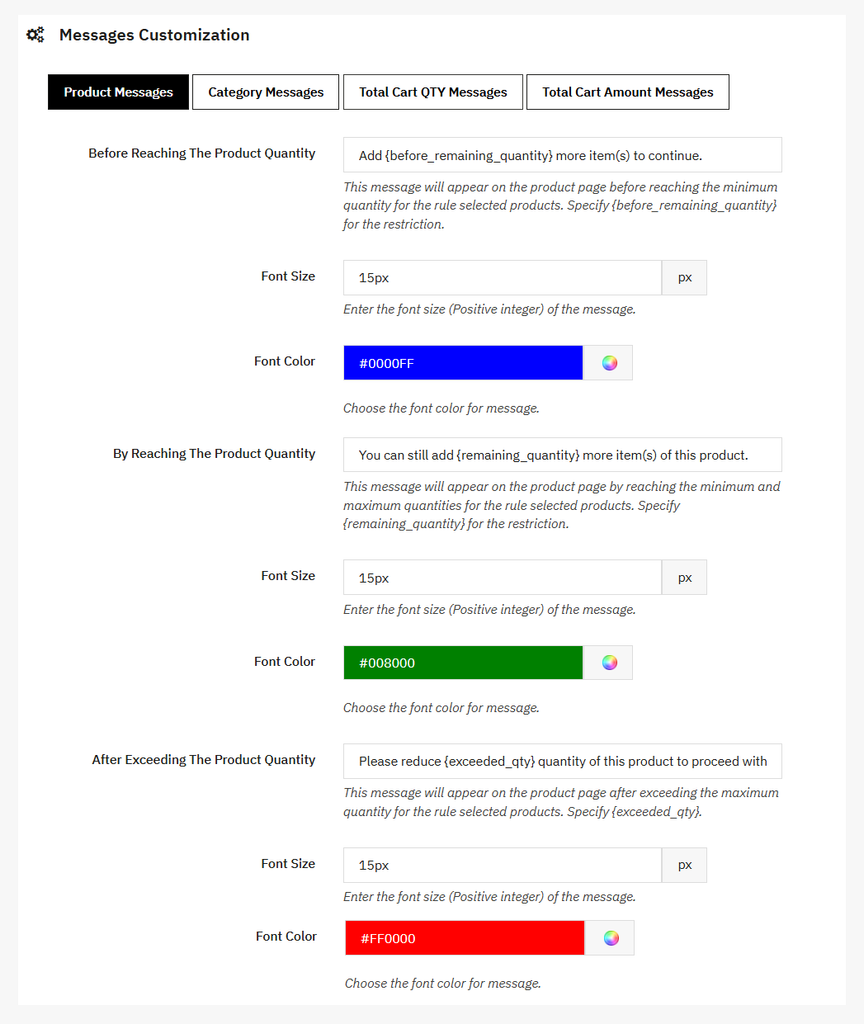
Product Based Restriciton Messages
To customize the product message, you can:
- Before reaching the product quantity: This message will appear before reaching the product quantity that is defined in the product rule.
- Font Size: Adjust the font size of the custom message.
- Font Color: Add the custom color of the font.
- By reaching the product quantity: This message will appear when the product quantity reaches the quantity that is defined in a product rule.
- Font Size: Adjust the font size of the custom message.
- Font Color: Add the custom color of the font.
- After exceeding the product quantity: This message will appear when the product quantity exceeds the maximum limit that is defined in a product rule.
- Font size: Adjust the font size of the custom message
- Font color: Add the custom color of the font.
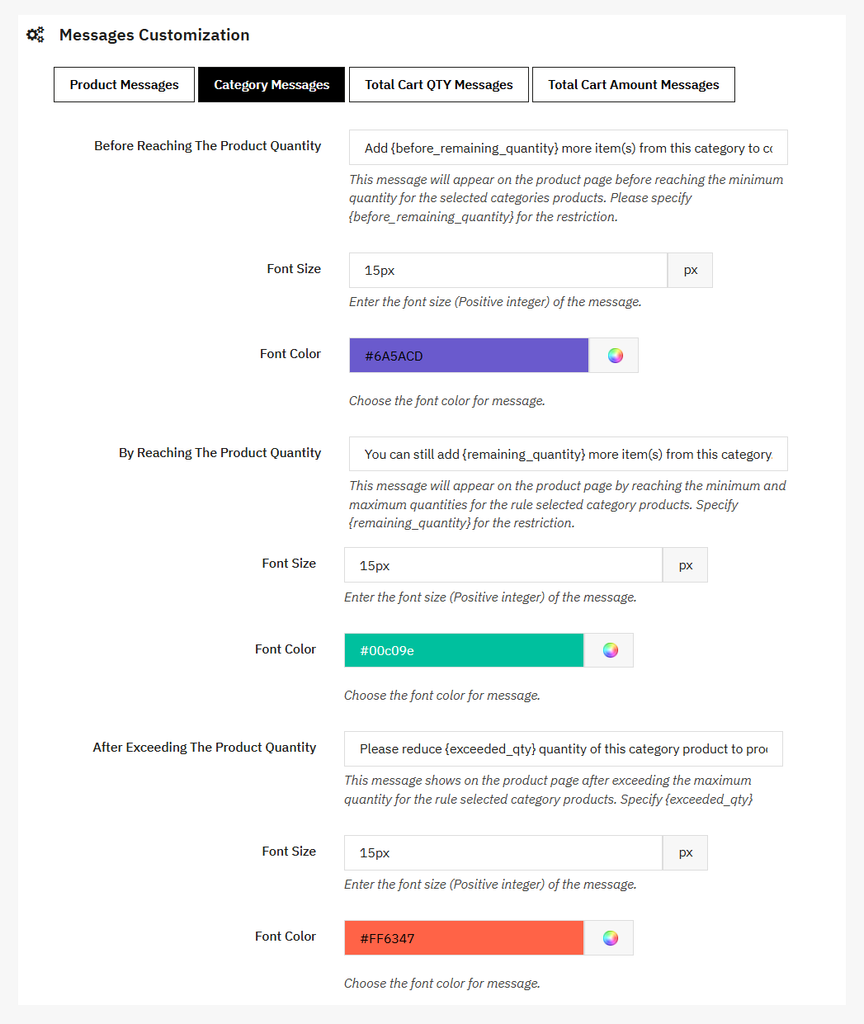
Category Based Restriciton Messages
To customize the category message, you can:
- Before reaching the product quantity: This message will appear before reaching the product quantity in the selected category.
- Font Size: Adjust the font size of the custom message.
- Font Color: Add the custom color of the font.
- By reaching the product quantity: This message will appear when the product quantity reaches the quantity that is defined in a product rule.
- Font Size: Adjust the font size of the custom message.
- Font Color: Add the custom color of the font.
- After exceeding the product quantity: This message will appear when the product quantity exceeds the maximum limit that is defined in a product rule.
- Font size: Adjust the font size of the custom message
- Font color: Add the custom color of the font.
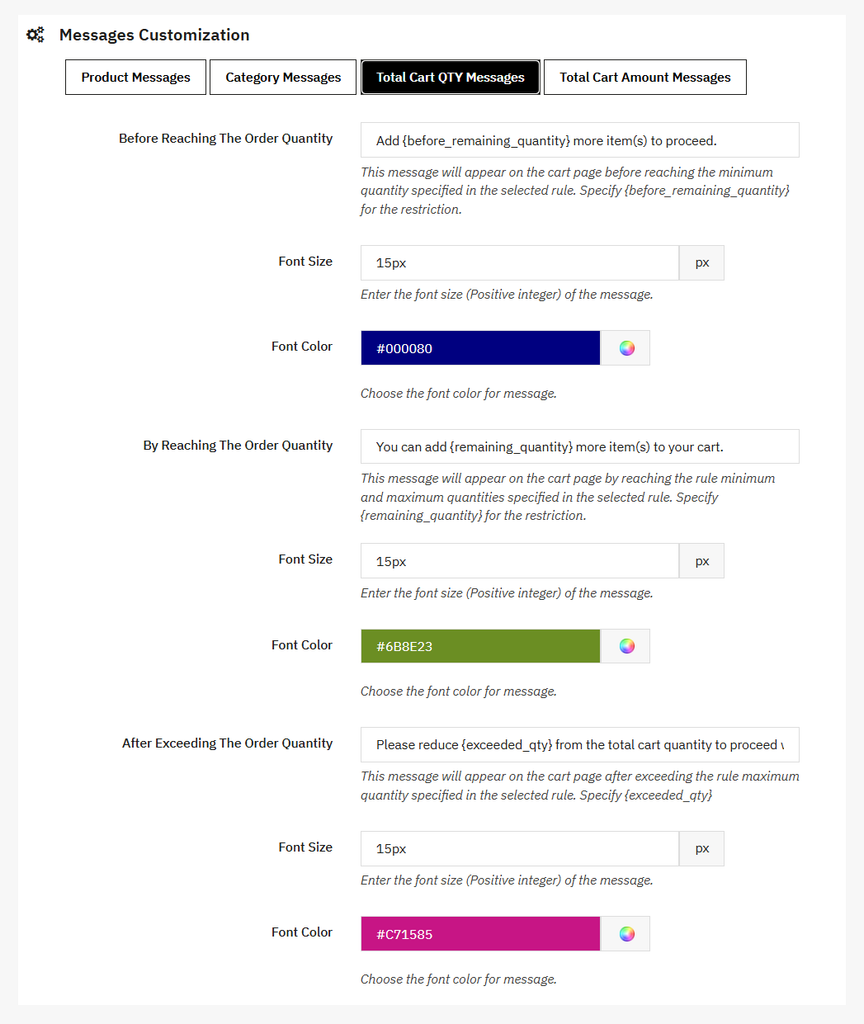
Cart Quantity Based Restriction Messages
To customize the total cart quantity message, you can:
- Before reaching the order quantity: This message will appear once the customer has not yet reached the quantity that is defined in the selected rule.
- Font Size: Adjust the font size of the custom message.
- Font Color: Add the custom color of the font.
- By reaching the order quantity: This message will appear when the customer reaches the quantity that is defined in a select rule.
- Font Size: Adjust the font size of the custom message.
- Font Color: Add the custom color of the font.
- After exceeding the order quantity: This message will appear when the customer exceeds the maximum limit that is defined in the selected rule.
- Font size: Adjust the font size of the custom message
- Font color: Add the custom color of the font.
Cart Amount Based Restriciton Messages
To customize the total cart amount messages, you can:
- Before reaching the order amount: This message will appear when the not yet reached the amount that is defined in the selected rule.
- Font Size: Adjust the font size of the custom message.
- Font Color: Add the custom color of the font.
- By reaching the order amount: This message will appear when the customer reaches the amount that is defined in a select rule.
- Font Size: Adjust the font size of the custom message.
- Font Color: Add the custom color of the font.
- After exceeding the order amount: This message will appear when the customer exceeds the maximum limit of the amount that is defined in the selected rule.
- Font size: Adjust the font size of the custom message
- Font color: Add the custom color of the font.