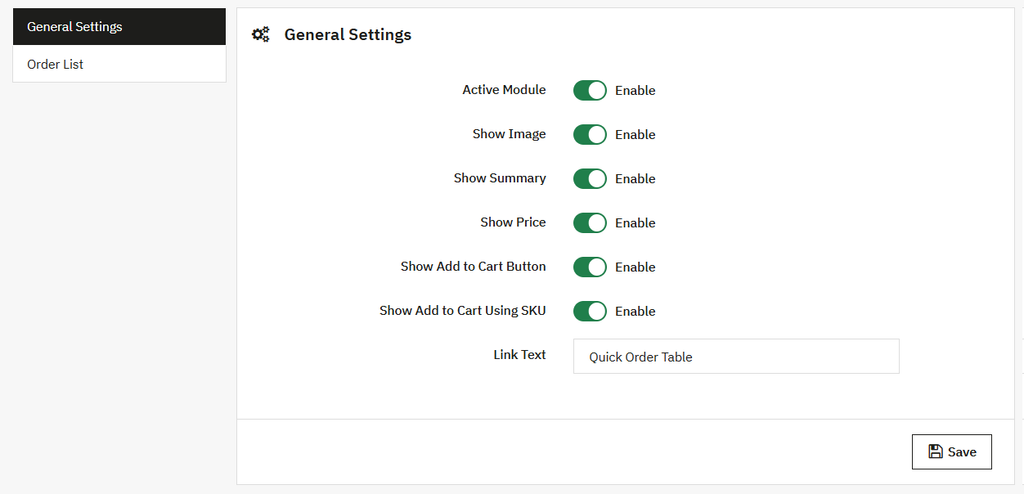
Click on the “Quick Order Settings” option and configure the following settings:
General Setting
In the General setting, you can:
- Active Module: Active/Inactive this module as needed.
- Show image: Show or hide the order image.
- Show Summary: Show or hide the summary of the order.
- Show Price: Enable this option to display the order price.
- Show Add to Cart Button: Enable this to show the add to cart button using a SKU.
- Link text: Add the text link to display the table of quick order.
- Save: Click on save button to implement them.
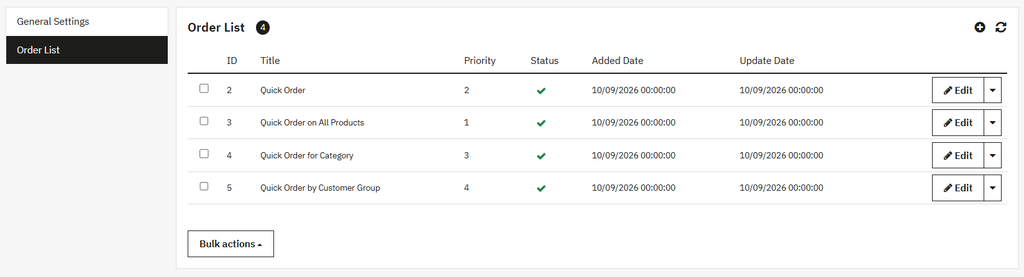
Quick Order List
Click to open the order list, where you can view the list of all existing orders in a grid and also create a new order.
Grid View:
In a Grid view, you can:
- ID: Display the ID of the order.
- Title: Display the title/name of the order.
- Priority: Show the order priority.
- Status: Display the status of the order, such as approved, rejected, or pending, etc.
- Added Date: Show the added date of the order.
- Update Date: Show the updated date of the order.
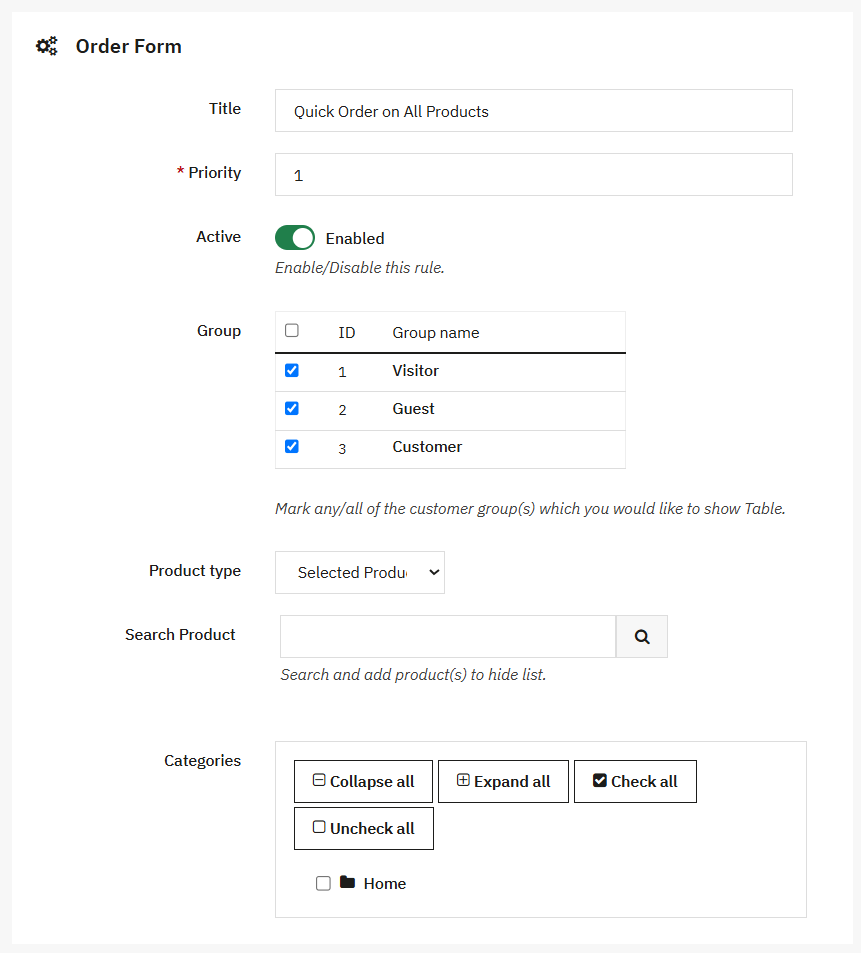
Creating New Order
To create a new order, click on the Add order (+) icon and add the following details:
- Title: Enter the title of the order.
- Priority: Set the priority of the order.
- Active: Active or inactive the order as needed.
- Group: Choose the specific customer in a group who can see the order.
- Product Type: Select the product type, such as all products, or choose some specific products. If you want to select a specific product and select this option, then:
- Search Product: The search field will open, where you can search and add the specific product.
- Categories: Select specific categories in a list.
- Save: Click on save button to implement them.