Click on the “Hide price and Add to Cart Settings” option and configure the following settings:
General Settings
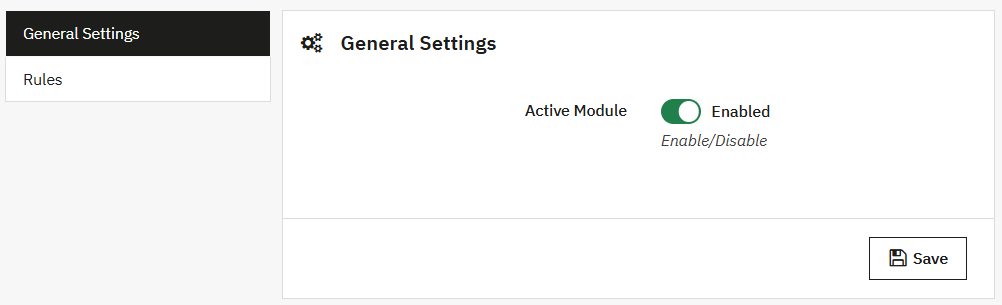
In the General setting, you can:
- Active Module: Active or Inactive the module as needed.
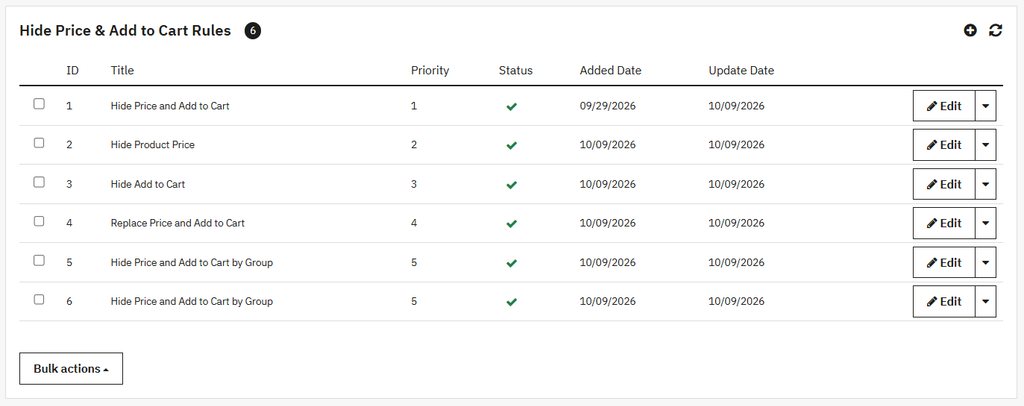
Hide Price & Add to Cart Rule Log
Click to open the rule tab, where you can view the list of all existing rules in a grid and also create a new rule.
Grid View:
In the Grid, you can view the details of:
- ID: Display the ID of the rule.
- Title: Display the title/name of the rule.
- Priority: Show the rule priority.
- Status: Display the status of the rule, such as approved, rejected, or pending, etc.
- Added Date: Show the added date of the rule.
- Update Date: Show the updated date of the rule.
- Edit: Edit any existing rule.
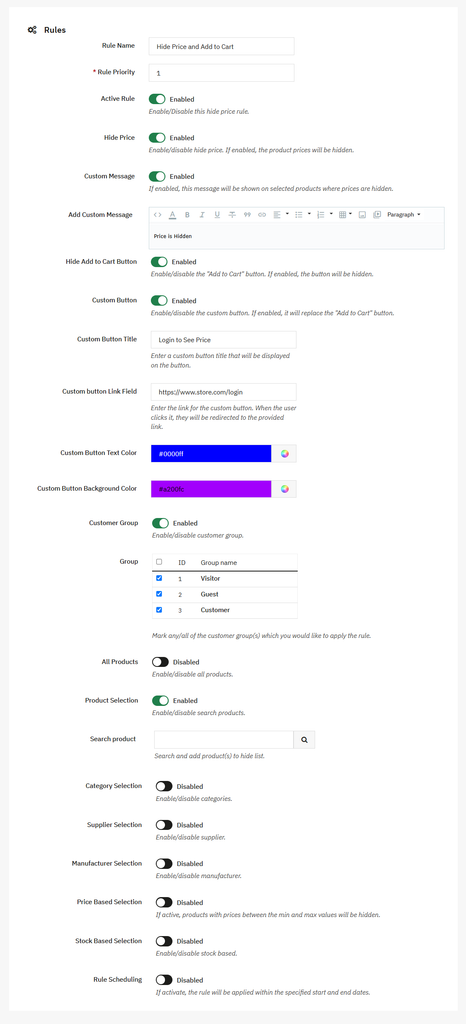
Creating New Hide Price and Add to Cart Rule
To create a new rule, click on the Add rule (+) icon and add the following details:
- Rule Name: Enter the name of the rule.
- Rule Priority: Set the priority of the rule.
- Active Rule: Active or inactive the rule as needed.
- Hide Price: Enable this option to hide the price of the product.
- Hide Add to Cart Button: Enable this option to hide the add to cart button for specific products.
- Customer Group: Enable this to select the specific customer group.
- Group: Choose the specific customer in a group who can see the order.
- All products: Enable this option if you want to apply the rule for all products.
- Product Selection: Enable this to select the rule for a specific product. If enabled:
- Search Product: Search and add the specific product.
- Category Selection: Enable or disable this option as needed. If enabled:
- Categories: Select specific categories in a list.
- Supplier selection: Enable/Disable the Supplier section option. If enabled:
- Supplier: Choose a specific supplier.
- Manufacturer Selection: Enable the manufacturer option. Once enabled:
- Manufacturer: You can add the specific manufacturer.
- Price-based selection: Enable/Disable this option based on your preference. If enabled:
- Minimum Price: Enter the minimum price.
- Maximum Price: Enter the maximum price.
- Stock-Based Selection: Enable/Disable the stock selection. If enabled:
- Product with zero stock: Enable this to apply the rule to out-of-stock products.
- Custom stock value: Enable or disable this option. If enabled:
- Custom Stock value: You can add the custom value of stock.
- Rule Scheduling: Enable this to schedule the rule. To schedule the rule, you can:
- Rule Start Date: Add the start date of the rule.
- Rule End Date: Set the end date of the rule.
- Save: Click on save button to implement them.